Depending on the entity type, ActivityHD enforces certain rules when combining records in order to ensure data integrity.
The Combine feature is available for the following entity types. Click the links to view the rules that apply when combining records of a particular type.
- GL accounts
- GL segment items
- AP vendors
- AP vendor classes
- AP vendor contacts
- AP vendor locations
- AR customers
- AR customer contacts
- AR customer locations
- ARCodes
- AR salespersons
- FA asset classes
Combine entity records
Combine entity records
- In the Navigation pane, highlight the entity folder that contains the records you want to combine.
- Start the Combine wizard by one of the following methods:
- To use filters to select the source record(s) to combine:
- Right-click the entity folder and select Select and Combine from the shortcut menu.
- On the Selection tab, define any filters to apply to the data.
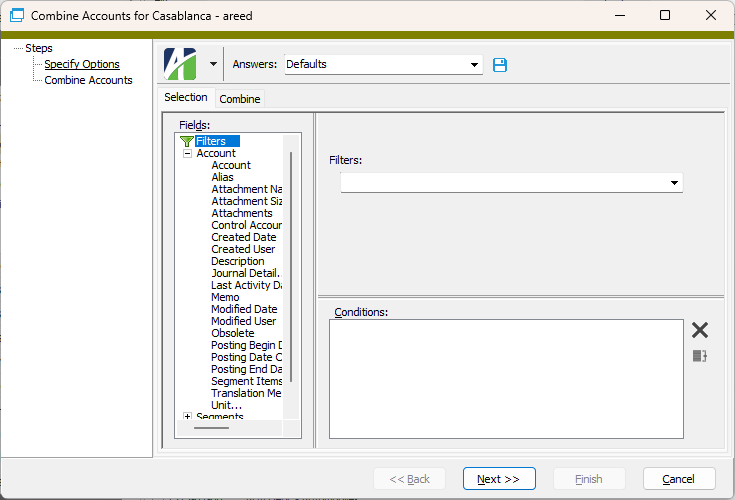
- To hand-select the source record(s) to combine:
- In the HD view, select the record(s) to combine. You can use Ctrl and/or Shift selection to select multiple records.
- Click
 .
.
- To use filters to select the source record(s) to combine:
- On the Combine tab in the Combine Into field, select the target record.
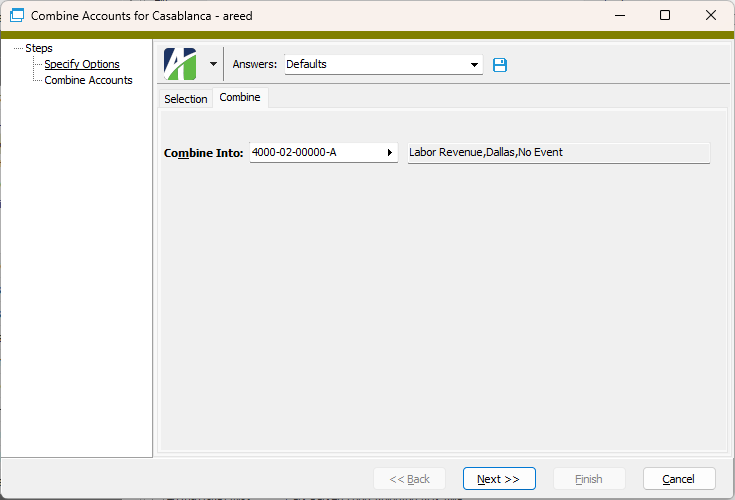
- Click Next >>. ActivityHD prompts you to confirm that you want to combine the selected records.
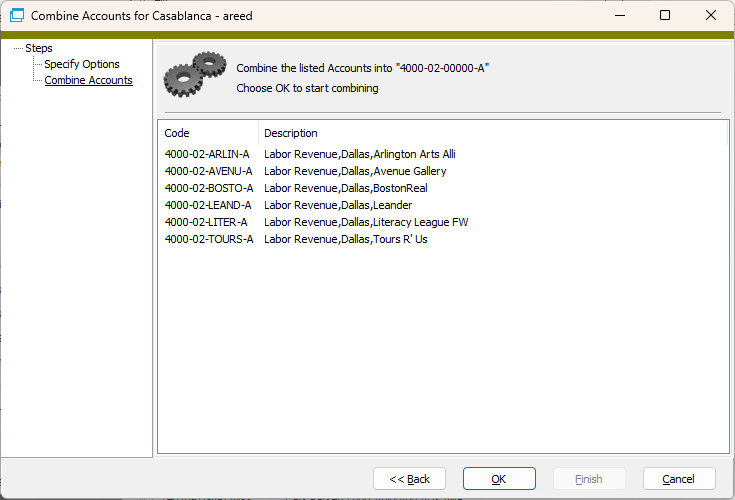
- Click OK.
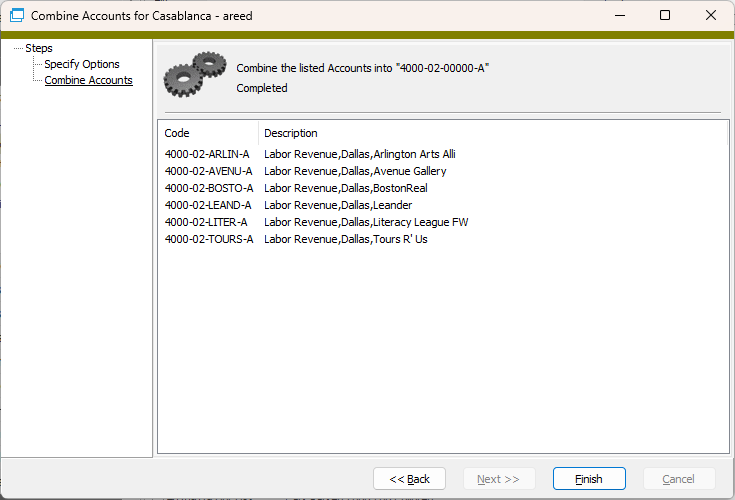
- When the process completes, click Finish.
Combine GL accounts
Rules
- The target account must be a valid account in the chart of accounts.
Results
All activity (i.e., postings) and references from the source account(s) are moved to the target account. The attributes of the target account are retained and the source account(s) are deleted.
Combine GL segment items
Rules
- Segment items cannot be combined if the segment is part of an active rollup.
- If combining segment items results in an account that matches an account with the source segment item but a similar account with the target segment item does not exist, only the account number is changed.
- If combining segment items results in an account that matches an account with the source segment item and a similar account with the target segment item exists, then the source segment item is combined into the target segment item.
Combine AP vendors
Results
Default APCodes from the source vendor are NOT copied to the target vendor.
Locations from the source vendor are copied to the target vendor; however, the default location flags are cleared before copying so that there are no conflicts with the target vendor's default location flags.
Combine AP vendor contacts
Rules
- The target vendor contact and the source vendor contact(s) must be associated with the same vendor.
Combine AP vendor locations
Rules
- The target vendor location and the source vendor location(s) must be associated with the same vendor.
Combine AR customers
Results
The following table describes how the Combine feature handles customer data.
| Data Element | Action |
|---|---|
| Contacts | Contacts from the source customer(s) are moved to the target customer. If the target customer already has a contact with the same name, the duplicate contact is not moved. |
| Locations |
Locations from the source customer(s) are moved to the target customer. If the target customer has a location with the same code, the original customer code is appended to the location being moved. Example If customer ACME_OFFICE is combined with target customer OFFICE_MART and both have a location of "Main", the "Main" address from ACME_OFFICE is moved to customer OFFICE_MART and assigned a location code of "Main [ACME_OFFICE]". |
| Invoices | All invoices from the source customer(s) are moved to the target customer. |
| Receipts | All receipts from the source customer(s) are moved to the target customer. |
| Statements | All statements from the source customer(s) are moved to the target customer. |
| Recurring Invoices | All recurring invoices from the source customer(s) are moved to the target customer. |
| Notes | Notes associated with the source customer(s) are merged with the notes for the target customer. |
| Attachments | Attachments associated with the source customer(s) are merged with the attachments for the target customer. |
| Data Links | Data links from the source customer(s) are NOT moved to the target customer. |
| Obsolete flag | If active source customer(s) are combined into an obsolete target customer, the resulting combined customer record retains the obsolete setting. |

|
Extras\Accounts Receivable\Combine Customers.xls |
Combine AR customer contacts
Rules
- The target customer contact and the source customer contact(s) must be associated with the same customer.
Results
Any notes and attachments associated with the source contact(s) are merged into the notes and attachments for the target contact.
Combine AR customer locations
Rules
- The target customer location and the source customer location(s) must be associated with the same customer.
Results
Any notes and attachments associated with the source location(s) are merged into the notes and attachments for the target location.
Combine ARCodes
Results
The following table describes how the Combine feature handles ARCode data.
| Data Element | Action |
|---|---|
| Attachments | Attachments associated with the source ARCode(s) are merged into the attachments for the target ARCode. |
| Invoice Detail Descriptions | No changes are made to existing invoice detail descriptions where the source ARCode(s) were used. |
| GL Account masks | To apply GL account masks from the target ARCode to unmerged invoice detail lines, select the invoices with those lines and use the Validate GL option. When you use this option, invoice detail accounts are only updated if the account was not previously overridden in any way. Invoice detail accounts that were previously overridden are displayed in purple in the Invoice and Invoice Detail windows. |
|
|
Extras\Accounts Receivable\Combine ARCodes.xls |
Combine AR salespersons
Results
Attachments for source salesperson(s) are merged into the attachments for the target salesperson.