Time sheet lines are the detail records on time sheets. You can view time sheet lines from the Payroll/Human Resources > Time Sheets > Time Sheet Lines folder. You can open time sheet lines in the Time Sheet Line window to view and maintain time sheet line records.
Certain fields on a time sheet line can be edited subsequent to time sheet creation. The detail line order and the Memo field are always editable. If the time sheet line does not have an import reference, most other fields are editable as well.
When you have a time sheet line record open, you can click to drill down to the time sheet that the detail line is associated with.
To maintain a time sheet line:
Maintain a time sheet line
In the Navigation pane, highlight the Payroll/Human Resources > Time Sheets > Time Sheet Lines folder.
In the HD view, locate and double-click the line you need to maintain to open it in the Time Sheet Line window.
Perform only the steps needed to update the time sheet line record.
If you need to renumber the detail lines on the time sheet this line is associated with, enter the numerical order for the time sheet line in the Detail Line field. ActivityHD adjusts the numbering of other detail lines for the time sheet accordingly.
Enter the Work Date for the time sheet line.
Note
ActivityHD warns you if you enter a date that is not in the range of dates for the payroll run, but ActivityHD does not prevent you from saving the date.
Select the Time Code that represents the PRCode you need to associate with the time sheet line. If you specify a time code, the associated PRCode loads in the PRCode field.
If you left the Time Code field blank, enter the PRCode to associate with the time sheet line.
The Source, Rate, and Result fields are conditionally enabled depending on the requirements of the PRCode. Enter the appropriate value(s).
Note
If you need to override the value in one of these fields and it is disabled, place your cursor in the field and select > File > Unlock Source/Rate/Result or press Ctrl+Alt+U to unlock the field for data entry.
Enter the Distribution Date for the time sheet line.
The Debit Account Mask defaults to the account mask derived from combining segments on the PRCode and attributes. If the account is not fully qualified or if the account does not exist, this field is enabled and its background is shaded yellow. If a fully-qualified derived account number has been changed to a different valid account number, the field is enabled and the account number displays in purple. Enter any part of the account number you need to complete or change. Time sheets and payroll can be processed even if this account number is incorrect; however, the account must be correct before you can post the resulting GL entry.
Note
If you need to override the account number mask and it is disabled, place your cursor in the field and select > File > Unlock Debit Account or press Ctrl+Alt+U to unlock the field for data entry.
In the Attributes section, select the appropriate attribute item for each attribute listed.
If needed, enter free-form text in the Memo field to provide additional information about the time sheet line. When a time sheet is processed, any memo on the time sheet line is copied to the resulting check line.
When you open a time sheet line from an imported time sheet in the Time Sheet Line window, you will notice that all fields except the Detail Line and Memo fields are disabled. ActivityHD locks down time sheet lines that have an import reference.
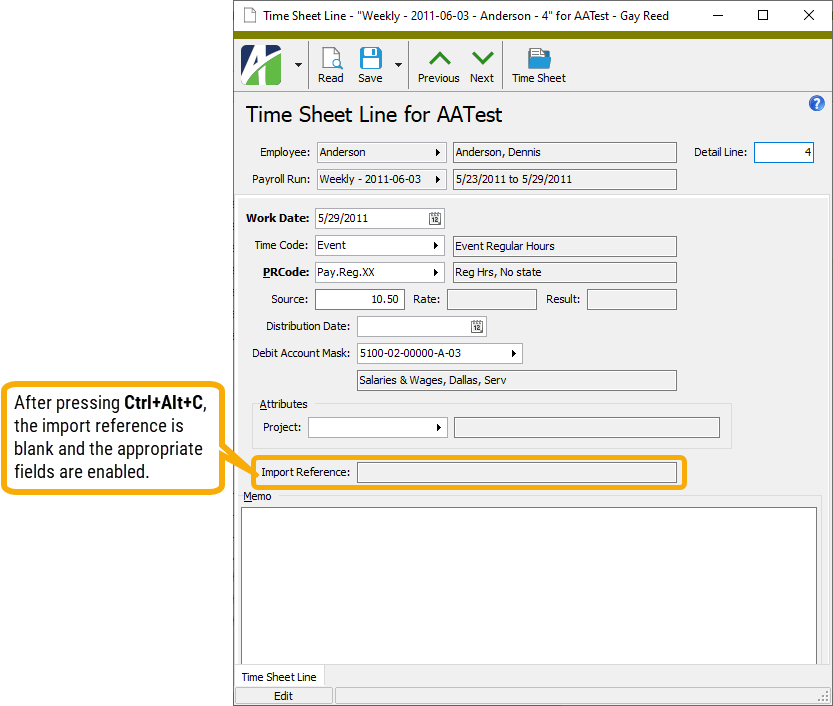
If you must edit a time sheet line from an imported time sheet, you can enable the applicable fields by clearing the import reference on the time sheet line. To do so, select > Tools > Clear Import Reference or press Ctrl+Alt+C.
To delete a time sheet line, highlight the time sheet line in the HD view and click , or open the time sheet line and select > Edit > Delete. In either case, ActivityHD prompts you to confirm your action. Click Delete to delete the time sheet line.
Note
If you attempt to delete an imported time sheet line, ActivityHD warns you that you are attempting to delete an imported line.
Click OK to confirm that you want to delete the time sheet line, then click Finish to complete the deletion process.
Time Sheet Line Record ID
Employee
Displays the employee associated with the time sheet line.
Press F3 to look up the value.
If a value is already selected, you can press F4 to open the record in its native editor.
Payroll Run
Displays the payroll run associated with the time sheet line.
Press F3 to look up the value.
If a value is already selected, you can press F4 to open the record in its native editor.
Detail Line
A number indicating the position of the time sheet line in the time sheet detail. If you need to reorder the time sheet lines on the time sheet, enter the new position of the time sheet line. ActivityHD adjusts the numbering of the other detail lines accordingly.
Time Sheet Line tab
Work Date
The work date for the time sheet line.
Time Code
The time code that represents the PRCode associated with the time sheet line.
Press F3 to look up the value.
If a value is already selected, you can press F4 to open the record in its native editor.
PRCode
The PRCode associated with the time sheet line. If a time code is specified, the PRCode defaults from the time code.
Press F3 to look up the value.
If a value is already selected, you can press F4 to open the record in its native editor.
The Source, Rate, and Result fields are conditionally enabled depending on the requirements of the PRCode. If one of these fields is locked and you need to override its value, you can select > File > Unlock Source/Rate/Result or press Ctrl+Alt+U to unlock the cell for data entry.
Source
The source amount needed to calculate this time sheet line.
Rate
The rate needed to calculate this time sheet line.
Result
The result for this time sheet line.
Distribution Date
The distribution date for this time sheet line. The default date is the work date unless it is overridden by a default distribution date on the payroll run.
Debit Account Mask
Unless overridden, this is the account mask derived from combining segments on the PRCode and attributes. The values supplied by the PRCode and attributes cannot be changed unless you unlock the account number. If wildcards remain in the account number, you can enter values for them.
If the account number is not fully qualified or if the account does not exist, the background is shaded yellow. If a fully qualified derived account number is changed to a different valid account number, the account number displays in purple. Time sheets and payroll can be processed even if this account number is incorrect; however, the account must be corrected before you can post the GL entry.
If the account number is disabled and you need to override it, place your cursor in the cell and select > File > Unlock Debit Account or press Ctrl+Alt+U to unlock the cell.
Press F2 to open the Account Expand dialog box where you can look up an account number, find an account number by its alias, build the account number by segment, or view setup and setup sources.
Press F3 to look up the account.
If an account is already selected, you can press F4 to open the record in the Account window.
Debit Account Description
Displays the description of the debit account if the account number is fully qualified. If the account number includes wildcards, this field is blank.
Attributes
This section shows the distribution attribute(s) defined and activated for usage in Payroll and the attribute item assigned to each attribute for this time sheet line.
Press F3 to look up the value.
If a value is already selected, you can press F4 to open the record in its native editor.
Import Reference
Displays the import reference if the time sheet line was imported; otherwise, this field is blank. An imported time sheet line cannot be edited unless you clear the import reference. If you must edit an imported time sheet line, select > Tools > Clear Import Reference or press Ctrl+Alt+C.
Memo
Additional information about the time sheet line. When a time sheet is processed, any memo on the time sheet line is copied to the resulting check line.
Time sheet lines security
Common accesses available on time sheet lines
Access
A user with this access can...
Change
Use the mass change action on time sheet lines.
Data
Have read-only access to time sheet lines from anywhere in the software (e.g., field validations, filters, date expressions).
Delete
Delete time sheet lines.
Edit
Edit time sheet line records.
Read
Have read-only access to time sheet line records.
Report
Run reports with time sheet line information.
Report Designs
Create and edit report designs with time sheet line information. This access enables the Report Designs button on the Output tab of report dialogs.
Shared Answers
Create and edit saved answers related to time sheet lines.
Shared Filters
Create and edit shared filters on time sheet lines.
Visible
View the Time Sheet Lines folder in the Navigation pane.
Time sheet lines filters
The following built-in filters are available for time sheet lines:
Filter Name
Effect
? Check Date
Prompts for a check date and lists the time sheet lines for that date.
? Employee Code
Prompts for an employee code and lists time sheet lines for employees with an employee code that contains the specified search string.
? Employee Name
Prompts for an employee name and lists time sheet lines for employees with a name that contains the specified search string.
? Group
Prompts for a payroll group and lists time sheet lines for that payroll group.
? PRCode
Prompts for a PRCode and lists time sheet lines with a PRCode that contains the specified search string.
Current Employees
Lists time sheet lines for current employees.
Terminated Employees
Lists time sheet lines for terminated employees.
Unprocessed
Lists the time sheet lines which are not yet associated with checks.
 Maintain a time sheet line
 to drill down to the time sheet that the detail line is associated with.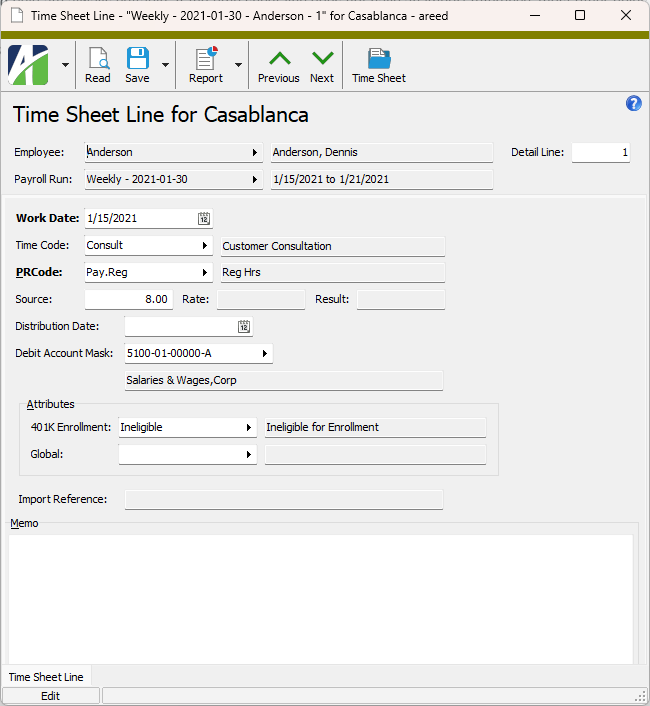
 > File > Unlock Source/Rate/Result or press Ctrl+Alt+U to unlock the field for data entry.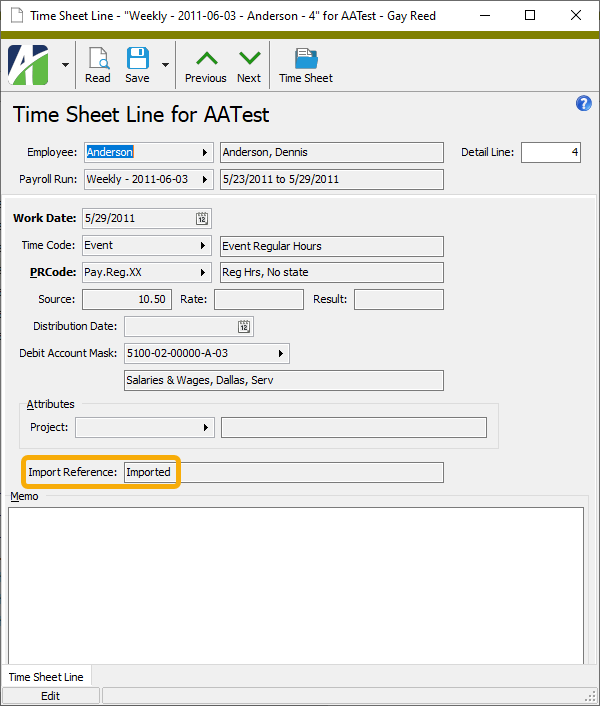
 , or open the time sheet line and select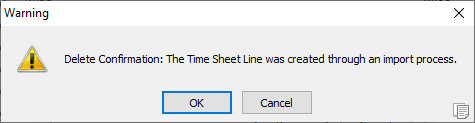
 > File > Unlock Source/Rate/Result or press Ctrl+Alt+U to unlock the cell for data entry.