ActivityHD ribbon
The ActivityHD ribbon provides tools in Excel for creating, calculating, and producing financial statements. To activate the ribbon, the ribbon add-in must be registered (see below). Once registered, the ribbon is visible among the other Excel ribbons.


Until ActivReporter 9.10-0, an XLAM add-in was used to provide the ActivReporter ribbon and its features in Excel. The XLAM add-in required each user to register the add-in in order to use it. In 9.10-0 and later releases, the same functionality is provided by a COM add-in named "ActivityHDExcel.dll". The COM add-in is automatically registered for all users on the machine where ActivReporter is installed. The COM add-in provides all the functionality formerly provided by the XLAM add-in.
When you open an Excel workbook that previously used the XLAM add-in for the first time after upgrading to 9.10-0 or later you are prompted to convert the workbook for use with the COM add-in. While conversion to use the COM add-in is optional, AccountingWare recommends conversion especially for advanced and technical users.
Note
The XLAM add-in has been retained for backward compatibility with import macros and various automation tasks; therefore, existing Excel workbooks that have not been converted to use the COM add-in are still usable.
Click on a menu group below to reveal the commands available in the group.
Connect
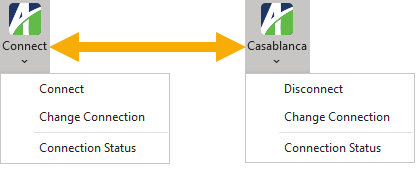
- Connect/Disconnect
-
When this command is labeled "Connect", Excel is not connected to a data source. Select Connect to connect to a server and company database.
When this command is labeled "Disconnect", Excel is connected to a data source. Select Disconnect to end the current connection.
- Change Connection
- Select this command to disconnect from the current data source, and to connect to a different data source.
- Connection Status
-
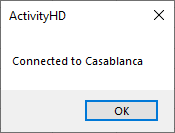
Select this command to view the current connection status. A popup opens to inform you.
Output
Save
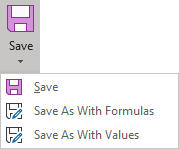
- Save
- Saves incremental changes using the same file name and folder location.
- Save As With Formulas
- Saves incremental changes, but provides the opportunity to save with a different file name and folder location.
- Save As With Values
- Saves the file with a designated file name and folder location, replacing formulas with values and protecting the worksheet(s) so that values cannot be changed inadvertently. Drill-down ability is preserved.
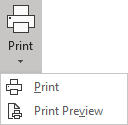
- Sends the print selection to the designated printer.
- Print Preview
- Provides a preview of the print selection.
Combine

- Combine
- Combines the open workbook with one or more workbooks you select. The source files are not changed when a Combine action is performed.
Calculation
Calculate
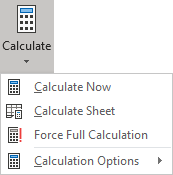
- Calculate Now (F9)
- Manually recalculates all open worksheets, including data tables.
- Calculate Sheet (Shift+F9)
- Manually recalculates the current worksheet.
- Force Full Calculation
- Performs a full calculation of the data and rebuilds the dependencies for all open workbooks.
- Calculation Options
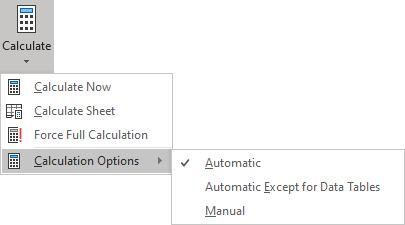
- Automatic
- (Default) Recalculates all dependent formulas every time a change occurs to a value, formula, or name.
- Partial
- Recalculates all dependent formulas, except data tables, every time a change occurs to a value, formula, or name.
- Manual
- Recalculates open workbooks only when the user presses F9 or clicks Calculate Now.
- Format Stale Values
- This option is enabled when the selected calculation option is "Partial" or "Manual". When turned on, shows stale values with strikethrough. A value is stale when the cell it depends on has changed but the cell has not been recalculated yet. The strikethrough is removed after recalculation (e.g., using Calculate Now or pressing F9).
- Compatibility Version
- Compatibility Versions contain improvements to Excel functions that update based on which setting you choose. Select the desired version from the submenu. Your options are:
- Version 1. All versions of Excel have access to this version. Version 1 is compatible with legacy Excel.
- Version 2 (Recommended). Versions of Excel for Microsoft 365 have access to this version. This version has support for surrogate pairs affecting the following functions: LEN, MID, FIND, SEARCH, REPLACE.
Refresh
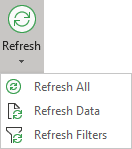
- Refresh All
- (Default) Refreshes data and filters in one step.
- Refresh Data
- Clears the cache of the financial calculator and runs Excel's "CalculateFullRebuild" method (same method as Calculate > Force Full Calculation). This results in the most current information displaying in the financial design.
- Refresh Filters
- Refreshes filters only. No recalculation or cache-clearing is performed. This command is often used to resolve show/hide issues.
Options

- Options
-
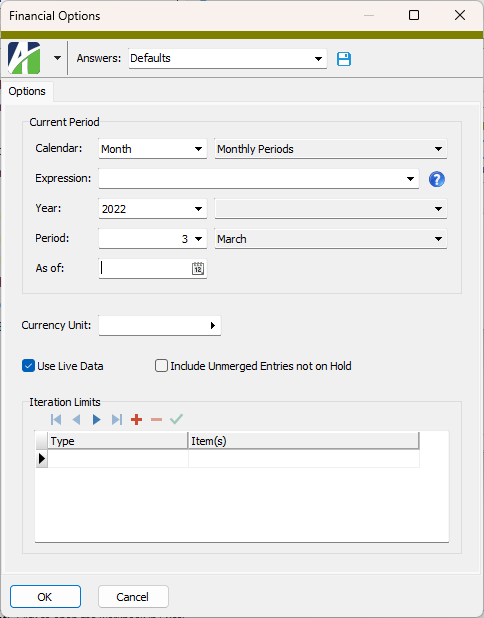
Opens the Financial Options dialog.
Drilldown

- Drilldown
- The button is enabled when the cell selected in the worksheet can be drilled down on. Drilldown is only available when using live data. Click to drill down to the detail behind the cell currently selected in the worksheet.
Log
- Log
-
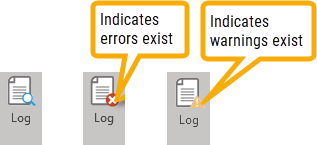
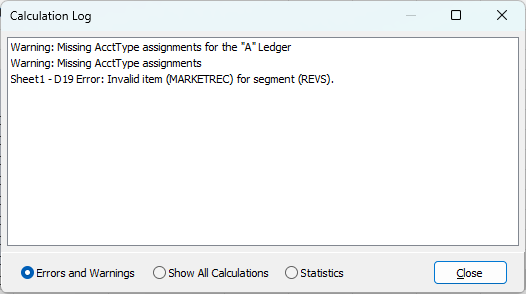
The button indicates when there are log entries for the current worksheet. Opens the Calculation Log where you can view calculation errors and warnings. Double-click a log entry to view the error or warning in a separate, more readable, window.
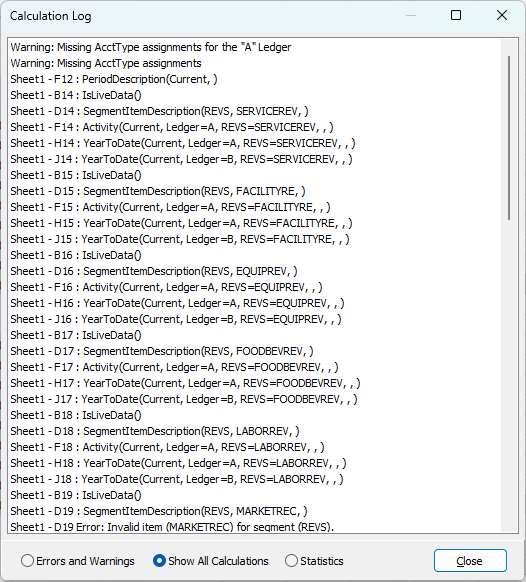
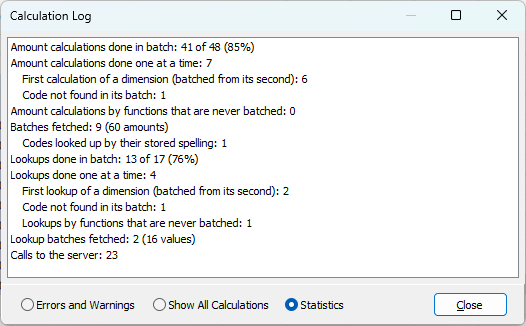
The Calculation Log dialog provides three views.
Errors and Warnings
Show All Calculations
Statistics
Following a recalculation, the Statistics view shows the number of amount calculations done in batch, the number done one at a time, the reason for each amount calculation done singly, the number of amount calculations that are never batched, the number of batches fetched, the number of lookups done in batch, the number of lookups done one at a time, the number of lookup batches fetched, and the total number of calls to the server.
Note
The Statistics view provides the most recent calculation only. The statistics are not saved with the workbook. When a workbook is reopened, the Statistics view initially shows the following message until the workbook is recalculated:
No calculation statistics. Recalculate to collect them.
Functions
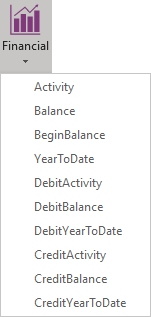
Financial
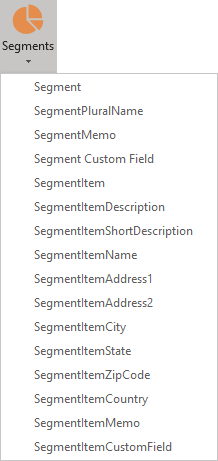
Segments
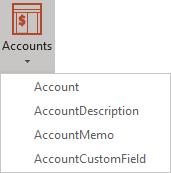
Accounts
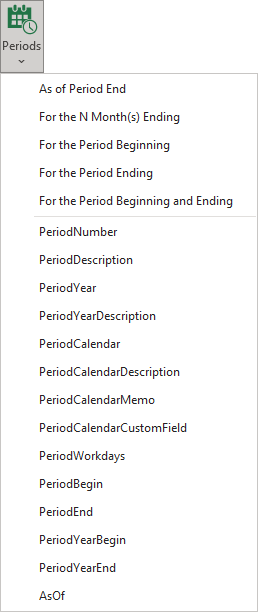
Periods
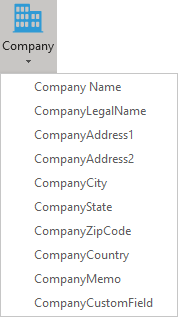
Company
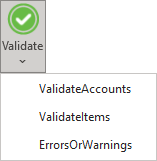
Validate
More
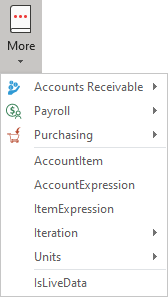
Accounts Receivable
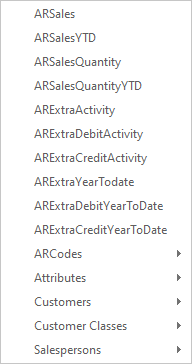
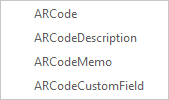
ARCodes
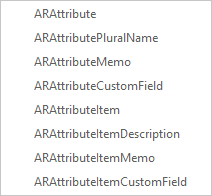
Attributes
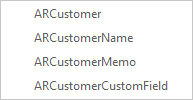
Customers
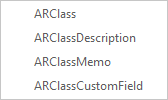
Customer Classes
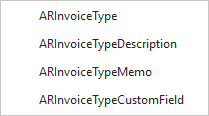
Invoice Types
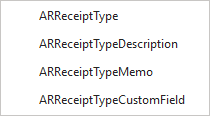
Receipt Types
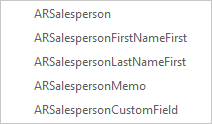
Salespersons
Payroll
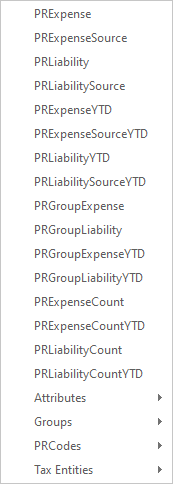
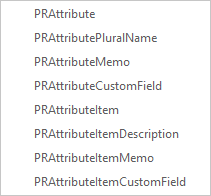
Attributes
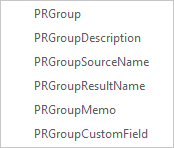
Groups
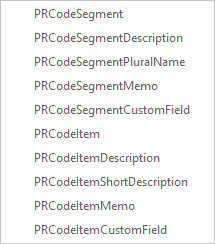
PRCodes
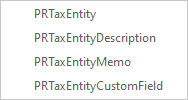
Tax Entities
Purchasing
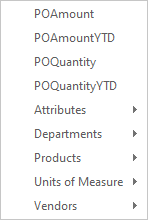
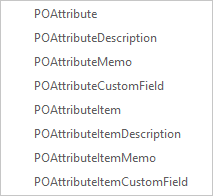
Attributes
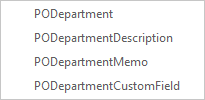
Departments
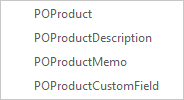
Products
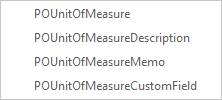
Units of Measure
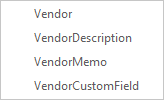
Vendors
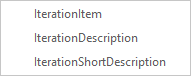
Iteration
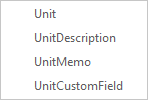
Units
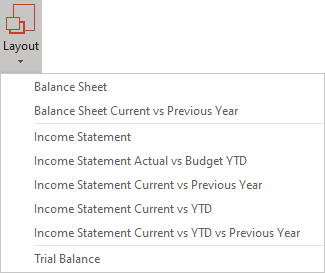
Layout
Layout
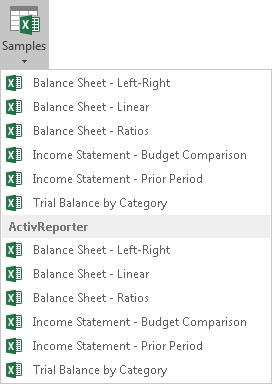
Samples
Print Area
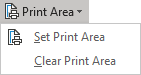
- Set Print Area
- Sets the currently selected cells as the print area.
- Clear Print Area
- Clears the print area(s) defined on the current worksheet.
- Add to Print Area
- This option is visible only if a print area is currently set and an area outside the print area is currently selected. Adds the selected cells to the print area.
Print View
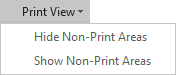
- Hide Non-Print Areas
- Hides the non-printing areas of the worksheet.
- Show Non-Print Areas
- Shows the non-printing areas of the worksheet.
Filter

- Filter
- Turns on and off filtering for the selected area. Click once to turn on filtering; click again to turn off filtering.
Clear

- Clear
- Clears the filter and sorting for the selected data.
Reapply

- Reapply
- Reapplies the filter and sorting for the selected data so that any changes made can be incorporated in the filter and sort.