1099 Record ID
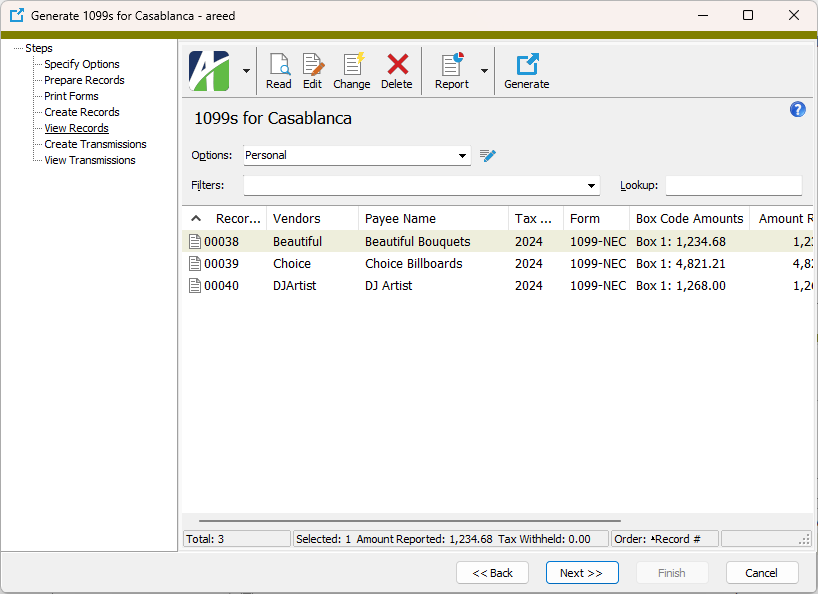
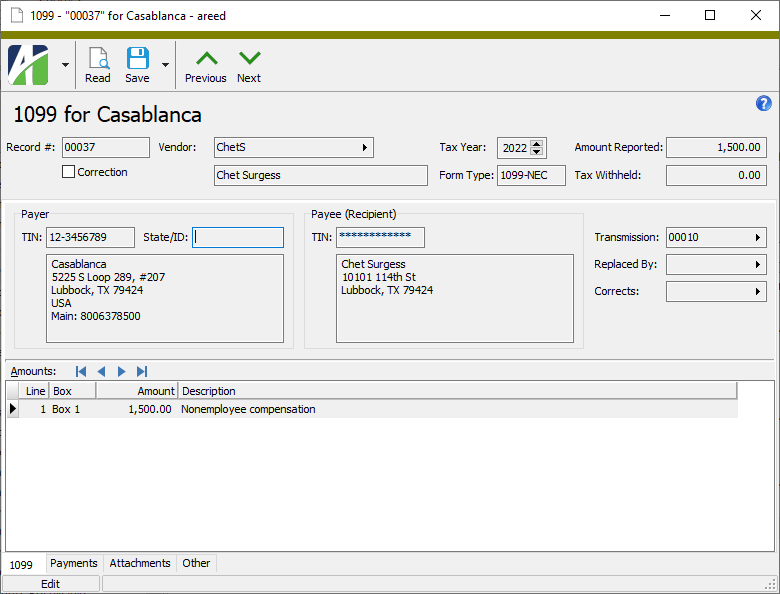
Record #
The system-assigned record number for the 1099.
Correction
If the checkbox is marked, indicates that the 1099 record is a correction 1099. The checkbox is system-maintained.
[Vendor/Vendors/Employee/Employees/Recipients]
If you do not have an alternate 1099 source configured to generate 1099s from payroll, the field is labeled "Vendor" and shows the vendor name and description of the 1099 recipient.
Press F3 to look up the value.
If a value is already selected, you can press F4 to open the record in its native editor.
If you have an alternate 1099 source configured to generate 1099s from payroll, the label on this field morphs depending on whether the 1099 record represents AP vendors, payroll employees, or both. Valid labels are:
- Vendor. The recipient is a single AP vendor. Shows the vendor name and description.
- Vendors. The recipients are multiple AP vendors.
- Employee. The recipient is an employee. Shows the employee code and name.
- Employees. The recipients are multiple employees.
- Recipients. The recipients are a combination of AP vendors and employees.
Press F2 to open the Recipients dialog box where you can see the list of AP vendors and payroll employees who are recipients of the 1099 and drill down to the vendor record or employee record of individual recipients.
Tax Year
The tax year the 1099 represents.
Form Type
The type of 1099 form. Valid types are:
- 1099-DIV
- 1099-INT
- 1099-MISC
- 1099-NEC
- 1099-R
Amount Reported
The total amount of income reported on the 1099.
Tax Withheld
The amount of tax withheld as reported on the 1099.
1099 tab
Payer
Identifying information for the payer.
TIN
The payer's tax identification number.
State/ID
If applicable, the payer's state and state identification number.
[Payer Information]
The payer's name, address, and phone number.
Payee (Recipient)
Identifying information for the payee.
TIN
The payee's tax identification number.
[Payee Information]
The payee's name and address.
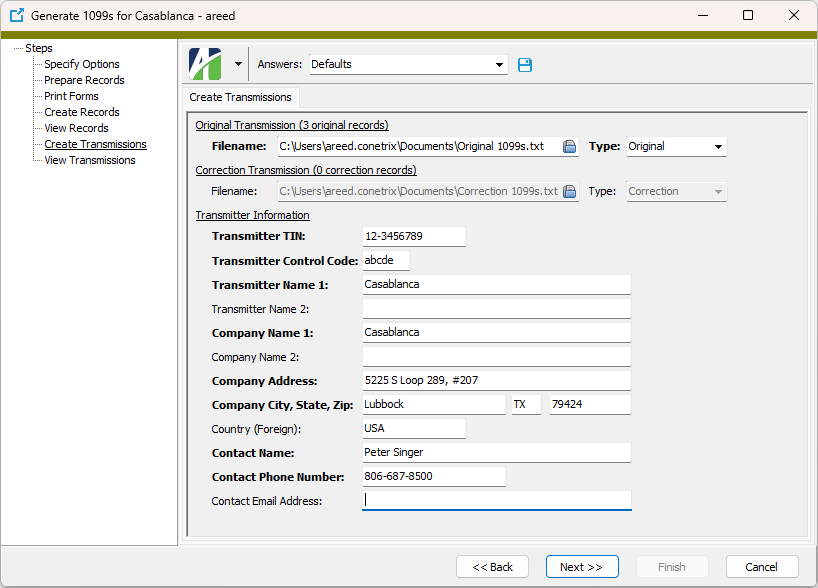
Transmission
The transmission number the 1099 was transmitted with.
Press F3 to look up the value.
If a value is already selected, you can press F4 to open the record in its native editor.
Press F3 to look up the value.
If a value is already selected, you can press F4 to open the record in its native editor.
Press F3 to look up the value.
If a value is already selected, you can press F4 to open the record in its native editor.
The next two fields are visible only when a 1099 record is selected in the Corrects field.
Date
The date of the correction.
Type
The type of correction. Valid correction types are:
- <blank>. An original 1099; not a correction.
- 1 of 1 (Zero). A zero correction for a one-transaction correction. Corrected return indicator = "G".
- 1 or 2 (Zero). A zero correction for a two-transaction correction. Corrected return indicator = "G".
- 1 of 1 (Value). A values correction for a one-transaction correction. Corrected return indicator = "G".
- 2 of 2 (Value). A values correction for a two-transaction correction. Corrected return indicator = "C".
Amounts table
Lists, by box, the amounts reported on the 1099.
Box
The 1099 box number associated with the amount on the detail line.
Amount
The amount reported in the box associated with the detail line.
Description
The description of the amount in the box associated with the detail line.
Payments tab
The Payment APCodes pane shows the Payment APCodes HD view filtered to show all APCode detail for payments with an APCode distribution that includes the selected APCode.
Double-click a row in the pane to drill down to its record in the Payment window.
Payroll Detail tab
A custom database view is required to show this tab with 1099 records from Payroll. If a custom database view is not available, a banner message is shown to notify you of the requirement.
The Payroll Detail pane shows the Check Lines HD view filtered to show payroll check lines included in the 1099 totals for the employee for the tax year and 1099 form type.
Double-click a row in the pane to drill down to its record in the Check Line window.
The Attachments tab is visible if any record for a given entity has an attachment. If the Attachments tab is not visible, this implies that no record of the entity type has an attachment on it; however, once an attachment is added to any record of the entity type, the Attachments tab will become available.
Attachments
The list box shows the files which are attached to the current record. Highlight a file name to preview the file in the adjacent pane. Double-click a file name to open the file in its native editor.
Preview pane
If a file name is highlighted in the Attachments list box, this pane shows a preview of the file contents. Some file types cannot be previewed but can be double-clicked to open in their native editor.
Change Logs tab
This tab is visible if the user has "Change Logs" access to the associated data folder resource.
The Change Logs pane shows the Change Logs HD view filtered to show all change logs for the selected entity record.
Double-click a row in the pane to drill down to its record in the Change Log window.
Other tab
Memo tab
To include additional information about this record not collected elsewhere, enter it in this text box. This area supports common keyboard shortcuts such as Ctrl+C to copy and Ctrl+V to paste.
Timestamps tab
This tab shows the user who created this record and the date and time of creation as well as the user, date, and time of the latest modification to the record.
Developer tab
This tab is visible only when developer features are enabled.
Automation subtab
This subtab shows field names and values for the current data record. Use the information in the subtab to assist when creating automation objects such as bots and import files. The field names and field values can be copied from the text box and pasted directly into your code or application. To copy content from the text box, highlight the content to copy and press Ctrl+C or right-click your selection and select Copy from the context menu.
Export (XML | JSON) subtab
This subtab shows the XML syntax for exporting the selected data record. The syntax can be copied from the text box as an exemplar for creating your own automation objects for bots, import files, ActivWebAPI, etc. To copy content from the text box, highlight the content to copy and press Ctrl+C or right-click your selection and select Copy from the context menu.
Import (XML | JSON) subtab
This subtab allows you to select a file for import and shows the XML syntax for importing data records. Use the subtab to explore the XML syntax for importing data records. In particular, you can investigate the syntax which results when using Data.Import and ActivWebAPI data POST and DELETE routes.
Change Log (XML | JSON) subtab
This subtab is visible only when the Enable Change Logs option is marked in System Options or Company Options (depending on whether the feature applies at the system or the company level). This is the default setting when developer features are enabled.
This subtab allows you to investigate changes to the current data record. The syntax can be copied for use in bots, dashboards, ActivWebAPI, and other automation. To copy content from the text box, highlight the content to copy and press Ctrl+C or right-click your selection and select Copy from the context menu.
Select Statement (SQL) subtab
This subtab allows you to investigate the SQL select statement used to retrieve the current data record. The syntax can be copied as an exemplar for data sources and other automation. To copy content from the text box, highlight the content to copy and press Ctrl+C or right-click your selection and select Copy from the context menu.
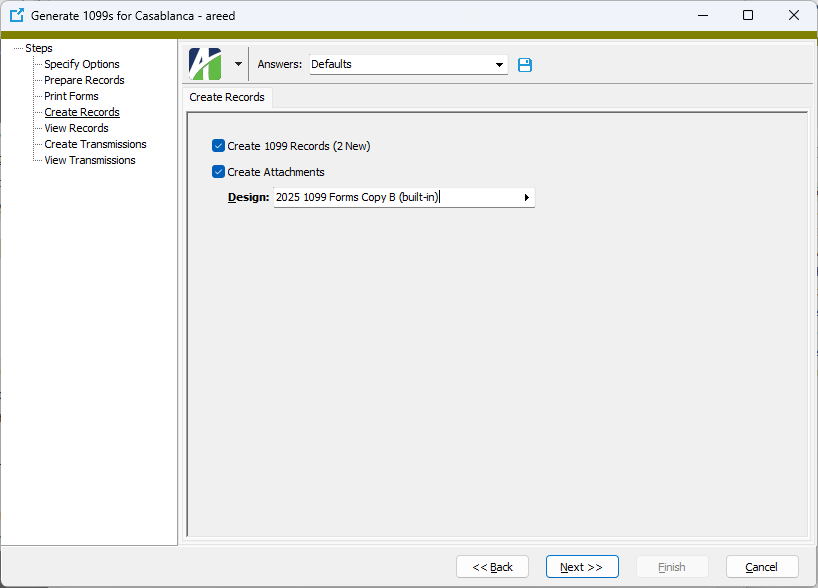
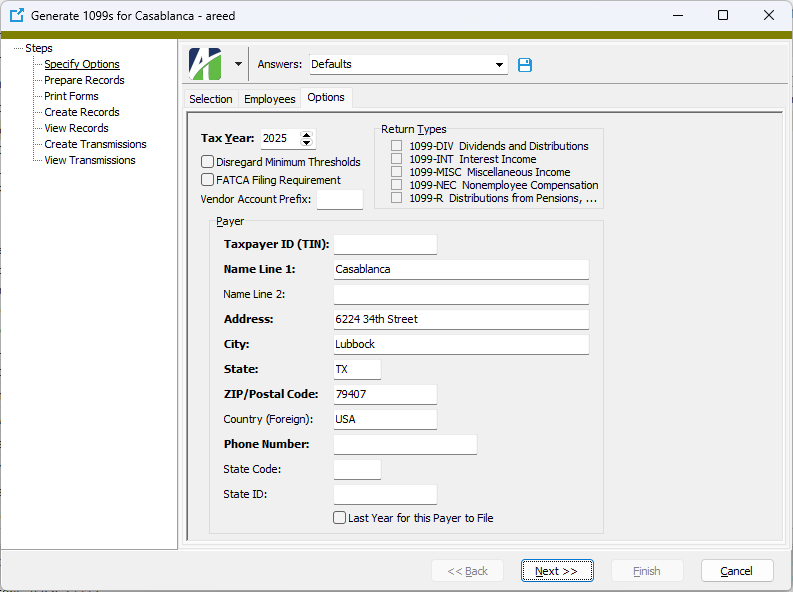
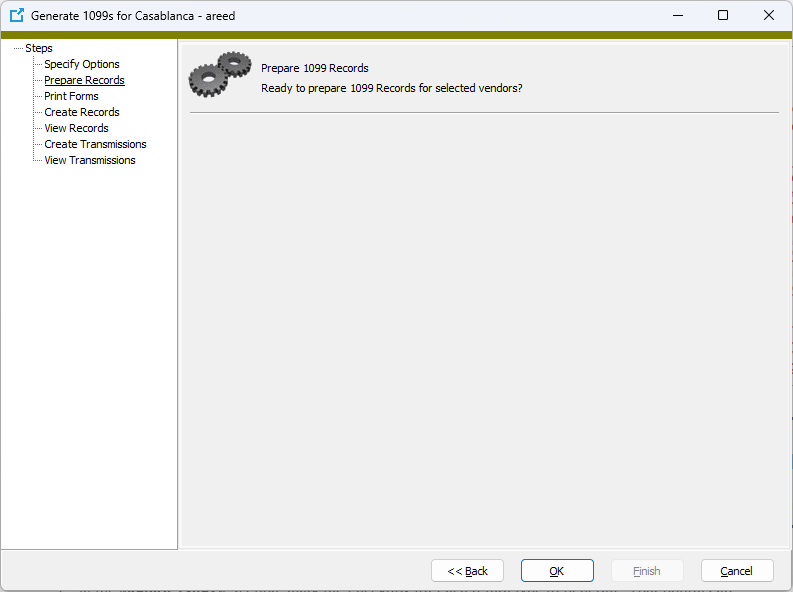
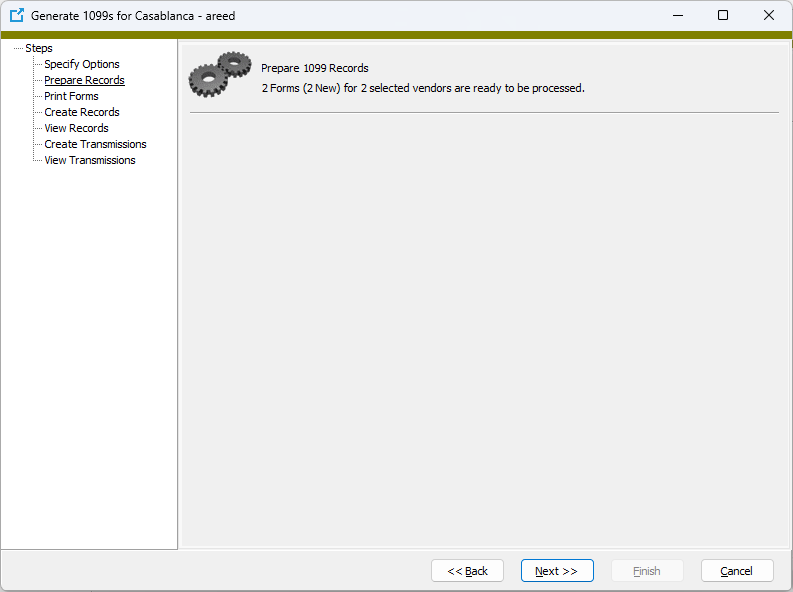
 Generate 1099s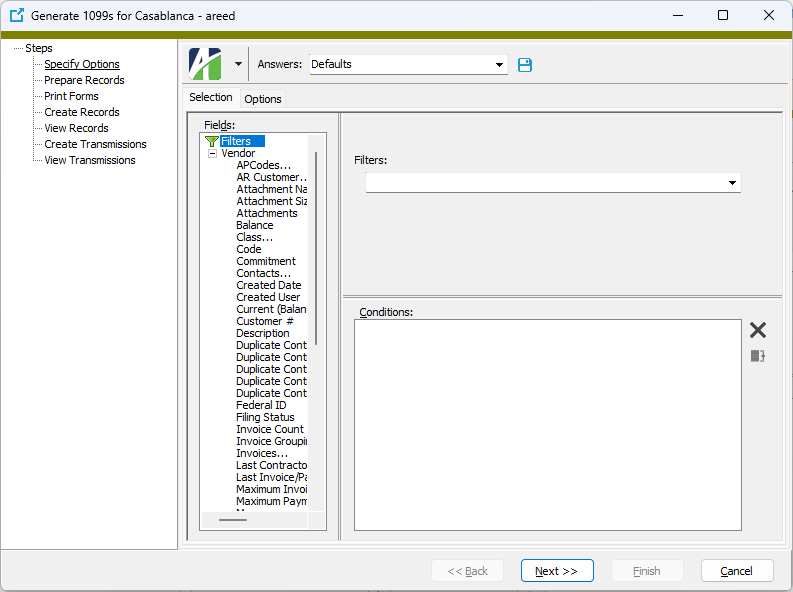
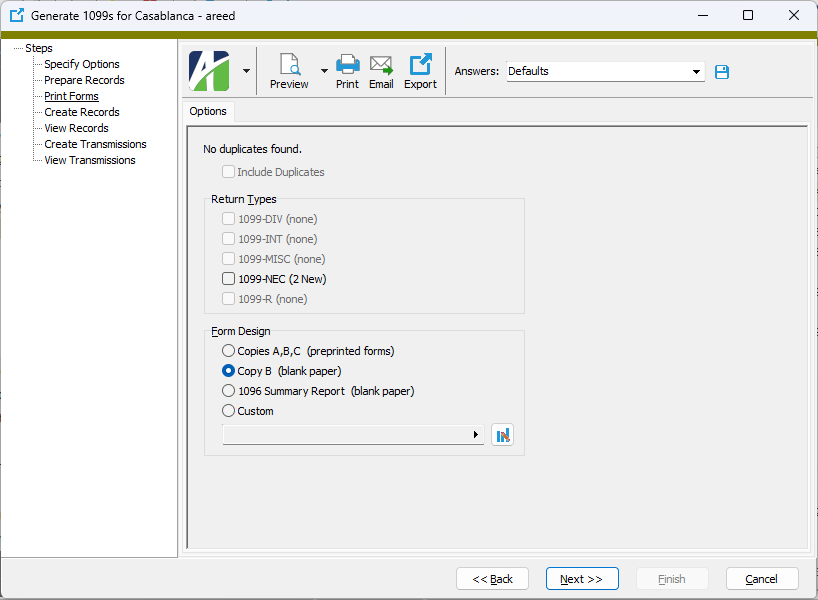
 - Provides access to two preview options.
 - Opens the Print dialog so that you can select and configure a printer and then print a paper copy of the report.
 - Opens the
  - Opens a drop-down menu with two export options: