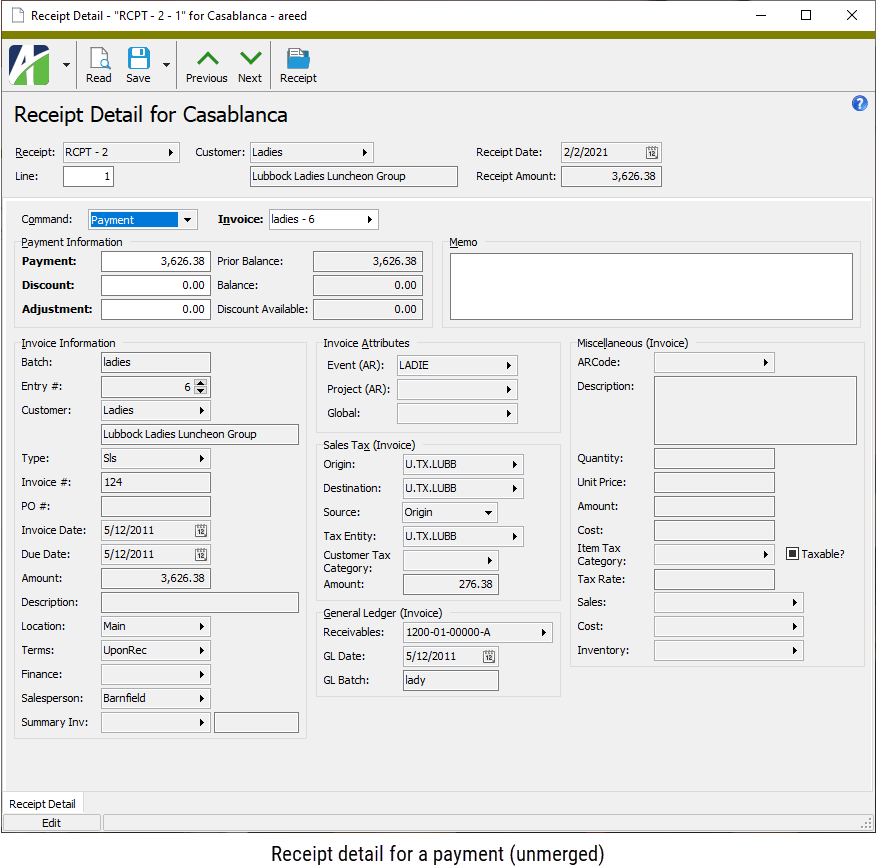
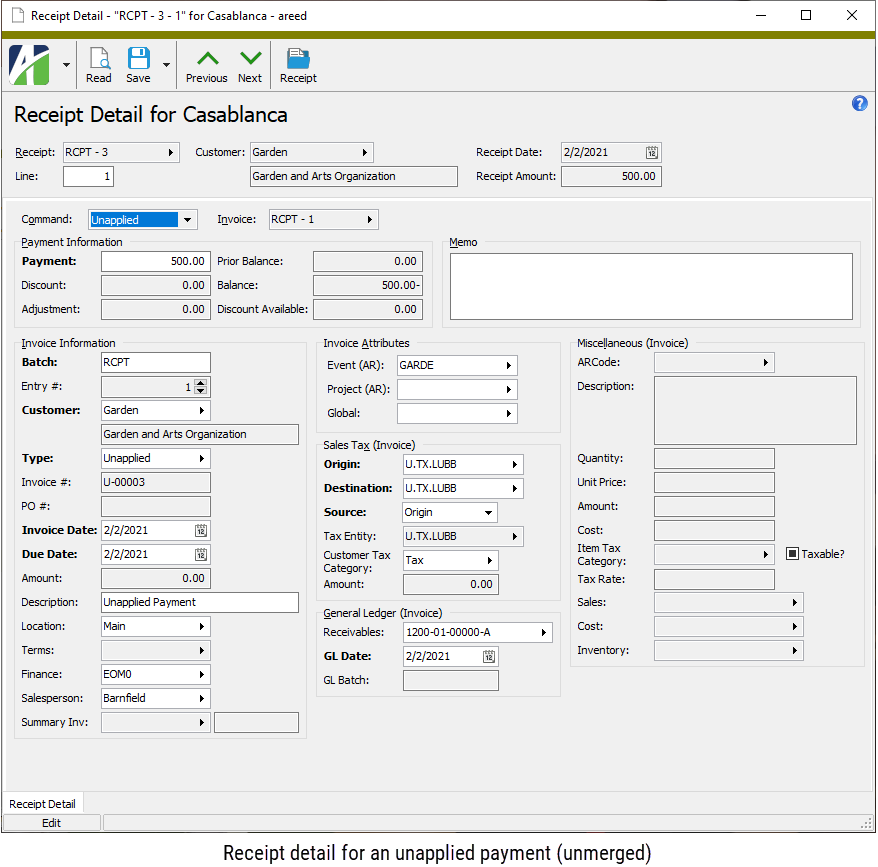
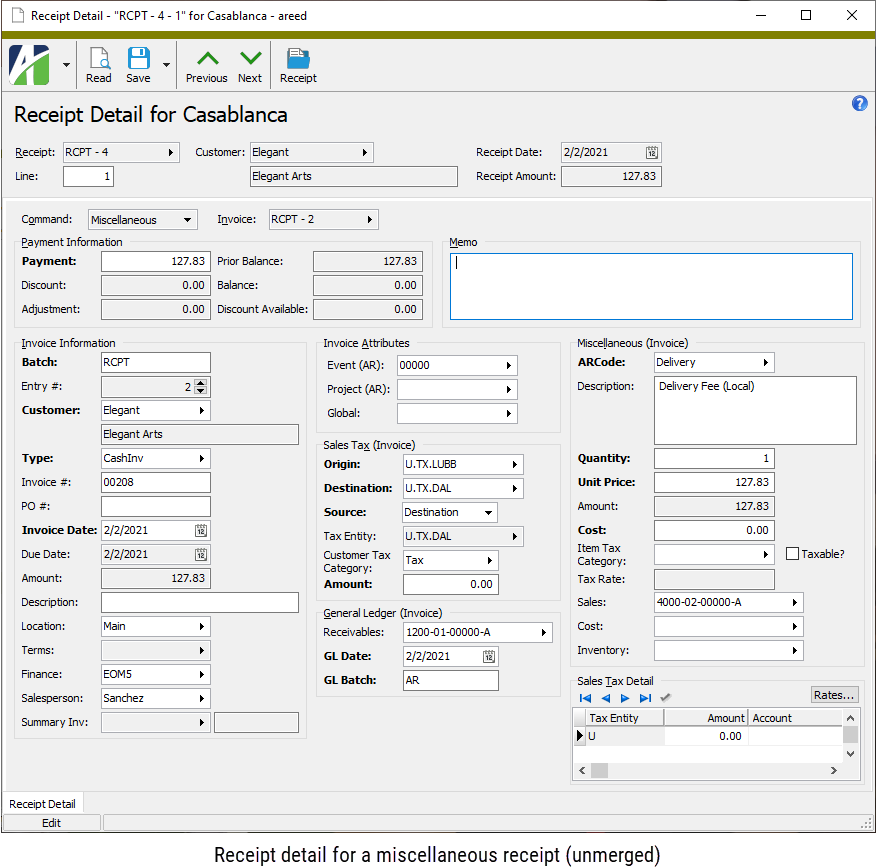
Receipt Detail Record ID
Receipt
The batch name and entry number of the receipt associated with the receipt detail record.
Press F3 to look up the value.
If a value is already selected, you can press F4 to open the record in its native editor.
Line
The line number of the receipt detail record.
Customer
The customer associated with the receipt detail record.
Press F3 to look up the value.
If a value is already selected, you can press F4 to open the record in its native editor.
Receipt Date
The receipt date of the receipt associated with the receipt detail record.
Receipt Amount
The total receipt amount of the receipt associated with the receipt detail record.
Receipt Detail tab
Command
Displays the command that controls the behavior of the receipt detail line. Valid commands are:
- Payment. The receipt detail line represents a regular payment.
- Unapplied. The receipt detail line represents an unapplied payment.
- Miscellaneous. The receipt detail line represents a miscellaneous payment.
Invoice
The batch name and entry number of the invoice paid by the receipt detail line. For payment detail lines, you can select a different invoice until the receipt is merged.
Press F3 to look up the value.
If a value is already selected, you can press F4 to open the record in its native editor.
Payment Information
Payment
The payment amount on the receipt detail line. You can change the payment amount until the receipt is merged.
Discount
The discount amount to credit to the customer's account against the invoice associated with the receipt detail line. This field applies to payment detail lines only. You can change the discount amount until the receipt is merged.
Adjustment
The amount of the invoice balance to credit to the customer's account as an adjustment. This field applies to payment detail lines only. You can change the adjustment amount until the receipt is merged.
Prior Balance
This field displays the invoice balance before the payment is applied.
Balance
This field displays the invoice balance after the payment is applied.
Discount Available
This field displays the discount amount available on the invoice. ActivityHD calculates this amount based on the invoice terms and the receipt date.
Memo
Any special information recorded about the receipt detail line.
Invoice Information
This section shows information for the invoice paid by the receipt detail line.
Batch
The invoice batch name. If you change the batch name, a new invoice entry number is automatically calculated. You cannot change the batch name on a regular payment. You can change the batch name on a miscellaneous payment or unapplied payment until the receipt is merged.
Entry #
The sequential number assigned to the invoice within its batch. You cannot change the entry number on a regular payment. If you need to change the entry number on a miscellaneous payment or unapplied payment, press Ctrl+Alt+U or select  > Tools > Unlock Entry #. You can change the entry number until the receipt is merged.
Customer
> Tools > Unlock Entry #. You can change the entry number until the receipt is merged.
Customer
The invoice customer. For miscellaneous and unapplied payments, you can change the customer until the receipt is merged. Since a single customer can pay invoices for multiple customers, the invoice customer does not necessarily have to match the receipt customer. The customer you select must use the receipt customer as its payment customer.
Press F3 to look up the value.
If a value is already selected, you can press F4 to open the record in its native editor.
Type
The invoice type assigned to the invoice. You cannot change the invoice type on payment detail lines. The invoice type can be changed on miscellaneous payments and unapplied payments until the receipt is merged.
Press F3 to look up the value.
If a value is already selected, you can press F4 to open the record in its native editor.
Invoice #
The invoice number of the invoice paid by the receipt detail line. You cannot change the invoice number on payment detail lines. The invoice number can be changed on miscellaneous payments until the receipt is merged.
PO #
The purchase order number associated with the invoice paid by the receipt detail line. You can enter a purchase order number on a miscellaneous receipt until the receipt is merged.
Invoice Date
The invoice date on the invoice. You cannot change the invoice date on payment detail lines. The invoice date can be changed on miscellaneous payments and unapplied payments until the receipt is merged.
Due Date
The date that payment on the invoice is due. You cannot change the due date on payment detail lines. If you change the invoice date on miscellaneous payments or unapplied payments, the due date automatically updates to match the invoice date. You can change the due date on unapplied payments directly if needed even after the receipt is merged.
Amount
The amount of the invoice. For unapplied payment detail lines, this amount is always zero. For miscellaneous detail lines, the amount in this field is the same as the payment amount; this field updates whenever the payment amount changes.
Description
The description of the invoice. You can change the description on a miscellaneous or unapplied payment detail line even after the receipt is merged.
Location
The invoice location. For regular payment detail lines, you can change the location on the invoice record. For miscellaneous and unapplied detail lines, you can change the location even after the receipt is merged.
Press F3 to look up the value.
If a value is already selected, you can press F4 to open the record in its native editor.
Terms
This field displays the payment terms assigned to the invoice. Payment terms do not apply to miscellaneous or unapplied detail lines.
Press F3 to look up the value.
If a value is already selected, you can press F4 to open the record in its native editor.
Finance
The finance method assigned to the invoice. You can change the finance method on miscellaneous and unapplied detail lines. Set the field to zero to exclude the invoice from finance charges. To include unapplied credits in the basis for finance charge assessment, the unapplied credits must reference a finance method that is flagged to "Include Credits".
Press F3 to look up the value.
If a value is already selected, you can press F4 to open the record in its native editor.
Salesperson
The salesperson primarily responsible for the invoice. You can change the salesperson on miscellaneous and unapplied detail lines even after the receipt is merged.
Press F3 to look up the value.
If a value is already selected, you can press F4 to open the record in its native editor.
Summary Inv
These fields are visible if you have the Summary Invoice interface enabled. The first field shows the batch name and entry number of the summary invoice to which the invoice is assigned. The adjacent field shows the invoice number of the summary invoice.
Press F3 to look up the value.
If a value is already selected, you can press F4 to open the record in its native editor.
Invoice Attributes
A field displays in this section for each active attribute with AR usage.
[Attribute Name]
The attribute item that applies to the invoice paid by the receipt detail line. You can change attribute items for miscellaneous and unapplied detail lines even after the receipt is merged. However, changes to account numbers derived from attributes only occur if the account number has not been manually overridden and if the GL entry has not been merged.
Press F3 to look up the value.
If a value is already selected, you can press F4 to open the record in its native editor.
Sales Tax
This section shows sales tax information from the invoice paid by the receipt detail line.
Origin
The sales tax entity for the location where the sale originated.
The origin tax entity on an unapplied payment detail line can be changed on the receipt detail record until the receipt is merged; on a miscellaneous detail line until the GL entry is merged. You can change the origin tax entity to produce accurate reporting; however, the sales tax amount on a merged invoice will not change since it represents the amount actually billed to the customer. For regular payment lines, you must change the tax entity on the invoice record.
Press F3 to look up the value.
If a value is already selected, you can press F4 to open the record in its native editor.
Destination
The sales tax entity for the location of the purchaser or the location where the purchase is actually used.
The destination tax entity on an unapplied payment detail line can be changed on the receipt detail record until the receipt is merged; on a miscellaneous detail line until the GL entry is merged. You can change the destination tax entity to produce accurate reporting; however, the sales tax amount on a merged invoice does not change since it represents the amount actually billed to the customer. For regular payment lines, you must change the tax entity on the invoice record.
Press F3 to look up the value.
If a value is already selected, you can press F4 to open the record in its native editor.
Source
The selection in this field indicates whether the rules of the "Origin" tax entity or the "Destination" tax entity are used to calculate sales tax for the invoice.
The tax entity source can be changed at any time to produce accurate reporting; however, the sales tax amount on a merged invoice does not change since it represents the amount actually billed to the customer. For regular payment lines, you must change the tax entity source on the invoice record.
Tax Entity
The tax entity that determines the sales tax rate and reporting requirements for the invoice. The tax entity source determines whether this field is set to the origin tax entity or the destination tax entity.
Press F3 to look up the value.
If a value is already selected, you can press F4 to open the record in its native editor.
Customer Tax Category
The customer tax category assigned on the invoice. The customer tax category determines whether a customer's purchases are taxable or nontaxable. If no customer tax category is specified, the customer is deemed taxable.
The customer tax category can be changed at any time to produce accurate reporting; however, the sales tax amount on a merged invoice does not change since it represents the amount actually billed to the customer. For regular payment lines, you must change the customer tax category on the invoice record.
Press F3 to look up the value.
If a value is already selected, you can press F4 to open the record in its native editor.
Amount
The sales tax amount for the invoice. If the actual tax amount collected on a miscellaneous payment differs from the calculated amount, you can enter the actual sales tax collected. Overridden amounts display in purple. You can change the sales tax amount for a miscellaneous payment line until the receipt is merged.
General Ledger
This section shows general ledger information for the invoice paid by the receipt detail line.
Receivables
The receivables account that is credited with the total invoice amount. For miscellaneous receipt lines, the receivables account is also debited with the same amount by the invoice that is created when the receipt is merged.
If the account number is not fully qualified or if the account does not exist, the background of this field is shaded yellow. If the account number has been overridden by a different valid account number, the account number displays in purple. To revert to the default account number, clear this field and press Tab.
You can change the receivables account on a miscellaneous or unapplied detail line until the receipt is merged.
Press F2 to open the Account Expand dialog box where you can look up an account number, find an account number by its alias, build the account number by segment, or view setup and setup sources.
Press F3 to look up the account.
If an account is already selected, you can press F4 to open the record in the Account window.
GL Date
The posting date for the invoice GL entry. For miscellaneous detail lines, the date is set to the GL receipt date so that it has a net-zero effect on the receivables account. Although the invoices created for unapplied payments have a zero amount and do not actually post to the general ledger, their GL date is set to the GL receipt date because the invoice merge requires a GL date.
You can change the GL date on a miscellaneous detail line until the GL entry is merged.
GL Batch
The name of the GL batch for processing the invoice GL entry. You can change the GL batch on miscellaneous and unapplied detail lines until the receipt's GL entry is merged.
You can change the batch name on a miscellaneous detail line until the GL entry is merged.
GL Entry
The GL batch name and entry number of the GL entry that contains the invoice's posting detail. This field is not visible until the receipt is merged.
Press F3 to look up the value.
If a value is already selected, you can press F4 to open the record in its native editor.
Miscellaneous
The fields in this section apply only to miscellaneous invoices.
ARCode
The ARCode assigned to the receipt detail line to categorize the associated invoice detail line for reporting, and to provide information for deriving GL account numbers and for performing sales tax calculations. You can change the ARCode until the receipt is merged.
Press F3 to look up the value.
If a value is already selected, you can press F4 to open the record in its native editor.
Description
The description of the selected ARCode.
Quantity
The quantity of the item sold. You can change the quantity until the receipt is merged. If you change the quantity, ActivityHD recalculates the unit price.
Unit Price
The unit price of the item sold. You can change the unit price until the receipt is merged. If you change the unit price, ActivityHD recalculates the quantity.
Amount
This field displays the invoice amount for the detail line associated with the receipt detail line. This is the same as the payment amount; this field updates whenever the payment amount changes.
Cost
The total invoice cost for the detail line associated with the receipt detail line. Typically, the cost is debited to the cost of goods sold account and credited to the inventory account when the invoice is merged. The posting sign is controlled by the GL control setting on the invoice type. If you are not tracking costs on miscellaneous receipts, this field should contain zero.
Item Tax Category
The item tax category that applies to the item on the detail line. The item tax category is used to help determine whether or not an item is taxable.
The item tax category can be changed at any time in order to produce accurate reporting. However, changing the item tax category on a merged invoice does not change the sales tax amount since that amount represents what was actually billed to the customer.
Press F3 to look up the value.
If a value is already selected, you can press F4 to open the record in its native editor.
Taxable?
If the checkbox is marked, the detail line is taxable and sales tax is calculated based on the effective tax rate for the invoice tax entity. An unmarked checkbox indicates that the detail line is not taxable. The customer tax category and/or the item tax category control whether the checkbox is marked or not. If no customer or item tax category is assigned to a detail line, the detail line is deemed taxable.
Tax Rate
If the Taxable? checkbox is marked, this field displays the effective tax rate for the invoice tax entity as of the invoice date.
Sales
The sales account that is credited with the detail line's invoice amount. The sales account can be changed until the GL entry is merged.
If the account number is not fully qualified or if the account does not exist, the background of this field is shaded yellow. If the account number has been overridden by a different valid account number, the account number displays in purple. To revert to the default account number, clear this field and press Tab.
Press F2 to open the Account Expand dialog box where you can look up an account number, find an account number by its alias, build the account number by segment, or view setup and setup sources.
Press F3 to look up the account.
If an account is already selected, you can press F4 to open the record in the Account window.
Cost
The cost account that is debited with the detail line's invoice cost. The cost account can be changed until the GL entry is merged.
If the account number is not fully qualified or if the account does not exist, the background of this field is shaded yellow. If the account number has been overridden by a different valid account number, the account number displays in purple. To revert to the default account number, clear this field and press Tab.
Press F2 to open the Account Expand dialog box where you can look up an account number, find an account number by its alias, build the account number by segment, or view setup and setup sources.
Press F3 to look up the account.
If an account is already selected, you can press F4 to open the record in the Account window.
Inventory
The inventory account that is credited with the detail line's invoice cost. The inventory account can be changed until the GL entry is merged.
If the account number is not fully qualified or if the account does not exist, the background of this field is shaded yellow. If the account number has been overridden by a different valid account number, the account number displays in purple. To revert to the default account number, clear this field and press Tab.
Press F2 to open the Account Expand dialog box where you can look up an account number, find an account number by its alias, build the account number by segment, or view setup and setup sources.
Press F3 to look up the account.
If an account is already selected, you can press F4 to open the record in the Account window.
Sales Tax Detail
Rates button
Click this button to open the Sales Tax Rates popup. For each tax entity on the invoice associated with the receipt detail line, the table in the popup shows the tax rate, the taxable basis, and the calculated tax. The table also shows the aggregate rate and total calculated tax for all tax entities on the invoice.
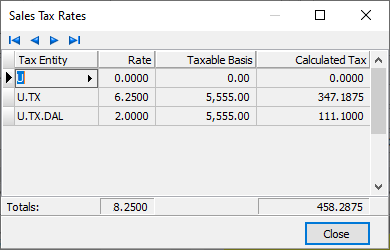
Sales Tax Detail table
This table contains a detail line for each tax entity affected by the invoice associated with the receipt detail line. Unless you need to override amounts or accounts, you can skip this table.
Tax Entity
The tax entity associated with the detail line.
Press F3 to look up the value.
If a value is already selected, you can press F4 to open the record in its native editor.
Amount
The amount of sales tax due to the corresponding entity. The amount comes from the sales tax amount on the invoice detail line.
If the amount calculated for a tax entity is different than the amount collected, enter the actual amount collected for the entity. Overridden amounts display in purple. The total of all sales tax detail lines must equal the total sales tax amount.
Note
Prior to merging the invoice, if you enter an override amount in the Amount field in the Sales Tax section, that amount is distributed across the tax entities in proportion to the tax rates. If you override amounts in the table, the Amount field in the Sales Tax section is updated with the total amount actually billed for tax.
Account
The tax liability account for the sales tax. Accounts are only visible for users with "Accounts" access to receipts and receipt detail. The default account is derived from the account masks on attribute items and the tax entity.
If you need to change the tax liability account, select the tax liability account to use. Overridden accounts display in purple. ActivityHD does not replace an override account with the default account. If you need to revert to the default account, blank out the field. When you leave the field, the default account loads.
Press F2 to open the Account Expand dialog box where you can look up an account number, find an account number by its alias, build the account number by segment, or view setup and setup sources.
Press F3 to look up the account.
If an account is already selected, you can press F4 to open the record in the Account window.
 . You can also access the Receipt Detail window for a particular receipt from the Accounts Receivable > Receipts > Receipt Detail folder by double-clicking it in the HD view.