The Recurring Detail folder contains the detail lines for your recurring AR invoices.
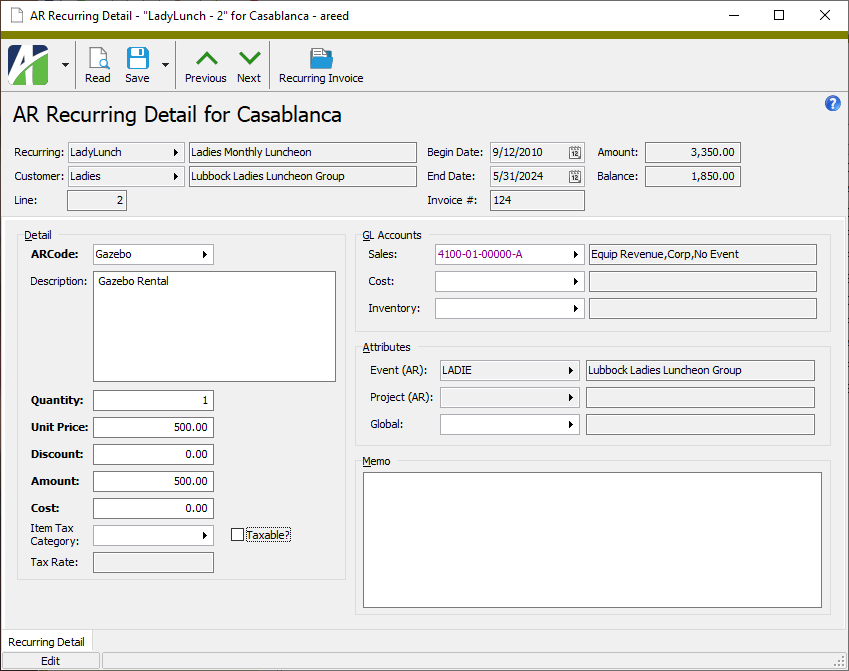
The Recurring Detail window shows the detail for an individual detail line.
For any recurring AR invoice, you can directly edit all detail fields except the Tax Rate and the Taxable? flag.
The ARCode on a detail line affects the detail line in the following ways:
Categorizes the detail line for reporting purposes.
Provides masks for deriving GL account numbers for the sales, cost, and inventory accounts.
Controls whether the detail line is subject to sales tax.
Controls whether the detail line is eligible for a discount.
When you have a detail line record open, you can click to drill down to the recurring AR invoice that contains the detail line.
Recurring Invoice Detail Record ID
Recurring
The recurring invoice associated with the recurring detail line.
Press F3 to look up the value.
If a value is already selected, you can press F4 to open the record in its native editor.
Customer
The customer the recurring invoice is associated with.
Press F3 to look up the value.
If a value is already selected, you can press F4 to open the record in its native editor.
Line
The number of the detail line.
Begin Date
The earliest date the recurring invoice can be processed.
End Date
The latest date the recurring invoice can be processed.
Invoice #
The invoice number to assign to the invoices created from the recurring invoice.
Amount
The total amount of the recurring invoice.
Balance
The balance owed on the recurring invoice.
Recurring Detail tab
Detail
All detail fields on a recurring invoice, except the Tax Rate and Taxable? flag, are directly editable.
ARCode
The ARCode assigned to the recurring detail line.
Press F3 to look up the value.
If a value is already selected, you can press F4 to open the record in its native editor.
Description
The detail description for the recurring detail line. The default description is the description from the ARCode. If the description has been changed, it displays in purple.
Quantity
The number of items invoiced on the recurring detail line.
Unit Price
The price per unit of the item ordered. Unit prices can contain up to four decimal places.
Discount
The discount amount for the recurring detail line.
Amount
The extended amount for the recurring detail line. The extended amount is calculated using the following formula:
Amount = (Quantity * Unit Price) - Discount
Cost
The cost for the recurring detail line.
Item Tax Category
The item tax category assigned to the recurring detail line. This field controls the taxability of the detail line. If this field is blank, the customer tax category assigned to the customer on the invoice controls taxability. If an item tax category is not designated on the detail line and a customer tax category is not designated on the customer, the item is considered taxable.
Press F3 to look up the value.
If a value is already selected, you can press F4 to open the record in its native editor.
Taxable?
Indicates whether the item on the recurring detail line is taxable.
Tax Rate
If the item on the detail line is taxable, this field displays the effective tax rate for the recurring detail line.
GL Accounts
Sales
Typically, the sales account (or "revenue" account) to credit with the recurring detail line's amount when the GL entry is created. The actual posting sign is controlled by the GL control on the invoice type. The default account is derived by applying the account masks from the detail line's ARCode, the invoice's attribute items, the customer, and the customer class. Unless an account number has been entered manually, the sales account updates whenever the underlying masks change.
If the sales account number that results from applying the account masks is incomplete or invalid, the field is shaded yellow. Complete the account number or enter a valid account number. If you override a valid account number with another valid account number, the new account number displays in purple. If you want to revert to the default account number, blank out this field. When you leave the field, the default account loads.
Press F2 to open the Account Expand dialog box where you can look up an account number, find an account number by its alias, build the account number by segment, or view setup and setup sources.
Press F3 to look up the account.
If an account is already selected, you can press F4 to open the record in the Account window.
Cost
Typically, the cost account (or "cost of goods sold" account) to debit with the recurring detail line's cost (if non-zero) when the GL entry is created. The actual posting sign is controlled by the GL control on the invoice type. The default account is derived by applying the account masks from the detail line's ARCode, the invoice's attribute items, the customer, and the customer class. Unless an account number has been entered manually, the cost account updates whenever the underlying masks change.
If the cost account number that results from applying the account masks is incomplete or invalid, the field is shaded yellow. Complete the account number or enter a valid account number. If you override a valid account number with another valid account number, the new account number displays in purple. If you want to revert to the default account number, blank out this field. When you leave the field, the default account loads.
Press F2 to open the Account Expand dialog box where you can look up an account number, find an account number by its alias, build the account number by segment, or view setup and setup sources.
Press F3 to look up the account.
If an account is already selected, you can press F4 to open the record in the Account window.
Inventory
Typically, the inventory account to credit with the recurring detail line's cost (if non-zero) when the GL entry is created. The actual posting sign is controlled by the GL control on the invoice type. The default account is derived by applying the account masks from the detail line's ARCode, the invoice's attribute items, the customer, and the customer class. Unless an account number has been entered manually, the inventory account updates whenever the underlying masks change.
If the inventory account number that results from applying the account masks is incomplete or invalid, the field is shaded yellow. Complete the account number or enter a valid account number. If you override a valid account number with another valid account number, the new account number displays in purple. If you want to revert to the default account number, blank out this field. When you leave the field, the default account loads.
Press F2 to open the Account Expand dialog box where you can look up an account number, find an account number by its alias, build the account number by segment, or view setup and setup sources.
Press F3 to look up the account.
If an account is already selected, you can press F4 to open the record in the Account window.
Memo
Enter any additional information you want to record about the recurring detail line.
Recurring invoice detail security
Common accesses available on recurring invoice detail
Access
A user with this access can...
Change
Use the mass change action on recurring invoice detail.
Data
Have read-only access to recurring invoice detail from anywhere in the software (e.g., field validations, filters, date expressions).
Delete
Delete recurring invoice detail.
Edit
Edit recurring invoice detail records.
Read
Have read-only access to recurring invoice detail records.
Report
Run reports with recurring invoice detail information.
Report Designs
Create and edit report designs with recurring invoice detail information. This access enables the Report Designs button on the Output tab of report dialogs.
Shared Answers
Create and edit saved answers related to recurring invoice detail.
Shared Filters
Create and edit shared filters on recurring invoice detail.
Visible
View the Recurring Detail folder in the Navigation pane.
 to drill down to the recurring AR invoice that contains the detail line.