Security views determine what a user can see for a particular system or company resource. For example, at the system level you might want to limit which of your companies a user can see. At the company level, you might want to restrict a user from seeing payroll data for executives. Multiple users can be assigned to a security view.
Security view restrictions are based on user-defined conditions. While a permission can grant access to a resource, a security view can limit the scope of that access.
Example
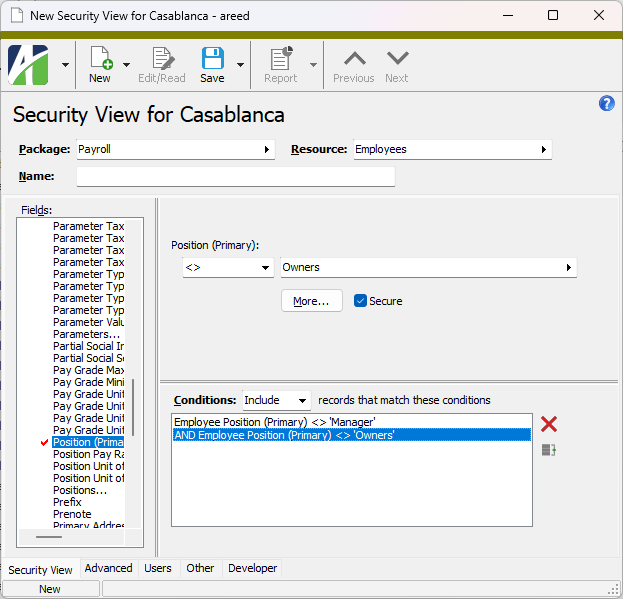
Company security view. Suppose a user has access to the Employees resource but you want to restrict their access to only those employees whose marital status is married. You could write a condition that states that users with the security view can only view information for employees for which marital status equal married. Information for unmarried employees would not be available to users assigned to the security view.
Multiple security views on a single resource can be assigned to a single user. This means you can assign security views to a user based on exactly what the user is allowed to see. The behavior of security views on a resource can be summarized as follows:
- If no security views on a resource are assigned to a user, the user can see all rows (if the user has appropriate permissions).
- If one security view on a resource is assigned to a user, the user can only see the rows determined by the security view.
- If multiple security views on a resource are assigned to a user, the user can see the rows determined by any of the security views.
Selection conditions which refer to the items in a securable folder automatically apply the folder's security views. In particular, selection conditions can reference security views. This means that you can create security views which reference other security views and automatically apply changes to a referenced security view to the referencing security view.
Example
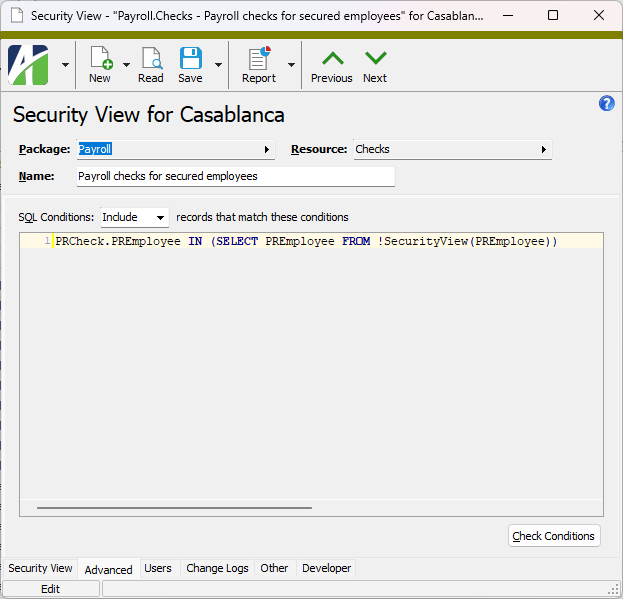
You can create a security view on payroll checks that limits by a user's security view on employees. If the security view on employees changes, it is automatically applied to the security view on checks.
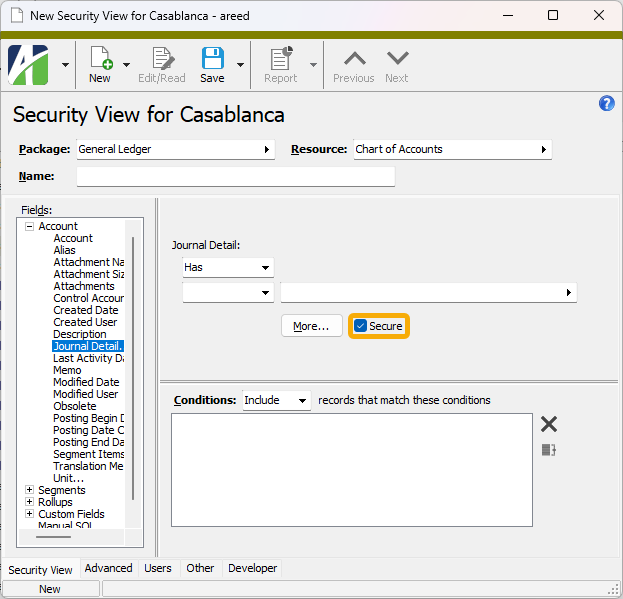
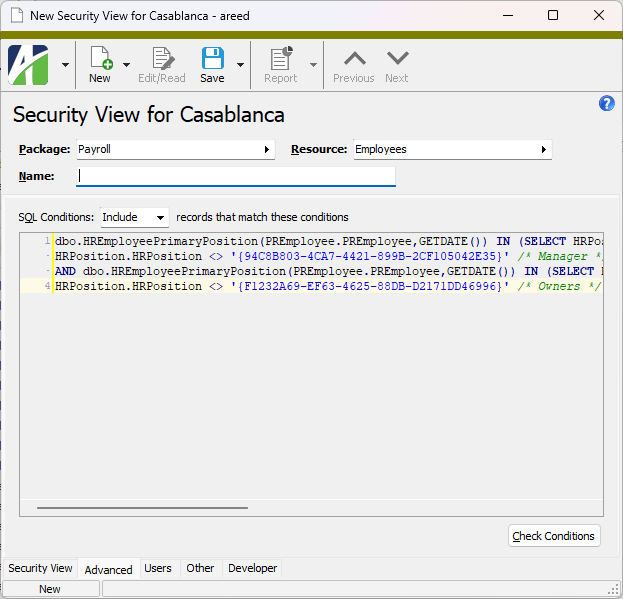
 Create a company security view
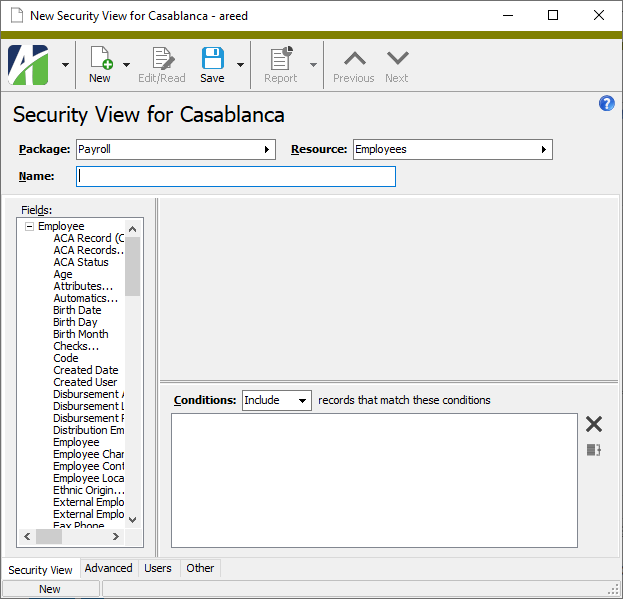
 . The New Security View window opens.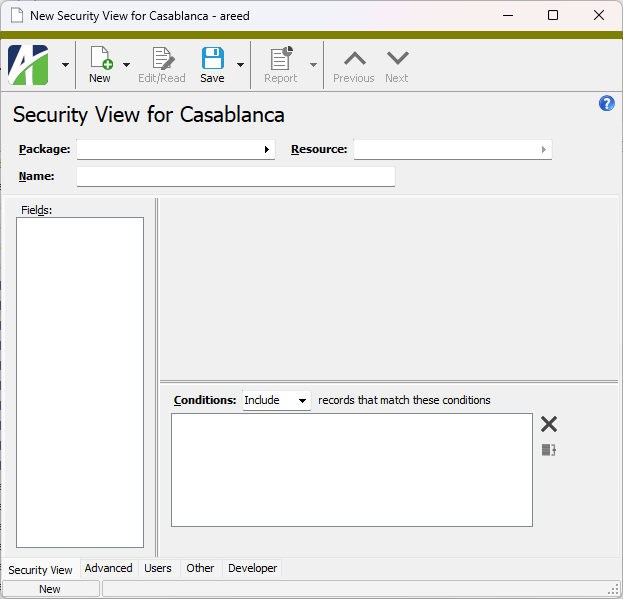
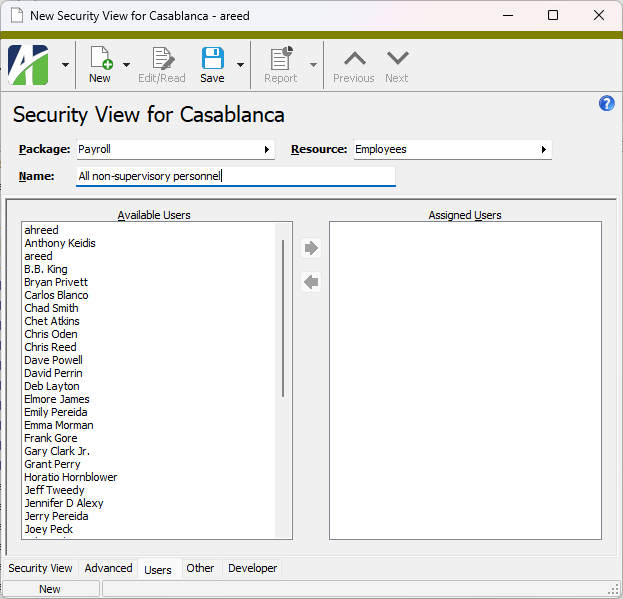
 to move your selections to the Assigned Users list box.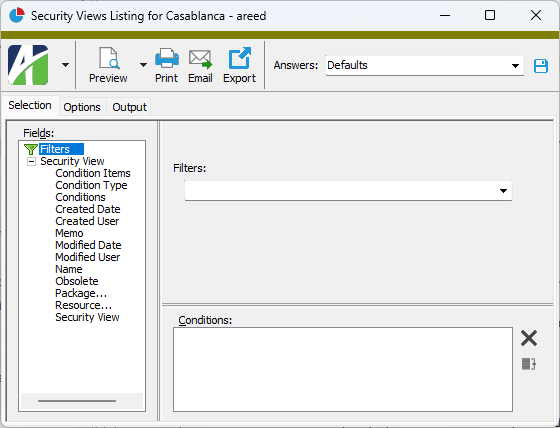
 .
.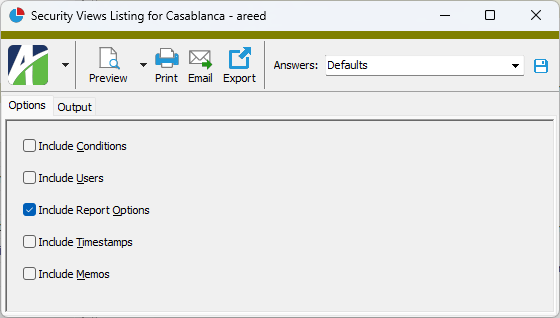
 - Provides access to two preview options.
 - Opens the Print dialog so that you can select and configure a printer and then print a paper copy of the report.
 - Opens the
  - Opens a drop-down menu with two export options:
  to move it to the Available Users list box.

|
Extras\Payroll\PR Security Views for allowed employees.xml; Extras\Human Resources\HR Security Views for allowed employees.xml |
Company security views security
Common accesses available on security views
| Access | A user with this access can... |
|---|---|
| Change | Use the mass change action on security views. |
| Change Logs | |
| Custom Fields | Create and edit custom fields for security views. |
| Data | Have read-only access to security views from anywhere in the software (e.g., field validations, filters, date expressions). |
| Delete | Delete security views. |
| Edit | Edit security view records. |
| Export | Export security view records from ActivityHD. |
| Import | Import security view records into ActivityHD. |
| New | Create new security view records. |
| Read | Have read-only access to security view records. |
| Report | Run reports with security view information. |
| Report Designs | Create and edit report designs with security view information. This access enables the Report Designs button on the Output tab of report dialogs. |
| Shared Answers | Create and edit saved answers related to security views. |
| Shared Filters | Create and edit shared filters on security views. |
| Visible | View the Security Views folder in the Navigation pane. |
Company security view filters
The following built-in filters are available for company security views:
| Filter Name | Effect |
|---|---|
| ? Package | Prompts for an ActivityHD package and lists all security views associated with the specified package. |
| ? Resource | Prompts for a company resource and lists all security views associated with the specified resource. |