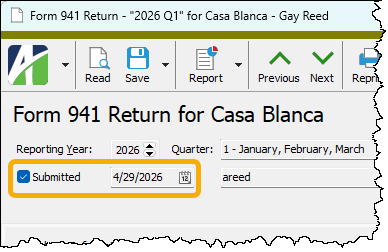
Form 941 Return Record ID
Reporting Year
Displays the year of the 941 return.
Quarter
Indicates the quarter covered by the 941 return.
Submitted
This checkbox indicates whether the 941 return has been submitted to the federal government. ActivityHD prevents changes to returns with "Submitted" status.
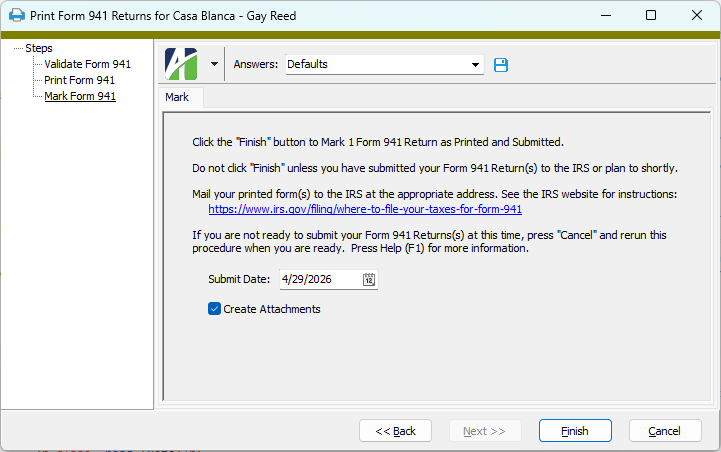
In general, ActivityHD maintains the Submitted checkbox. When the printing process is completed, ActivityHD automatically flags the returns as "Submitted" and the submission date and username of the submitter are applied to the return record.
If you need to manually set the "Submitted" flag, mark the checkbox. If you need to reset the status, clear the checkbox; the date and username are cleared when you save the record.
Deposit Schedule
Select the frequency of your tax deposits. Your options are:
- Monthly
- Semiweekly. You must make semiweekly deposits if you reported more than $50,000 in taxes during the lookback period (July 1 of the second preceding calendar year through June 30 of the preceding calendar year), or if you are a monthly schedule depositor that accumulated $100,000 in tax liability on any day during the deposit period.
Liability for this return or previous return is less than 2500
Indicates if liability for the current quarter's return or the previous quarter's return is less than $2500. If either is true and you did not incur a $100,000 next-day deposit obligation, you are eligible to submit your payment along with Form 941 rather than by federal tax deposit. This checkbox is system-maintained.
Final Return
This checkbox is marked if the Business has closed or is no longer paying wages checkbox was marked in the Generate Form 941 wizard when the 941 return was generated.
Mark this checkbox if this return is the last return that will be filed for your organization.
If your business has closed or you stop paying wages, you must file a final return. If two businesses merge, the continuing business must file a 941 return for the quarter in which the merger took place and the other business should file a final return.
If you mark the checkbox, the Date Wages Were Last Paid field is enabled.
Date Wages Were Last Paid
This field is enabled if the Final Return checkbox is marked. Enter the last date your organization paid wages to its employees.
Aggregate Filer? (checkbox)
If the checkbox is marked, indicates that this is an and your organization is considered an aggregate filer.
Aggregate Filer? (section)
If the Aggregate Filer? checkbox is marked, an aggregate filer type is designated. Valid values are:
- Section 3504 Agent
- CPEO
- Other Third Party
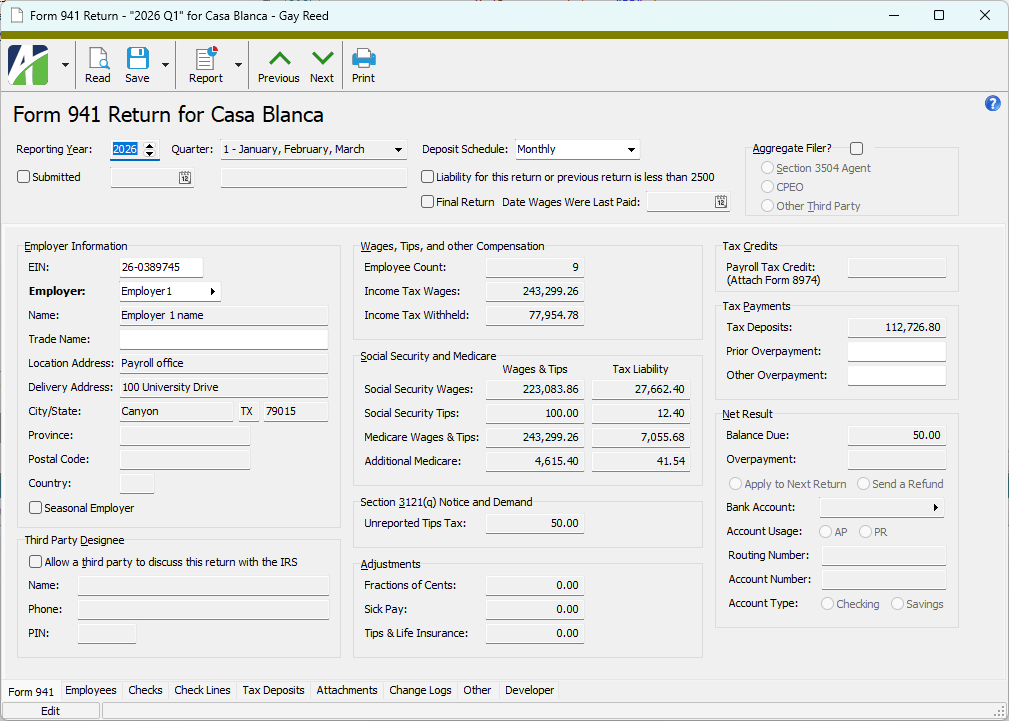
Form 941 tab
Employer Information
This section displays information from the export employer record. If the return has not been submitted, the EIN, Employer, and Trade Name fields are editable.
EIN
The employer's Employer Identification Number (EIN). This value defaults from your federal tax entity. If the return has not been submitted, you can change the value in this field.
This field is disabled once the Submitted checkbox is marked.
Employer
The employer for the 941 return. If the return has not been submitted, you can select a different export employer.
This field is disabled once the Submitted checkbox is marked.
Press F3 to look up the value.
If a value is already selected, you can press F4 to open the record in its native editor.
Name
The legal name of the business. This is the name from the Address section of the export employer record. For sole proprietors, this should be your given name.
Trade Name
If your trade name is the same as the legal name of the business, leave this field blank. If you are a sole proprietor, be sure your legal name appears in the Name field and enter your trade name in this field.
This field is disabled once the Submitted checkbox is marked.
Location Address
Displays the location from the export employer address. This is typically a suite number or room number. This value prints on the right side of the Address box on the printed 941 return.
Delivery Address
Displays the delivery address from the export employer address. This is typically a street address or post office box. This value prints on the left side of the Address box on the printed 941 return.
City/State
Displays the city, state, and Zip Code of the employer address.
Province
For Canadian employers, displays the province of the employer address. For United States employers, this field is blank.
Postal Code
For Canadian employers, displays the postal code of the employer address.
Country
For non-USA employers, displays the country code of the employer address. For employers in the USA, this field should be blank.
Seasonal Employer
Indicates that the Business is seasonal employer that does not have to file every quarter checkbox in the Generate Form 941 wizard was marked when the 941 return was generated.
Third Party Designee
Allow a third party to discuss this return with the IRS
The checkbox indicates whether a third party was authorized to discuss the return with the IRS when the 941 return was generated. If the checkbox is marked and you need to revoke the authorization, clear the checkbox. If the checkbox is clear and you need to authorize a third party, mark the checkbox and then enter information in the fields below.
This checkbox is disabled once the Submitted checkbox is marked.
The remaining fields are enabled if the Allow a third party to discuss the return with the IRS checkbox is marked and the Submitted checkbox is not marked.
Name
Enter the name of the third party designee.
Phone
Enter the third party designee's phone number.
PIN
Enter the third party designee's personal identification number (PIN). The PIN is a five-digit number chosen by the designee.
Wages, Tips, and Other Compensation
Summarizes wage information for the quarter.
Employee Count
Displays the number of employees who received wages, tips, or other compensation during the pay period which included the 12th day of the third month of the quarter.
Income Tax Wages
Displays the total taxable wages reported for the quarter on the 941 return. In ActivityHD terms, this is the total Source amount for the "Income Tax" group.
Income Tax Withheld
Displays the total tax amount withheld for the quarter. In ActivityHD terms, this is the total Result amount of the "Income Tax" group minus the total Result amount of the "3rdPartySickPayTax" group.
Social Security and Medicare
Summarizes Social Security and Medicare taxes for the quarter.
Social Security Wages: Wages & Tips
Displays the total amount of wages subject to Social Security tax for the quarter. In ActivityHD terms, this is the total source of check lines (for employee) associated with the "Social Security" group minus the total Result amount of the "Reported Tips" group.
Social Security Wages: Tax Liability
Displays total tax liability on Social Security wages for the quarter. This is the Social Security wages amount times the Social Security tax rate (.124 as of 1/1/2023).
Social Security Tips: Wages & Tips
Displays the total amount of tips subject to Social Security tax for the quarter. In ActivityHD terms, this is the total Result amount of the "Reported Tips" group.
Social Security Tips: Tax Liability
Displays the total tax liability on Social Security tips for the quarter. This is the Social Security tips amount times the Social Security tax rate (.124 as of 1/1/2023).
Medicare Wages & Tips: Wages & Tips
Displays the total amount of wages and tips subject to Medicare tax for the quarter. In ActivityHD terms, this is the total Source amount of check lines (for employee) associated with the "Medicare" group.
Medicare Wages & Tips: Tax Liability
Displays the total tax liability on Medicare wages and tips for the quarter. This is the Medicare wages amount times the Medicare tax rate (.029 as of 1/1/)2023.
Additional Medicare: Wages & Tips
Displays the total amount of wages subject to the additional Medicare tax for the quarter. In ActivityHD terms, this is the total Source amount of the "MedicareAdd" group.
Additional Medicare: Tax Liability
Displays the total tax liability on additional Medicare wages for the quarter. This is the additional Medicare amount times the additional Medicare tax rate (.009 as of 1/1/2023).
Section 3121(q) Notice and Demand
Unreported Tips Tax
If the IRS issued you a Section 3121(q) Notice and Demand to advise you of the amount of unreported or underreported tips, this field displays the tax amount reported on that form. In ActivityHD terms, this is the total Result amount of the "Unreported Tips" group.
Adjustments
The fields in this section indicate adjustments to the taxable amount.
Fractions of Cents
Displays the adjustment amount for the rounding of the employee share of Social Security and Medicare taxes withheld. In ActivityHD terms, this is the sum of the total Result amounts of the "Social Security", "Medicare", and "MedicareAdd" groups minus the sum of Social Security tax liability, Social Security tips liability, Medicare wages tax liability, and additional Medicare tax liability.
Third-Party Sick Pay
Displays the adjustment amount for the employee share of Social Security and Medicare taxes withheld and deposited by a third-party sick pay payer for sick pay paid by the third-party payer. In ActivityHD terms, this is the total Result amount of the "3rdPartySickPaySS" group plus the total Result amount of the "3rdPartySickPayMed" group.
Tips & Life Insurance
Displays the adjustment amount for any uncollected employee share of Social Security and Medicare taxes on tips and for the uncollected employee share of Social Security and Medicare taxes on group-term life insurance premiums paid for former employees. In ActivityHD terms, this is the sum of the total Result amounts of the "UncollectedSSOnTips", "UncollectedMedOnTips", "UncollectedSSOnIns", and "UncollectedMedOnIns" groups.
Tax Credits
Payroll Tax Credit (Attach Form 8974)
Displays the amount entered on the Options tab of the Generate Form 941 process for the small business payroll tax credit for increasing research activities from line 12 of Form 8974, if any.
Tax Payments
Tax Deposits
Displays the total of tax deposits made for the quarter; i.e., the sum of paid tax deposits with a liability date in the specified year and quarter.
Prior Overpayment
Enter the amount of any overpayment for a prior quarter. This field is disabled once the Submitted checkbox is marked.
Other Overpayment
Enter the amount of any overpayment you applied from filing Form 941-X or Form 944-X in the current quarter. This field is disabled once the Submitted checkbox is marked.
Net Result
Balance Due
If total taxes owed is greater than total tax payments made, this field displays the balance due. Otherwise, this field is blank.
Overpayment
If total taxes owed is less than total tax payments made, this field displays the amount of overpayment. Otherwise, this field is blank.
Overpayment Option
This field is enabled if the return has not been submitted and there is an amount in the Overpayment field. Select how to handle the overpayment amount. Your options are:
- Apply to Next Return
- Send a Refund
Bank Account
If "Send a Refund" is selected in the Overpayment section, displays the bank account specified to receive overpayment refunds.
Account Usage
Displays the type of transactions the bank account is used for. Valid types are:
- AP (Accounts Payable)
- PR (Payroll)
Routing Number
The routing number for the specified bank account.
Account Number
Your organization's account number for the specified bank account.
Account Type
The type of bank account. Valid values are:
Custom tab
This tab is visible if custom fields exist for the entity. At a minimum, if there are custom fields, a Fields subtab will be present. One or more additional categories of subtabs may also be visible.
Fields subtab
This tab prompts for values for any custom fields set up for entity records of this entity type. Respond to the prompts as appropriate.
References subtab
This tab is visible if other records reference the current record.
Reference
From the drop-down list, select the custom field to view references for. Reference custom fields have the following format: PackageName.EntityName.CustomFieldName.
Example
Suppose a custom field exists on PRCodes that references an ARCode. On the ARCode record, on the Custom > References subtab, you can view all the PRCodes which reference that ARCode.
Exchange Folder subtab
This tab is visible only if you set up a custom field with a data type of "Exchange Folder". The label on this tab is the name assigned to the custom field.
This tab shows the contents of the specified Exchange folder.
File subtab
This tab is visible only if you set up a custom field with a data type of "File". The label on the tab is the name assigned to the custom field.
This tab renders the contents of the specified file according to its file type.
Internet Address subtab
This tab is visible only if you set up a custom field with a data type of "Internet Address". The label on this tab is the name assigned to the custom field.
This tab shows the contents of the specified web page.
Network Folder subtab
This tab is visible only if you set up a custom field with a data type of "Network Folder". The label on this tab is the name assigned to the custom field.
This tab shows the contents of the specified network folder.
Employees tab
The Employees pane shows the Employees HD view filtered to show all employees represented on the 941 return.
Double-click a row in the pane to drill down to its record in the Employee window.
Checks tab
The Checks pane shows the Checks HD view filtered to show all pay checks represented on the 941 return.
Double-click a row in the pane to drill down to its record in the Check window.
Check Lines tab
The Check Lines pane shows the Check Lines HD view filtered to show all check lines represented on the 941 return.
Double-click a row in the pane to drill down to its record in the Check Line window.
Tax Deposits tab
The Tax Deposits pane shows the Tax Deposits HD view filtered to show all tax deposits made for the quarter covered by the 941 return.
Double-click a row in the pane to drill down to its record in the Tax Deposit window.
The Attachments tab is visible if any record for a given entity has an attachment. If the Attachments tab is not visible, this implies that no record of the entity type has an attachment on it; however, once an attachment is added to any record of the entity type, the Attachments tab will become available.
Attachments
The list box shows the files which are attached to the current record. Highlight a file name to preview the file in the adjacent pane. Double-click a file name to open the file in its native editor.
Preview pane
If a file name is highlighted in the Attachments list box, this pane shows a preview of the file contents. Some file types cannot be previewed but can be double-clicked to open in their native editor.
Change Logs tab
This tab is visible if the user has "Change Logs" access to the associated data folder resource.
The Change Logs pane shows the Change Logs HD view filtered to show all change logs for the selected entity record.
Double-click a row in the pane to drill down to its record in the Change Log window.
Other tab
Memo tab
To include additional information about this record not collected elsewhere, enter it in this text box. This area supports common keyboard shortcuts such as Ctrl+C to copy and Ctrl+V to paste.
Timestamps tab
This tab shows the user who created this record and the date and time of creation as well as the user, date, and time of the latest modification to the record.
Developer tab
This tab is visible only when developer features are enabled.
Automation subtab
This subtab shows field names and values for the current data record. Use the information in the subtab to assist when creating automation objects such as bots and import files. The field names and field values can be copied from the text box and pasted directly into your code or application. To copy content from the text box, highlight the content to copy and press Ctrl+C or right-click your selection and select Copy from the context menu.
Export (XML | JSON) subtab
This subtab shows the XML syntax for exporting the selected data record. The syntax can be copied from the text box as an exemplar for creating your own automation objects for bots, import files, ActivWebAPI, etc. To copy content from the text box, highlight the content to copy and press Ctrl+C or right-click your selection and select Copy from the context menu.
Import (XML | JSON) subtab
This subtab allows you to select a file for import and shows the XML syntax for importing data records. Use the subtab to explore the XML syntax for importing data records. In particular, you can investigate the syntax which results when using Data.Import and ActivWebAPI data POST and DELETE routes.
Change Log (XML | JSON) subtab
This subtab is visible only when the Enable Change Logs option is marked in System Options or Company Options (depending on whether the feature applies at the system or the company level). This is the default setting when developer features are enabled.
This subtab allows you to investigate changes to the current data record. The syntax can be copied for use in bots, dashboards, ActivWebAPI, and other automation. To copy content from the text box, highlight the content to copy and press Ctrl+C or right-click your selection and select Copy from the context menu.
Select Statement (SQL) subtab
This subtab allows you to investigate the SQL select statement used to retrieve the current data record. The syntax can be copied as an exemplar for data sources and other automation. To copy content from the text box, highlight the content to copy and press Ctrl+C or right-click your selection and select Copy from the context menu.
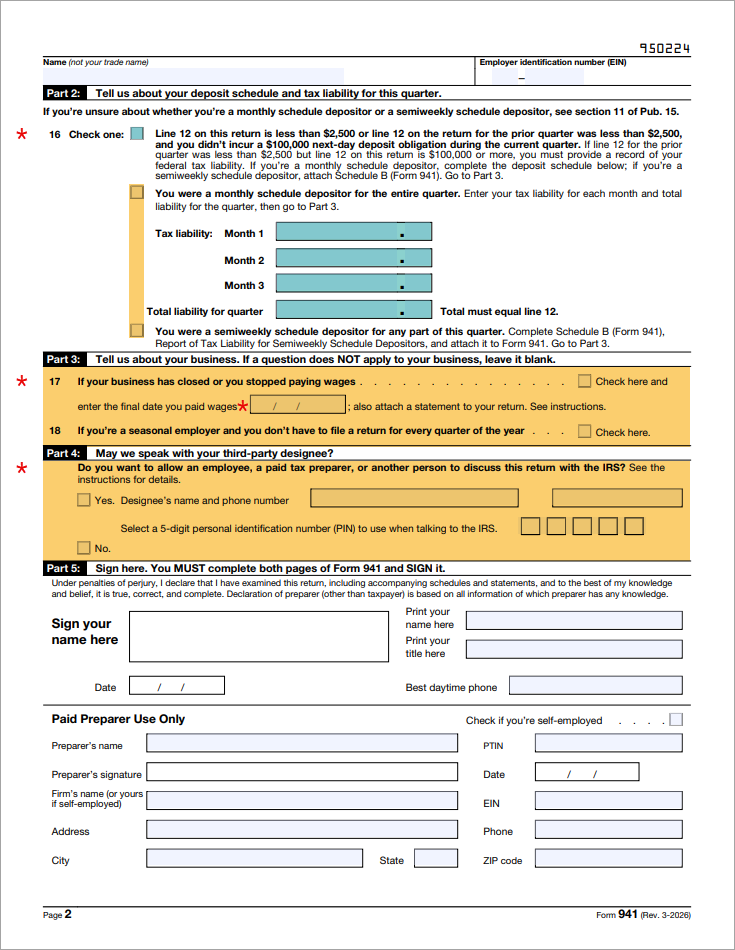
 Expand this link to view an annotated 941 form that indicates the sources from which form data is derived.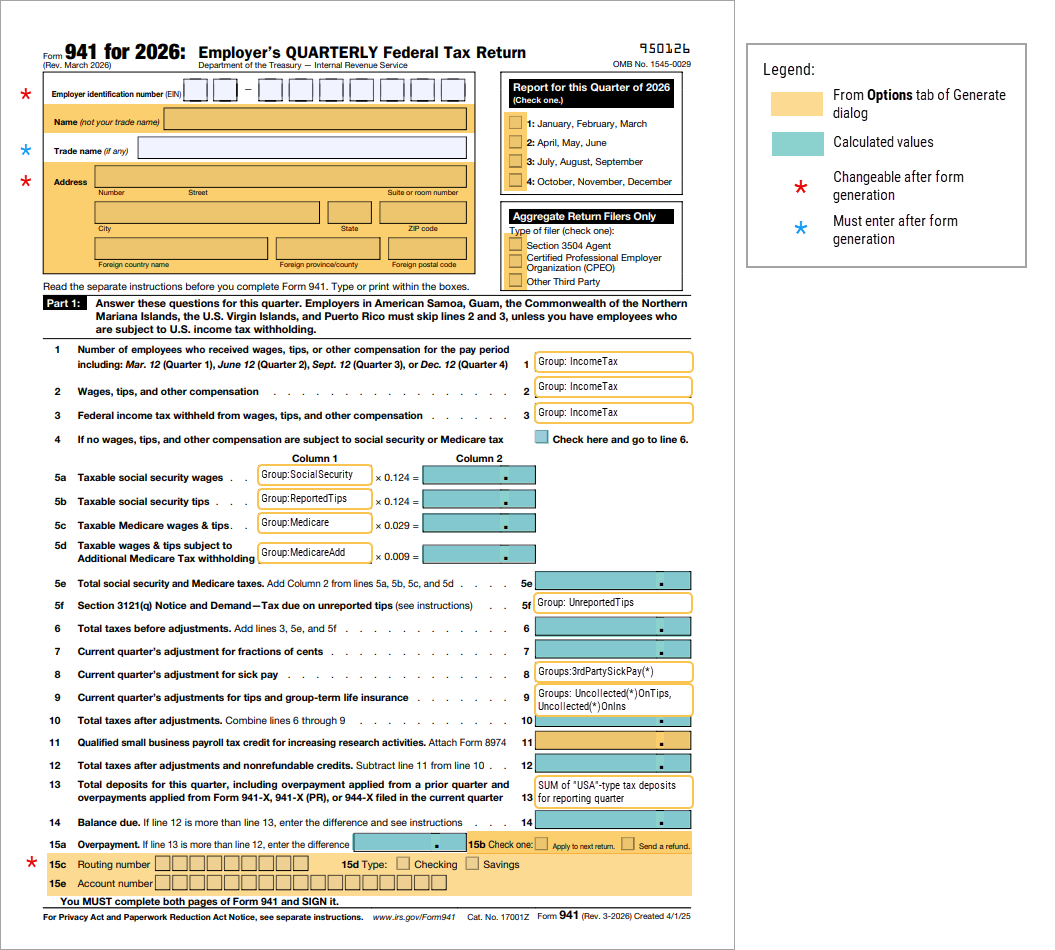
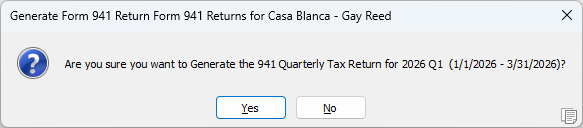
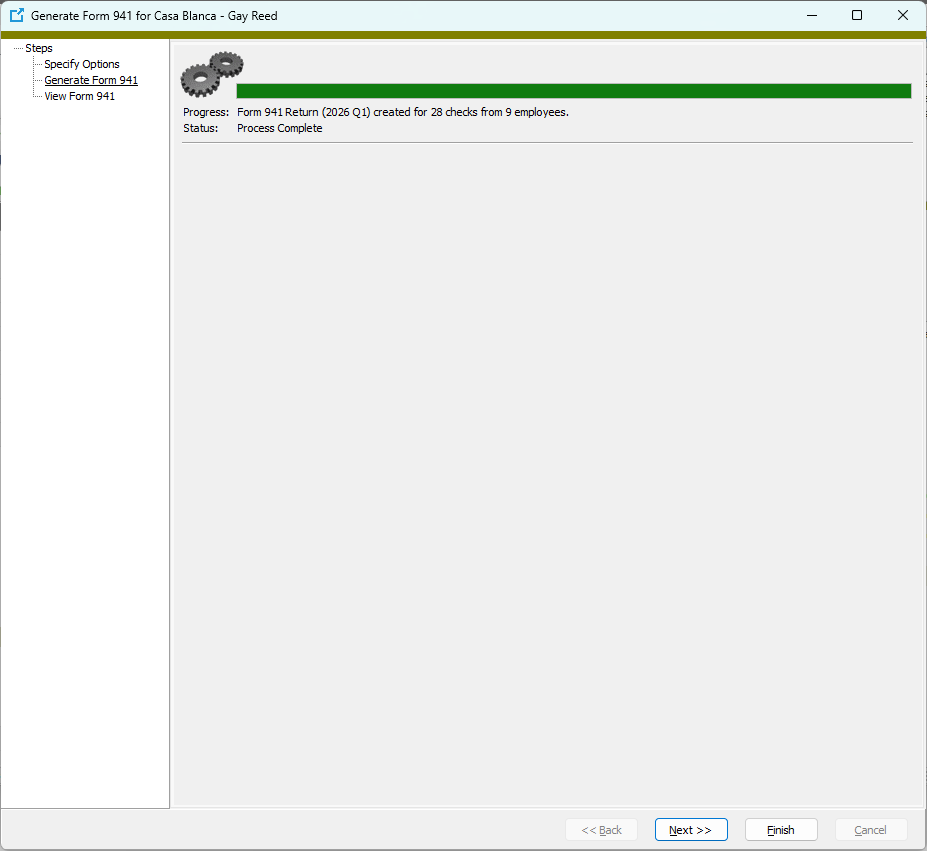
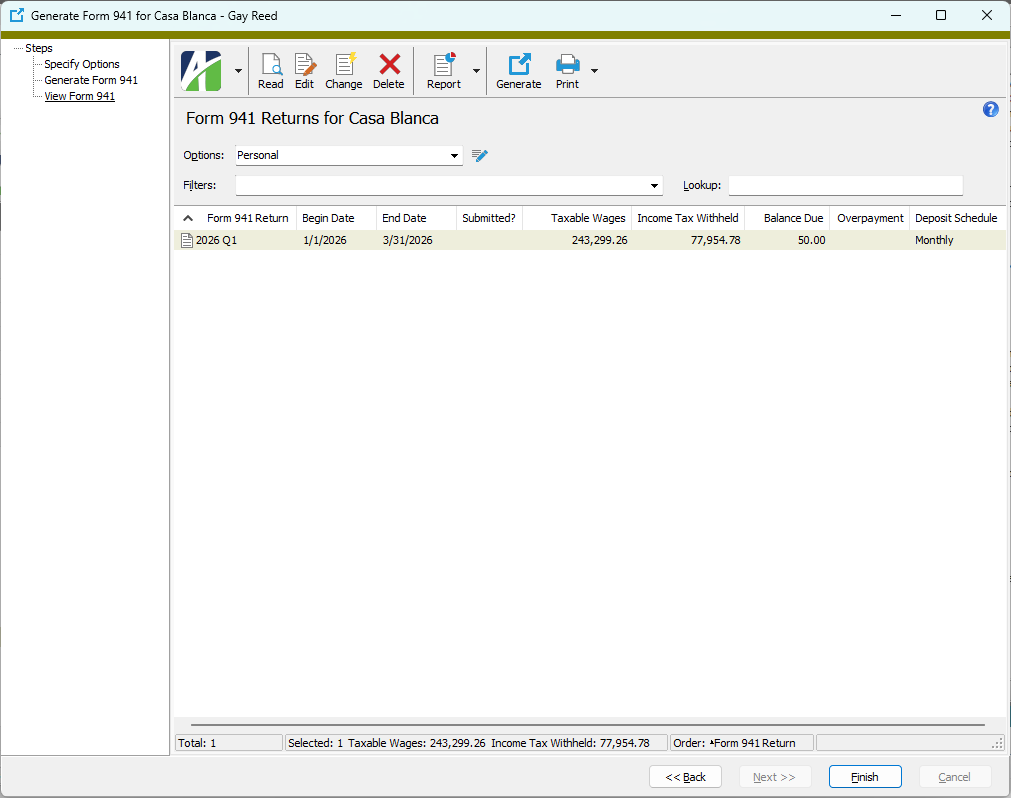
 . The Generate Form 941 wizard starts.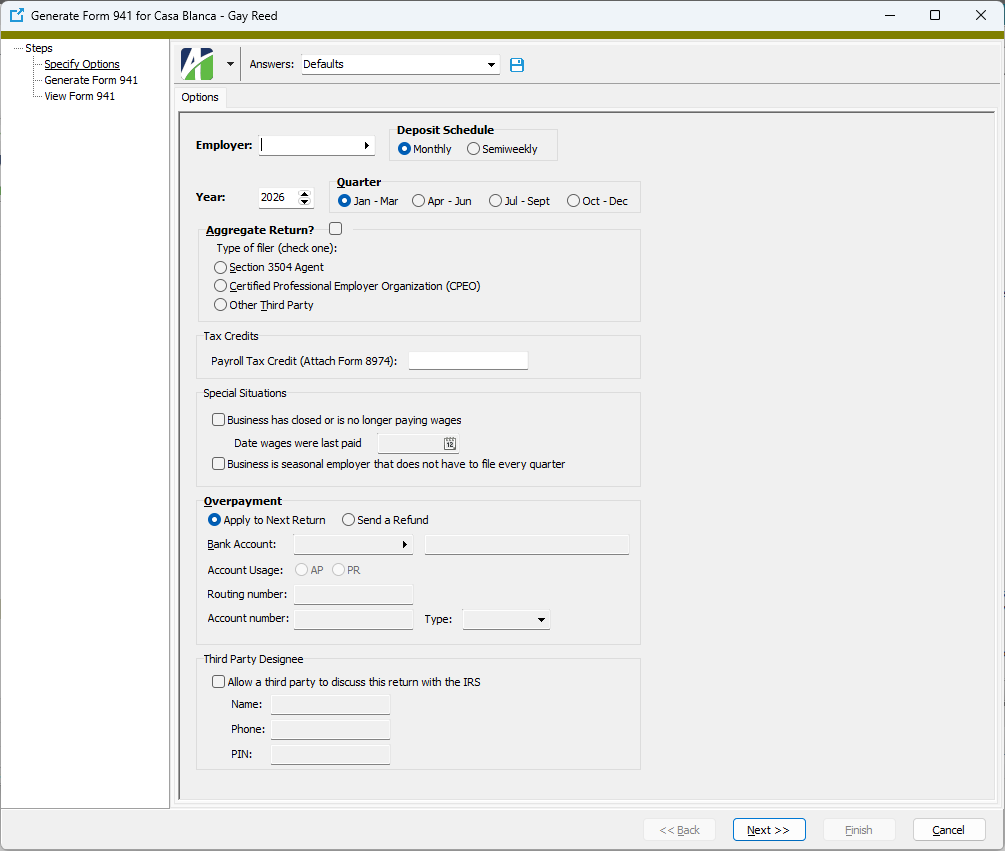
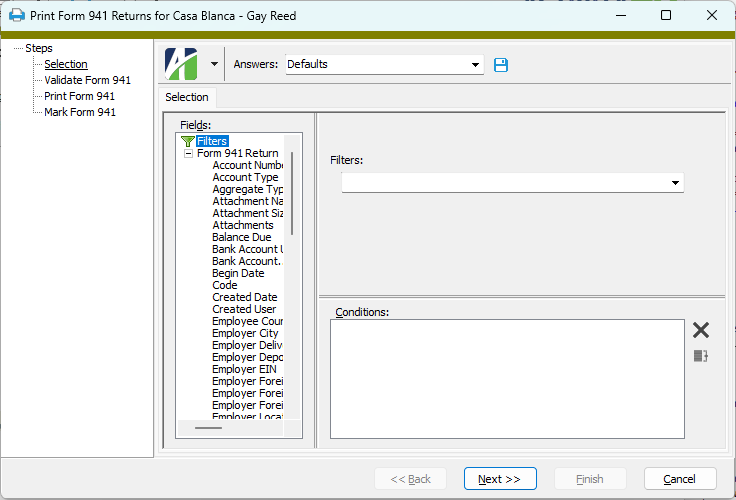
 .
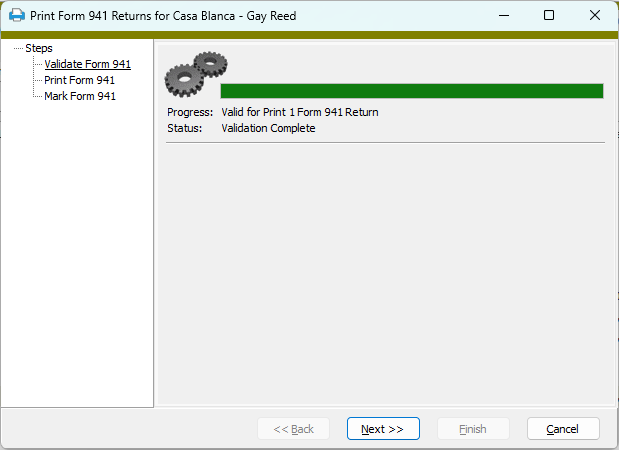
. 
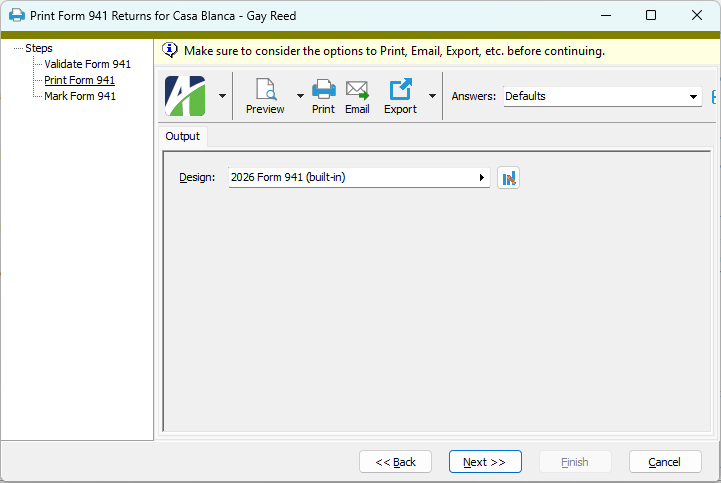
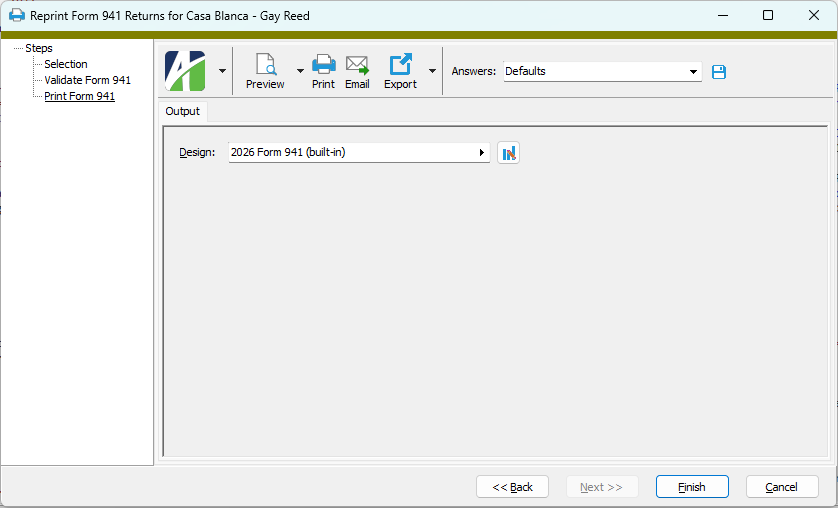
 - Provides access to two preview options.
 - Opens the Report Email Options dialog so that you can address and compose an email that the returns will be attached to.