PRCode Record ID
Code
Displays the unique code for this PRCode. When you create a new PRCode, this code is built as you select the segment items that belong to the PRCode.
Items tab
Type
The segment item that represents the type of PRCode you are creating.
Press F3 to look up the value.
If a value is already selected, you can press F4 to open the record in its native editor.
Deduction/Pay/Statistic/Tax
The segment item that represents the type of deduction/pay/statistic/tax you are creating the PRCode for.
Press F3 to look up the value.
If a value is already selected, you can press F4 to open the record in its native editor.
[Segment]
If you are prompted for an additional segment, a segment item that further defines the PRCode.
Depending on how segments and their segment items are defined, you could be prompted for one or more additional segments.
Press F3 to look up the value.
If a value is already selected, you can press F4 to open the record in its native editor.
Properties tab
Effective Values
Description
Displays the combined descriptions from the segment items which comprise the PRCode.
Run Types
Displays the run types from the rightmost segment item with run types designated.
Groups
Displays the check line groups from the rightmost segment item with groups designated.
Follows Pay Group
This field is not visible for employee-paid deductions or taxes. Displays the follows pay group from the rightmost segment item with a follows pay group designated.
Employee/Employer
This field is visible for deduction and tax PRCodes. Displays the employee/employer qualifier from the rightmost segment item with a qualifier designated.
Tax Entity
This field is visible for tax PRCodes only. Displays the tax entity qualifier from the rightmost segment item with a qualifier designated.
Check Stub Item
Displays the check stub item from the rightmost segment item with a check stub item designated.
Debit Account (Accrual)
This field is visible for pay and statistical PRCodes and for employer-paid deduction and tax PRCodes. Displays the debit account derived by applying the debit account masks on the segment items from left to right.
Credit Account (Liability)
This field is visible for deduction and tax PRCodes. Displays the credit account derived by applying the credit account masks on the segment items from left to right.
Liability Date
This field is visible for deduction and tax PRCodes. Displays the source of the liability date (check date or work date) from the rightmost segment item with a liability date designated.
Create Accrual Debit?
This field is visible for statistical PRCodes only. Displays whether a GL debit posting will be created (yes/no) based on the rightmost segment item with an answer designated.
Position
This field is visible for pay PRCodes only. Displays the position from the rightmost segment item with a position designated.
AP Control
This field is only visible if the Payroll to AP interface is enabled and if this is a deduction or tax PRCode. This field displays the AP control from the rightmost segment item with an AP control designated.
Source Amount Scale
Displays the source amount scale from the rightmost segment with the scale designated.
Rate Amount Scale
Displays the rate amount scale from the rightmost segment with the scale designated.
Result Amount Scale
Displays the result amount scale from the rightmost segment with the scale designated.
Contributing Items
The values in this list represent the segment items which contribute to the determination of the values in the corresponding fields in the Effective Values list for this PRCode.
Calculations tab
Available Parameters table
Displays the parameters that come from the segment items that comprise the PRCode.
Note
Obsolete segment item parameters appear in this table only if a value is assigned.
Parameter
Displays a parameter needed to calculate a check line with this PRCode.
Description
Displays a description of the parameter.
Data Type
Displays the data type of the parameter. Valid types include:
- Date
- Number
- String
- True/False
Current Value
Displays the current value of the parameter as of the system date.
Values table
Displays the parameter values for the parameter that is currently selected in the Available Parameters table.
Effective
Displays the effective date of the corresponding value.
Value
Displays the parameter value as of the effective date.
Description
Displays a description of the value.
Item
Displays the segment item where the value is defined.
Source Expression
The source expression from the rightmost segment item of the PRCode. This expression produces the source for a check line that contains this PRCode.
Rate Expression
The rate expression from the rightmost segment item of the PRCode. This expression produces the rate for a check line that contains this PRCode.
Result Expression
The result expression from the rightmost segment item of the PRCode. This expression produces the result for a check line that contains this PRCode.
Custom tab
This tab is visible if custom fields exist for the entity. At a minimum, if there are custom fields, a Fields subtab will be present. One or more additional categories of subtabs may also be visible.
Fields subtab
This tab prompts for values for any custom fields set up for entity records of this entity type. Respond to the prompts as appropriate.
References subtab
This tab is visible if other records reference the current record.
Reference
From the drop-down list, select the custom field to view references for. Reference custom fields have the following format: PackageName.EntityName.CustomFieldName.
Example
Suppose a custom field exists on PRCodes that references an ARCode. On the ARCode record, on the Custom > References subtab, you can view all the PRCodes which reference that ARCode.
Exchange Folder subtab
This tab is visible only if you set up a custom field with a data type of "Exchange Folder". The label on this tab is the name assigned to the custom field.
This tab shows the contents of the specified Exchange folder.
File subtab
This tab is visible only if you set up a custom field with a data type of "File". The label on the tab is the name assigned to the custom field.
This tab renders the contents of the specified file according to its file type.
Internet Address subtab
This tab is visible only if you set up a custom field with a data type of "Internet Address". The label on this tab is the name assigned to the custom field.
This tab shows the contents of the specified web page.
Network Folder subtab
This tab is visible only if you set up a custom field with a data type of "Network Folder". The label on this tab is the name assigned to the custom field.
This tab shows the contents of the specified network folder.
Check Lines tab
The Check Lines pane shows the Check Lines HD view filtered to show all check lines created with the selected PRCode.
Double-click a row in the pane to drill down to its record in the Check Line window.
The Attachments tab is visible if any record for a given entity has an attachment. If the Attachments tab is not visible, this implies that no record of the entity type has an attachment on it; however, once an attachment is added to any record of the entity type, the Attachments tab will become available.
Attachments
The list box shows the files which are attached to the current record. Highlight a file name to preview the file in the adjacent pane. Double-click a file name to open the file in its native editor.
Preview pane
If a file name is highlighted in the Attachments list box, this pane shows a preview of the file contents. Some file types cannot be previewed but can be double-clicked to open in their native editor.
Change Logs tab
This tab is visible if the user has "Change Logs" access to the associated data folder resource.
The Change Logs pane shows the Change Logs HD view filtered to show all change logs for the selected entity record.
Double-click a row in the pane to drill down to its record in the Change Log window.
Other tab
Memo tab
To include additional information about this record not collected elsewhere, enter it in this text box. This area supports common keyboard shortcuts such as Ctrl+C to copy and Ctrl+V to paste.
Timestamps tab
This tab shows the user who created this record and the date and time of creation as well as the user, date, and time of the latest modification to the record.
Developer tab
This tab is visible only when developer features are enabled.
Automation subtab
This subtab shows field names and values for the current data record. Use the information in the subtab to assist when creating automation objects such as bots and import files. The field names and field values can be copied from the text box and pasted directly into your code or application. To copy content from the text box, highlight the content to copy and press Ctrl+C or right-click your selection and select Copy from the context menu.
Export (XML | JSON) subtab
This subtab shows the XML syntax for exporting the selected data record. The syntax can be copied from the text box as an exemplar for creating your own automation objects for bots, import files, ActivWebAPI, etc. To copy content from the text box, highlight the content to copy and press Ctrl+C or right-click your selection and select Copy from the context menu.
Import (XML | JSON) subtab
This subtab allows you to select a file for import and shows the XML syntax for importing data records. Use the subtab to explore the XML syntax for importing data records. In particular, you can investigate the syntax which results when using Data.Import and ActivWebAPI data POST and DELETE routes.
Change Log (XML | JSON) subtab
This subtab is visible only when the Enable Change Logs option is marked in System Options or Company Options (depending on whether the feature applies at the system or the company level). This is the default setting when developer features are enabled.
This subtab allows you to investigate changes to the current data record. The syntax can be copied for use in bots, dashboards, ActivWebAPI, and other automation. To copy content from the text box, highlight the content to copy and press Ctrl+C or right-click your selection and select Copy from the context menu.
Select Statement (SQL) subtab
This subtab allows you to investigate the SQL select statement used to retrieve the current data record. The syntax can be copied as an exemplar for data sources and other automation. To copy content from the text box, highlight the content to copy and press Ctrl+C or right-click your selection and select Copy from the context menu.
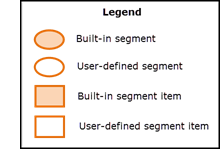
 Come to grips with the PRCode concept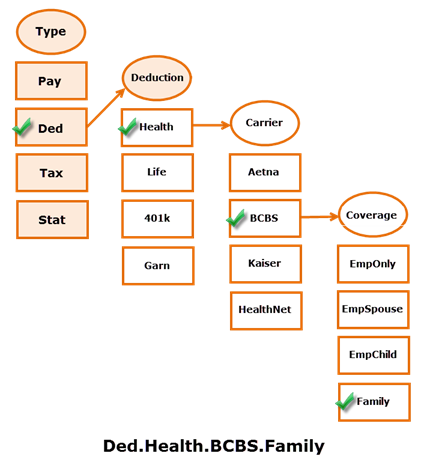
 . The New PRCode window opens.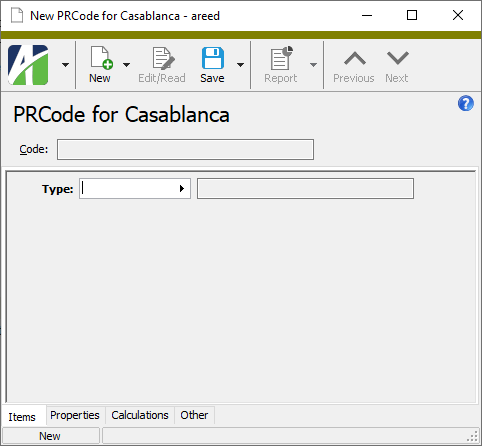
 > Edit > Obsolete.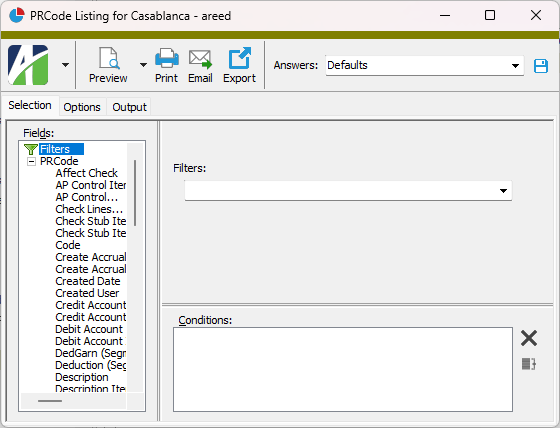
 .
.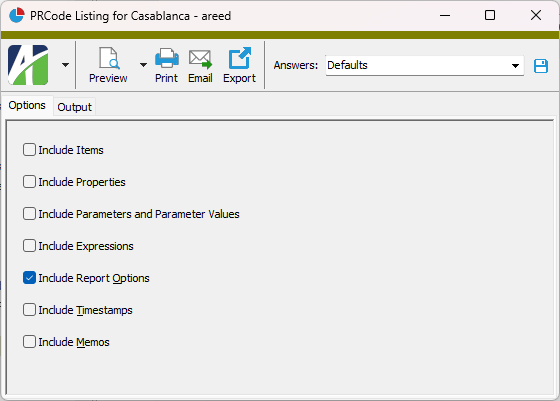
 - Provides access to two preview options.
 - Opens the Print dialog so that you can select and configure a printer and then print a paper copy of the report.
 - Opens the
  - Opens a drop-down menu with two export options: