Colorado FAMLI (Family and Medical Leave Insurance)
Beginning January 1, 2023, Colorado requires employers and employees to contribute to the new state-run FAMLI program (see famli.colorado.gov). The segment items and other data which support this requirement are built in.
Groups
The following groups are built in for all states:
- FamilyLeaveTax. This group is qualified by tax entity and by employee/employer. It is assigned to the employee and employer family leave taxes.
- PreFamilyLeaveTax. This group is assigned to deductions which reduce family leave wages.
The remaining data described below are added by the state-specific installation script (...\Extras\Payroll\PRBuiltInStateData.sql) when "Colorado" is selected.
Parameters
- Type:Tax:COFAMLIPercent. CO FAMLI Premium Total Percent. The value as of January 1, 2026 is 0.88. This value is the total premium percent. This percent is split between employers and employees. The percent is set by the state of Colorado and should not be modified.
- Type:Tax:COFAMLIEmployeeShare. CO FAMLI Employee Share Percent. The value as of January 1, 2026 is 50.00. This value is the percent of the total premium which is paid by the employee. Employers can deduct up to 50% of the 0.88% premium from their employees' checks, but no more. Employers are allowed to deduct less than 50%; for example, set the value to 0.00 to offer FAMLI as a benefit to employees.
Segment Items
- TaxState:COFamliEE. Colorado FAMLI Tax - Employee (built-in). Tax Entity = USA.CO.
- Source expression = total Compensation (not just CO) minus Pre-Family Leave Tax deductions, not to exceed the yearly Social Security maximum per year.
- Rate expression = Type:Tax:COFAMLIPercent * (Type:Tax:COFAMLIEmployeeShare / 100)
- Result expression = Source * Rate / 100
- TaxState:COFamliER. Colorado FAMLI Tax - Employer (built-in). Tax Entity = USA.CO.
- Source expression = total Compensation (not just CO) minus Pre-Family Leave Tax deductions, not to exceed the yearly Social Security maximum per year.
- Rate expression = Type:Tax:COFAMLIPercent * ((100 - Type:Tax:COFAMLIEmployeeShare) / 100)
- Result expression = Source * Rate / 100
Notes
Note 1: All compensation is included in the calculation of FAMLI wages, not just Colorado compensation.
Note 2: The employee premium is included in the DispDed group to reduce disposable wages for garnishments.
PRCodes
The state-specific installation script pre-installs the following PRCodes:
- Tax.State.COFamliEE
- Tax.State.COFamliER
Tax deposit types
FAMLI tax is remitted separately from income tax and SUTA; therefore, it needs its own tax deposit type. A new "COFAMILI" tax deposit type with a description of "Colorado FAMLI tax" is included in the script. Two fields are defined on the tax deposit type:
| Field Name | Field Description | Group | Employ(EE/ER) | Tax Entity |
|---|---|---|---|---|
| Employee | Employee contribution | FamilyLeaveTax | EE | USA.CO |
| Employer | Employer contribution | FamilyLeaveTax | ER | USA.CO |
Filters
The script adds the following filters to the Checks folder and makes them available to the built-in "Process Payroll" dashboard gadget:
- Proof CO FAMLI Wages EE
- Proof CO FAMLI Wages ER
For checks with non-zero Colorado compensation, these filters test whether the total Compensation result amount minus the PreFamilyLeaveTax result amount equals the employee or employer FAMLI tax source amount.
Additional setup
The following setup is left to the user:
- Segment items. Complete the empty fields as needed (run types, additional groups, check stub item, follows pay group, GL accounts, AP control).
- AP control. Add the AP control for posting FAMLI to AP once a quarter. Set the tax deposit type to "COFAMLI".
- Employee automatics. Add new PRCodes to the automatics of any employees who work in Colorado. See the following website to view a flowchart of employees covered under FAMLI: https://famli.colorado.gov/employers/employer-faqs, "If an employee lives in Colorado but works in another state..."
- Dashboard gadget. Add proofing filters to your custom dashboard gadget.
 Set up and create the totals file for Colorado FAMLI reporting
Export Controls
The "CO FAMLI" export control provides reporting for the Colorado Family and Medical Leave Insurance (FAMLI) program. Refer to "My FAMLI+ Employer: User Guide for Employers" for information about submitting your wage reports. The file specifications provide options to submit an XML file or CSV file. The provided export control produces a CSV file which you can review in Excel before submitting.
Setup
If you have any seasonal employees, do the following:
-
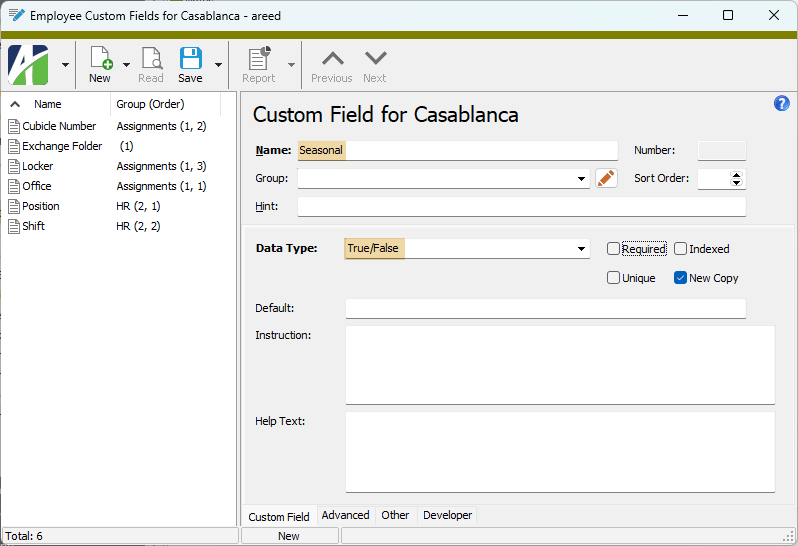
Add a custom field on the Employees folder. Name the custom field "Seasonal" with a data type of "True/False".
-
Set the "Seasonal" field to "True" or "False" on each of your Colorado employees depending, of course, on their seasonal status.
Note
On the Custom tab of an employee record, the "Seasonal" field is represented by a tri-state checkbox.
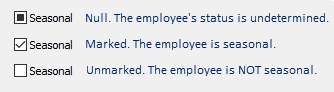
Do not leave the checkbox in a "Null" state. Each employee must be marked or unmarked depending on their seasonal status.
In the Mass Change process the "Seasonal" values are represented as three options: "True", "False", and "Null".
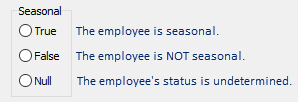
Do not select "Null" if you need to set the seasonal status of employees. Instead select "True" or "False" as it applies to the selected employees.
- Import this file from the distribution: ...\Extras\Payroll\Export Controls\State Taxes\CO FAMLI Export Control.XML.
If none of your employees is seasonal:
- Import this file from the distribution: ...\Extras\Payroll\Export Controls\State Taxes\CO FAMLI Export Control (no seasonal).XML.
Create Totals File
Generate the totals file using the settings described below:
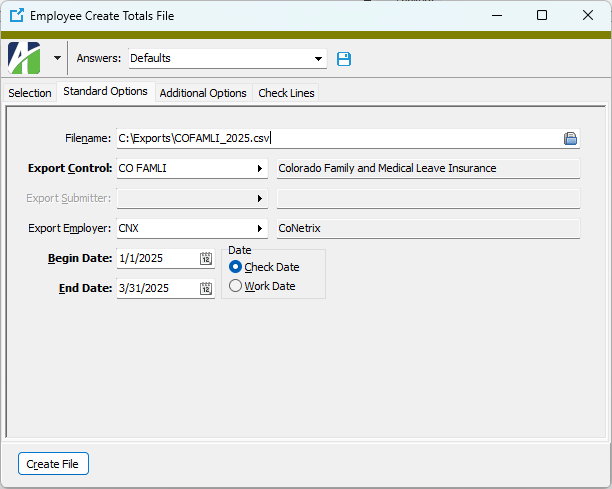
- Navigate to Payroll/Human Resources > Employees, right-click and select Report Totals File.
- Select the Standard Options tab. (It is not necessary to filter employees for the process because the export control only selects employees with non-zero Colorado wages.)
- In the Filename field, navigate to the location where you want to save the totals file and enter a file name with a .csv extension.
- In the Export Control field, select the "CO FAMLI" export control that you imported.
- In the Export Employer field, select the applicable export employer. In all likelihood, you can use the same export employer that is set up for tax and/or unemployment.
- In the Begin Date field, enter the date of the first day of the reporting quarter.
- In the End Date field, enter the date of the last day of the reporting quarter.
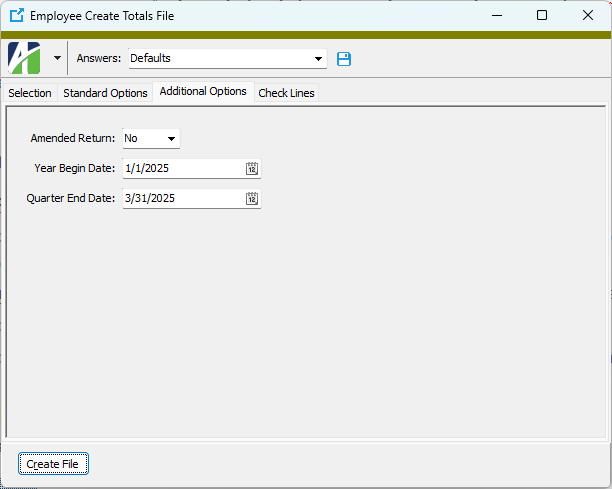
- Select the Additional Options tab.
- From the Amended Return drop-down list, select "Yes" or "No" as appropriate. "Yes" indicates "this is an amended return submission and replaces prior data".
-
In the Year Begin Date field, enter the date of January 1 of the current year.
Tip
Press F2 and enter the date expression "begin of year" based on "Begin Date".
-
In the Quarter End Date field, enter the quarter end date.
Tip
Press F2 and enter the date expression "today" based on "End Date".
- Save your answers for reuse in future quarters.
- Click Create File to generate the report.
Field-by-Field
The following table lists each output field from the totals file and how each is derived.
| Output field | Source |
|---|---|
| DocumentCount | Number of employees reported. |
| AmendedReturn | The value of the Amended Return field on the Additional Options tab. |
| FAMLIPremiumStartDate | The value of the Begin Date field on the Standard Options tab. |
| FAMLIPremiumEndDate | The value of the End Date field on the Standard Options tab. |
| PreparerLegalName | Blank |
| PreparerFEIN | Blank |
| Settlement Date | The date and local time that the totals file is generated (e.g., 2023-01-31T16:00:00). |
| ReturnTotalContributionsDue | Total of employee contributions from totals file. |
| EmployerFEIN | The value from the Employer ID field on the USA tax entity record. |
| EmployerFAMLIId | Blank |
| EmployerLegalName | The name of the selected employer. |
| EmployerTaxPayerId | Blank (not a sole proprietor) |
| IndividualName | Blank (not a sole proprietor) |
| FName | Blank (not a sole proprietor) |
| MName | Blank (not a sole proprietor) |
| LName | Blank (not a sole proprietor) |
| BusAdrStreet1 | The delivery address of the selected employer. |
| BusAdrStreet2 | Blank |
| BusAdrStreet3 | Blank |
| BusAdrCity | The city of the selected employer. |
| BusAdrStateCode | The state of the selected employer. |
| BusAdrPostalCode | The zip code of the selected employer. |
| BusAdrCountry | "United States" |
| TotalWagesThisPeriod | Total wages from the totals file. |
| TotalContributionsDue | Total of FAMLI contribution this quarter from the totals file. |
| PaymentAmountTotal | Total of FAMLI contribution this quarter from the totals file. |
| IsFinalReturn | "false". (Assumes that this is not the final return for an employer that has "ceased operations".) |
| EmployeeSSN | Social Security number from the employee record (no dashes). |
| EmployeeFirstName | Employee first name from the employee record. |
| EmployeeMiddleName | Employee middle name from the employee record. |
| EmployeeLastName | Employee last name from the employee record. |
| YearToDateWages | The total source of check lines in the FamilyLeaveTax group (employee only) that have a check date between the dates in the Year Begin Date and Quarter End Date fields specified on the Additional Options tab. |
| GrossWagesThisQtr | The total source of check lines in the FamilyLeaveTax group (employee only) that have a check date between the dates in the Begin Date and End Date fields specified on the Standard Options tab. |
| SubjectWagesThisQtr | Same as gross wages. |
| FAMLIContributionThisQtr | The total result of check lines in the FamilyLeaveTax group (employee and employer) that have a check date between the dates in the Begin Date and End Date fields specified on the Standard Options tab. |
| SeasonalEmployee | If set up for seasonal employees, the value of the Seasonal custom field on employee records; otherwise, always "false". |
Note
"Gross Wages" and "Subject Wages" are the same number. From the instructions for Gross Wages: "This is the same definition of 'total wages' that is used...for the purposes of Unemployment Insurance Compensation. Also referred to as FICA Wages." In ActivityHD, unemployment wages and Social Security (FICA) wages are not necessarily the same numbers. This value is also not total Compensation, because both Unemployment wages and SocialSecurity wages can be reduced by pretax deductions. Therefore, the export control uses the total Source amount of check lines in the FamilyLeaveTax group. The COFAMLI PRCodes calculate the value as Compensation minus deductions in the PreFamilyLeaveTax group. Refer to "
|
6224 34th Street Lubbock, TX 79407 806.687.8500 | 800.354.7152 |
© 2026 AccountingWare, LLC All rights reserved. |