Online help
Anatomy of a help page
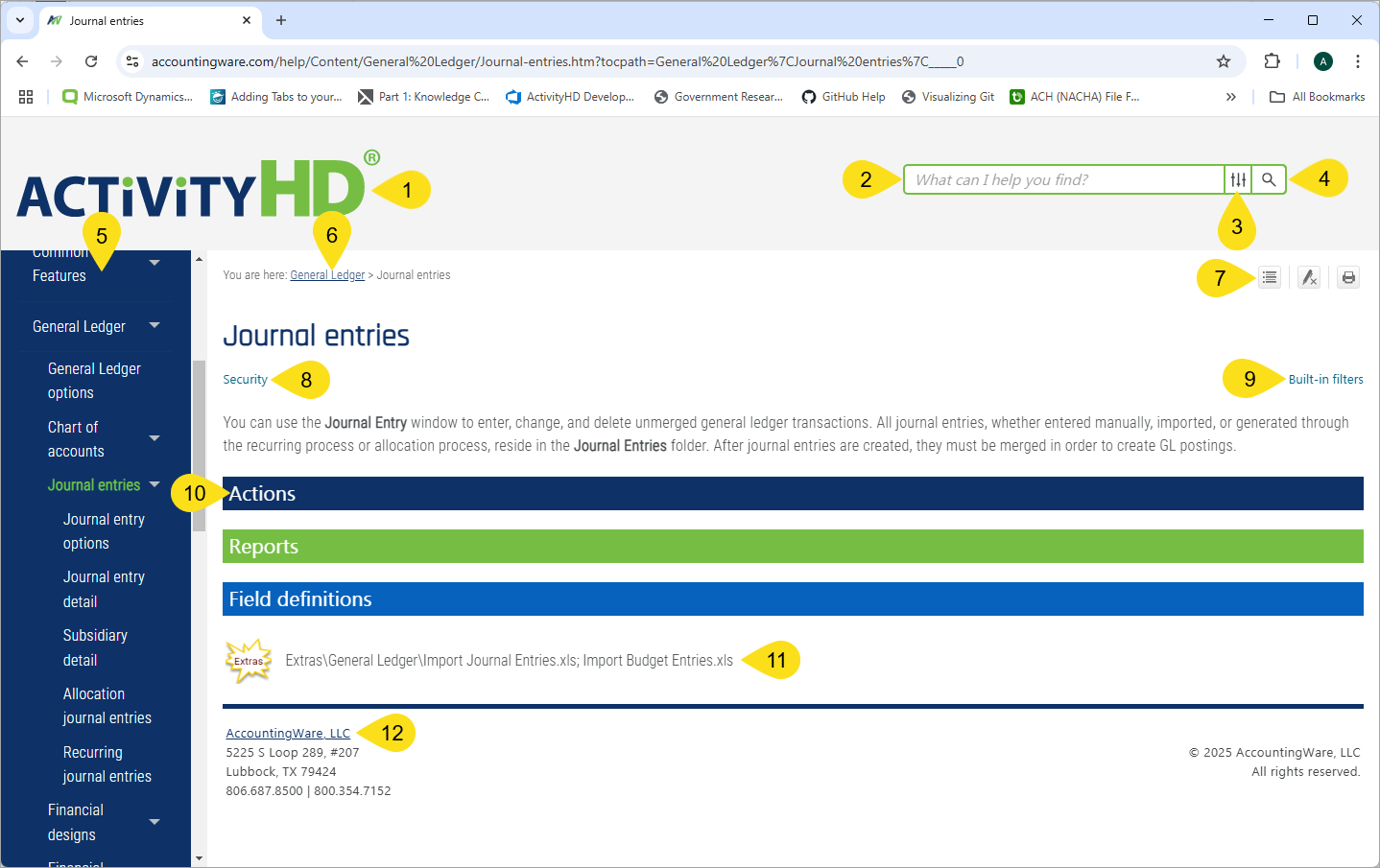
Click on a numbered callout to get more information about the feature it points to.
Help search vs. local search
There are two types of search you can perform on the online help:
- Help search. This search is performed using the search box located in the heading of the help page.
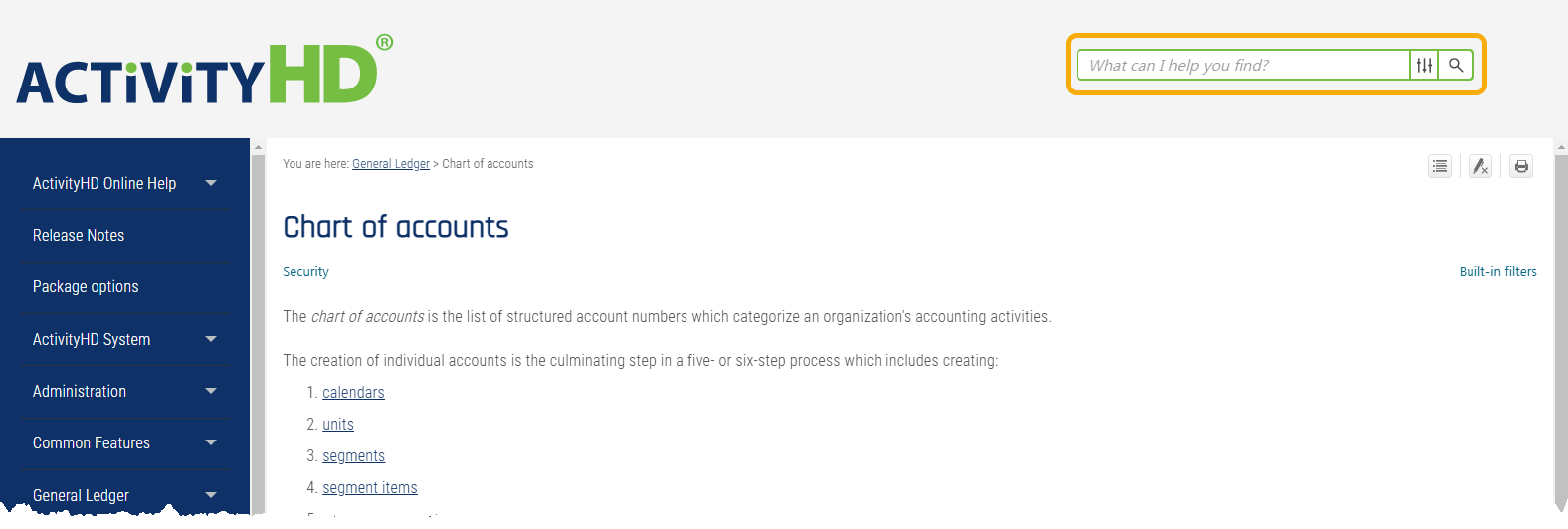
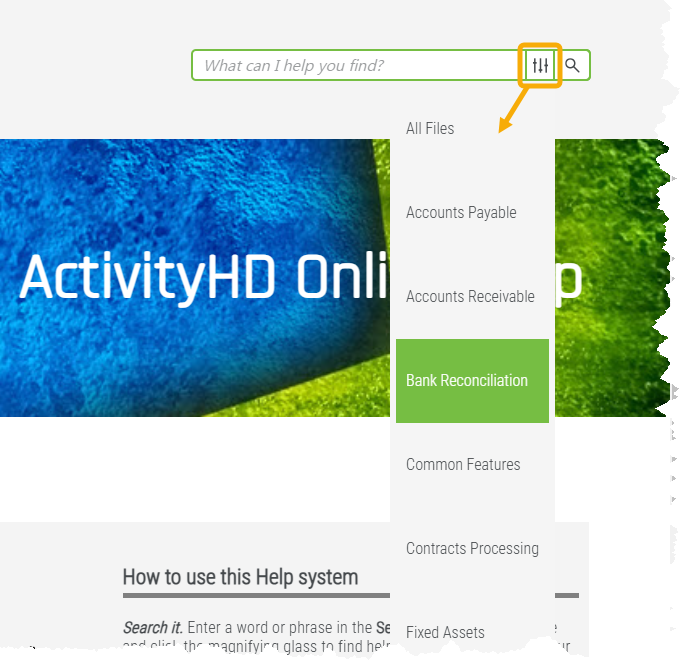
When you use this search, the entire help system is searched for your search term. If you apply a package filter, only the subset of the help system for the package you specify is searched.
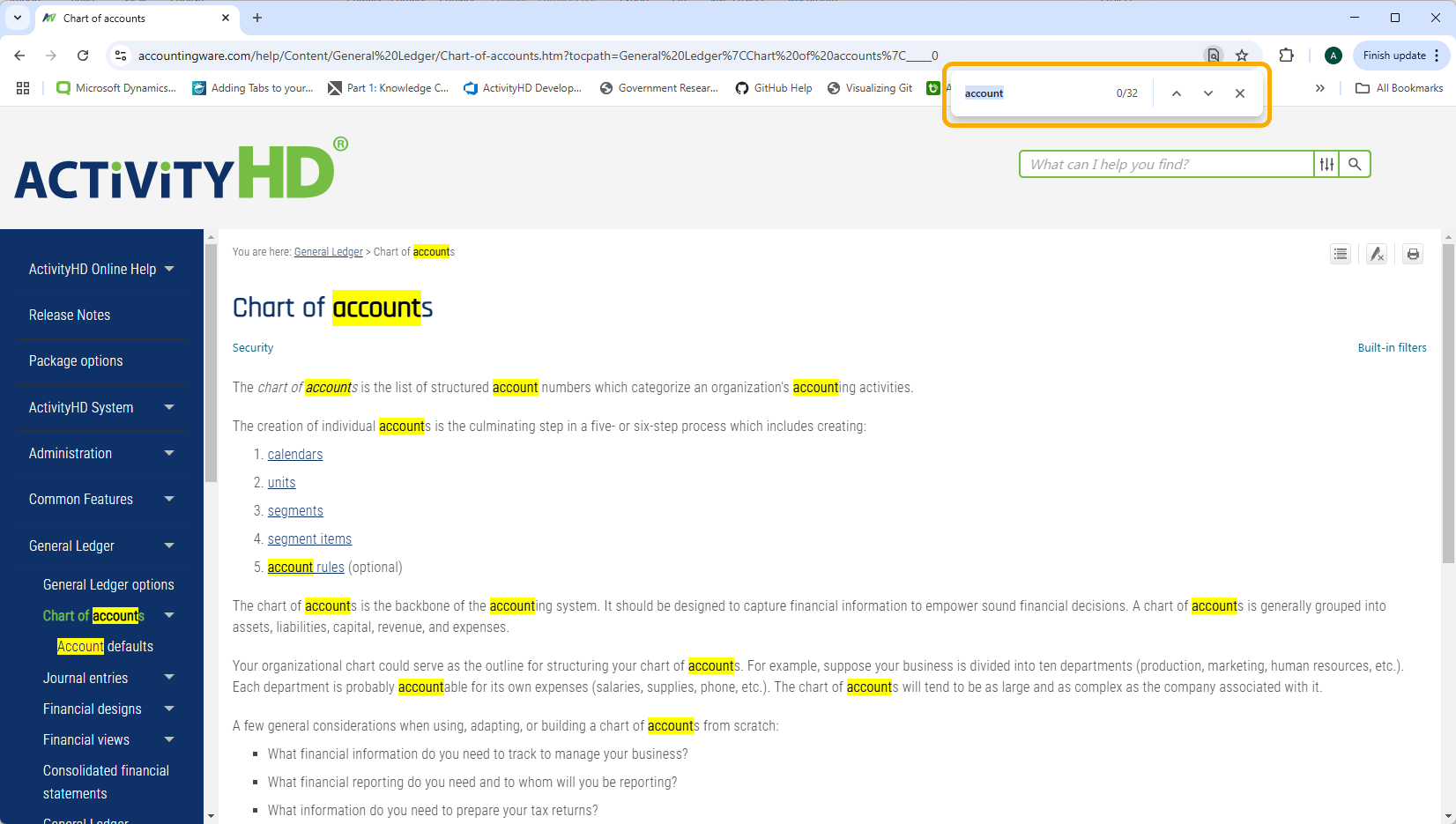
- Local search. With a help page open in your browser, you can press Ctrl+F to open the browser's search tool. Enter a search term in the search box and instances of the term on the current page are immediately highlighted.
Note
The local search only searches the text on the static and expanded portions of the page. To search the entire page for your search term, first click the "Expand all" button in the local toolbar.
Additional features of online help
Guide to quick links in the Table of Contents
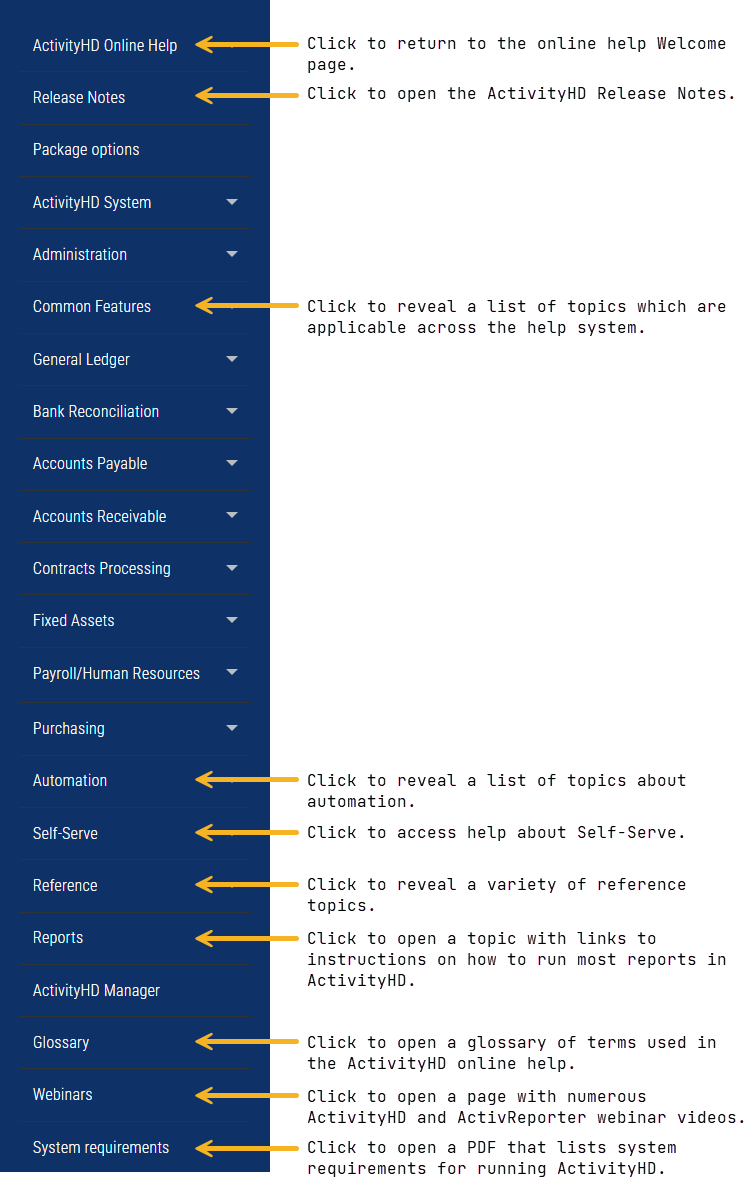
Special pages
Each ActivityHD package has a landing page that you access by clicking the package name in the Table of Contents. A landing page has a mini-table of contents to allow you to browse the help contents for the selected package. In addition, each page has a brief summary about the package and, for some packages, the page includes additional information about initial setup, interfacing with General Ledger, and workflow.
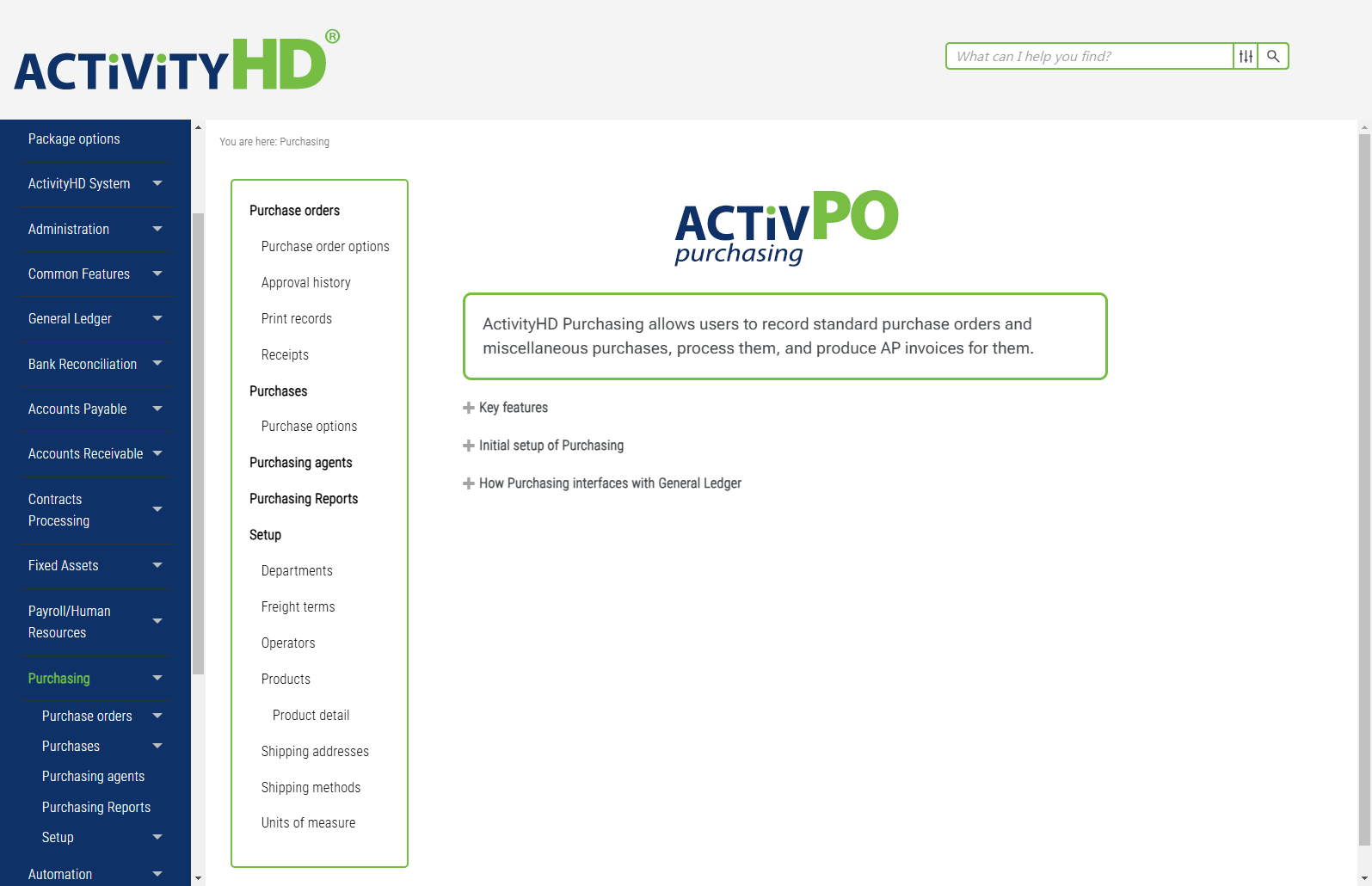
In addition, each package has a Reports page with links to instructions on how to run the reports in the package and a Setup page with a mini-table of contents for quick access to instructions on how to set up the basic components of the package.
Logo
Click the ActivityHD logo to return to the "Welcome" page.
Watch the video ↓ for a demonstration.
Help search field
In the search field, enter the word or phrase you want to find in the help system. Next, either press Enter or click the magnifying glass icon to perform the search and see the results.
Watch the video ↓ for a demonstration.
Package filter
Click the package filter to open a drop-down menu where you can select the software package to restrict your results to. The default is "All Files". Your options include:
- All Files
- Accounts Payable
- Accounts Receivable
- Bank Reconciliation
- Common Features
- Contracts Processing
- Fixed Assets
- General Ledger
- Payroll
- Purchasing
Watch the video ↓ for a demonstration.
Search button
Click the magnifying glass icon to initiate a search for the word or phrase entered in the search field.
Alternatively, you can simply press Enter after you provide a search term in the search field.
Watch the video ↓ for a demonstration.
Table of Contents
Use the Table of Contents to navigate the help system.
- Click an entry in the Table of Contents to navigate to the corresponding topic.
-
 indicates that an entry can be expanded to show subordinate entries. Click the entry to expand the list of entries.
-
 indicates that an entry can be collapsed to hide subordinate entries. Click the entry to collapse the list of entries.
Watch the video ↓ for a demonstration.
Breadcrumbs
Breadcrumbs show the path in the help system to the current topic. If a link appears in the breadcrumbs, you can click the link to move to that section in the help system.
Watch the video ↓ for a demonstration.
Local toolbar
The local toolbar consists of three buttons which affect the current page in the help browser:
-

- Expand all expands every collapsed section on a page. This is useful when you want to perform a local search (Ctrl+F) to highlight instances of a specific term on the current page.
- Collapse all collapses every expanded section on a page. This is useful when you want to browse the main topics/procedures on a page. First collapse the page, then expand a main section (e.g., "Actions", "Reports", "Field definitions") and browse the headings.
-

If the topic contains highlighted search terms, click this button to remove the highlighting.
-

Click this button to print the expanded sections of the current topic.
Watch the video ↓ for a demonstration.
Security link
Click the Security link to see the accesses available on the selected entity.
Watch the video ↓ for a demonstration.
Built-in filters link
Click the Built-in Filters link to see the built-in filters available on the HD view for the selected entity. If an entity does not have built-in filters, this link is not present.
Watch the video ↓ for a demonstration.
Section dropdowns
Expand the section dropdowns to see related procedures and additional information. Click once to expand a dropdown; click again to collapse it.
Common section dropdowns found on many topics include:
- Actions. This section contains "how-to" instructions for the current entity.
- Reports. This section contains report descriptions and instructions for running the reports associated with the current entity.
- Field definitions. This section contains descriptions for each field for the current entity. This is the place to find descriptions of all fields in a window, not only the fields touched by the procedures in the Actions section.
Less common sections include "Errors & warnings", "Built-ins", and "Syntax samples".
Watch the video ↓ for a demonstration.
Extras
The presence of the Extras logo  signals that there are additional resources related to the current topic which may be of interest to you (such as spreadsheets for importing data into ActivityHD). Browse to the indicated location(s) in your distribution area to access these files.
AccountingWare website link
Click the AccountingWare, LLC link to visit the AccountingWare website.
Watch the video ↓ for a demonstration.