Journal Detail Record ID
Journal Entry
The GL batch name and entry number of the journal entry that contains the detail line.
Press F3 to look up the value.
If a value is already selected, you can press F4 to open the record in its native editor.
Line
The line number of the journal entry detail line. If you want to change the order of the detail lines, you can enter a different line number. ActivityHD reorders the remaining detail lines to accommodate the new order.
Source
If the detail line is an intercompany detail posting, this field shows "Intercomp". If the detail line is a reversal posting, this field shows "Reversal". Otherwise, the field is blank.
Journal Detail tab
Account
The account number to which the detail line is posted.
Press F2 to open the Account Expand dialog box where you can look up an account number, find an account number by its alias, build the account number by segment, or view setup and setup sources.
Press F3 to look up the account.
If an account is already selected, you can press F4 to open the record in the Account window.
Attributes
The fields in this section represent the attributes which may apply to the journal detail entry.
Date
The posting date of the detail line.
Reversal Date
This field is available if the detail line is a reversal posting detail line. Shows the date of the reversal detail line posting for auto-reversal detail lines created during the merge process.
Reference
The reference for the detail line. The reference can contain up to 20 characters.
Debit
If the amount posted is a debit, the debit amount.
Credit
If the amount posted is a credit, the credit amount.
Unit
The unit associated with the account on the detail line.
Press F3 to look up the value.
If a value is already selected, you can press F4 to open the record in its native editor.
Description
The description of the detail line. You can edit the detail description if needed.
Memo
Additional information about the detail line. You can edit the memo if needed. If the detail line was created as a result of processing recurring journal entries, the default memo was copied from the memo on the corresponding detail line of the recurring entry it was generated from.
Subsidiary Detail tab
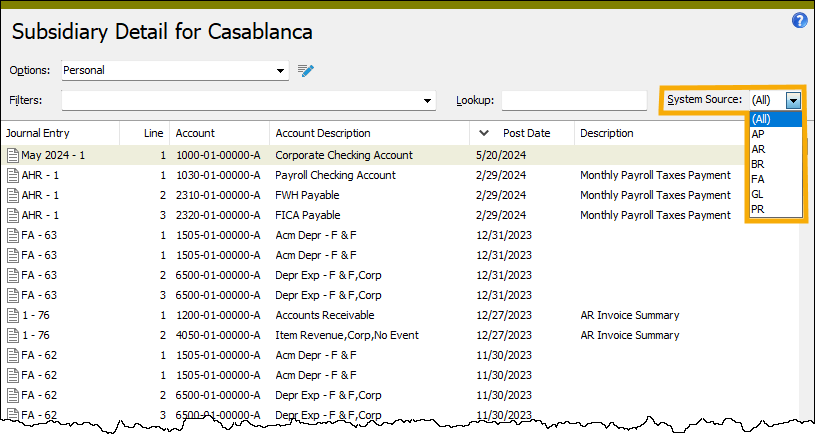
The Subsidiary Detail pane shows the Subsidiary Detail HD view filtered to show subsidiary detail lines for the selected journal detail line.
Double-click a row in the pane to drill down to its record in the Journal Detail window.
For postings from a subsidiary package, one of the following tabs will be visible to allow you to research the subsidiary detail that was summarized into the GL postings. The type of GL posting determines which tab is visible. To see a tab for subsidiary detail, the user must have permission for the appropriate folder. Security views are also applied.
AP Invoices tab
Invoices subtab
This tab is visible if the GL entry source is AP-Invoice and the GL detail reference is "Invoices".
The AP Invoices pane shows the AP Invoices HD view in Accounts Payable filtered to show all invoices associated with the selected journal detail record.
Double-click a row in the pane to drill down to its record in the AP Invoice window.
Invoice GL Detail subtab
This tab is visible if the GL entry source is AP-Invoice and the GL detail reference is "Invoices".
The AP Invoice GL Detail pane shows the AP Invoice GL Detail HD view in Accounts Payable filtered to show all invoice GL detail lines associated with the selected journal detail record.
Double-click a row in the pane to drill down to its record in the AP Invoice GL Detail window.
Invoice Extra GL subtab (AP)
This tab is visible if the GL entry source is AP-Invoice and the GL detail reference is "Extra".
The AP Invoice Extra GL pane shows the AP Invoice Extra GL HD view in Accounts Payable filtered to show all invoice extra GL lines associated with the selected journal detail record.
Double-click a row in the pane to drill down to the AP Invoice window with focus on the extra GL record in the Extra GL tab.
AP Payments tab
Payments subtab
This tab is visible if the GL entry source is AP-Payment and the GL detail reference is "Payments".
The Payments pane shows the Payments HD view in Accounts Payable filtered to show all payments associated with the selected journal detail record.
Double-click a row in the pane to drill down to its record in the Payment window.
Payment Detail subtab
This tab is visible if the GL entry source is AP-Payment and the GL detail reference is "Payments".
The Payment Detail pane shows the Payment Detail HD view in Accounts Payable filtered to show all payment detail lines associated with the selected journal detail record.
Double-click a row in the pane to drill down to its record in the Payment window.
AR Invoices tab
Invoices subtab
This tab is visible if the GL entry source is AR-Invoice and the GL detail reference is "Receivables".
The AR Invoices pane shows the AR Invoices HD view in Accounts Receivable filtered to show all invoices associated with the selected journal detail record.
Double-click a row in the pane to drill down to its record in the AR Invoice window.
Invoice Detail subtab
This tab is visible if the GL entry source is AR-Invoice and the GL detail reference is "Cost", "Inventory", or "Sales".
The AR Invoice Detail pane shows the AR Invoice Detail HD view in Accounts Receivable filtered to show all invoice detail lines associated with the selected journal detail record.
Double-click a row in the pane to drill down to its record in the AR Invoice Detail window.
Invoice Tax Detail tab
This tab is visible if the GL entry source is AR-Invoice and the GL detail reference is "Tax".
The AR Invoice Tax Detail pane shows the AR Invoice Tax Detail HD view in Accounts Receivable filtered to show all invoice tax detail lines associated with the selected journal detail record.
Double-click a row in the pane to drill down to its record in the AR Invoice Tax Detail window.
Invoice Extra GL subtab (AR)
This tab is visible if the GL entry source is AR-Invoice and the GL detail reference is "Extra".
The AR Invoice Extra GL pane shows the AR Invoice Extra GL HD view in Accounts Receivable filtered to show all invoice extra GL lines associated with the selected journal detail record.
Double-click a row in the pane to drill down to the AR Invoice window with focus on the extra GL record in the Extra GL tab.
AR Receipts tab
Receipts tab
This tab is visible if the GL entry source is AR-Receipt and the GL detail reference is "Adjustment", "Bank", or "Discount".
The Receipts pane shows the Receipts HD view in Accounts Receivable filtered to show the receipts associated with the journal detail line.
Double-click a row in the pane to drill down to its record in the Receipt window.
Receipt Detail subtab
This tab is visible if the GL entry source is AR-Receipt and the GL detail reference is "Receivables".
The Receipt Detail pane shows the Receipt Detail HD view in Accounts Receivable filtered to show all receipt detail lines associated with the selected journal detail record.
Double-click a row in the pane to drill down to its record in the Receipt Detail window.
Deposits subtab
This tab is visible if the GL entry source is AR-Receipt and the GL detail reference is "Receivables".
The Deposits pane shows the Deposits HD view in Accounts Receivable filtered to show all deposits associated with the selected journal detail record.
Double-click a row in the pane to drill down to its record in the Deposit window.
Bank Adjustments tab
Adjustments subtab
This tab is visible if the GL entry source is BR-Adjustment and the GL detail reference is "Fee", "Fee Correct", "Interest", "Int Correct", "Transfer In", "Transfer Out", "Other In", or "Other Out".
The Bank Statement Adjustments pane shows the Bank Statement Adjustments HD view in Bank Reconciliation filtered to show all bank statement adjustments associated with the selected journal detail record.
Double-click a row in the pane to drill down to the Bank Statement window with focus on the adjustment record in the Adjustments tab.
Statements subtab
This tab is visible if the GL entry source is BR-Adjustments and the GL detail reference is "Fee", "Fee Correct", "Interest", "Int Correct", "Transfer In", "Transfer Out", "Other In", or "Other Out".
The Bank Statements pane shows the Bank Statements HD view in Bank Reconciliation filtered to show all bank statements associated with the selected journal detail record.
Double-click a row in the pane to drill down to its record in the Bank Statement window.
Asset GL Detail tab
This tab is visible if the GL entry source is FA-Depreciation and the GL detail reference is "Expense".
The Asset GL Detail pane shows the Asset GL Detail HD view in Fixed Assets filtered to show asset GL detail lines for the selected journal detail line.
Double-click a row in the pane to drill down to its record in the Asset GL Detail window.
Payroll Checks tab
Checks subtab
This tab is visible if the GL entry source is PR-Liability and the GL detail reference is "Summary".
The Checks pane shows the Checks HD view in Payroll filtered to show all checks associated with the selected journal detail record.
Double-click a row in the pane to drill down to its record in the Check window.
Check Lines subtab
This tab is visible if the GL entry source is PR-Liability and the GL detail reference is "Summary".
The Check Lines pane shows the Check Lines HD view in Payroll filtered to show all check lines associated with the selected journal detail record.
Double-click a row in the pane to drill down to its record in the Check Line window.
Disbursements tab
This tab is visible if the GL entry source is PR-Cash and the GL detail reference is "Summary".
The Check Disbursements pane shows the Check Disbursements HD view in Payroll filtered to show all disbursements associated with the selected journal detail record.
Double-click a row in the pane to drill down to its record in the Check Disbursement window.
Distributions tab
This tab is visible if the GL entry source is PR-Accrual and the GL detail reference is "Summary".
The Check Distributions pane shows the Check Distributions HD view in Payroll filtered to show all distributions associated with the selected journal detail record.
Double-click a row in the pane to drill down to its record in the Check Distribution window.
 Change a detail line for an entry from a subsidiary package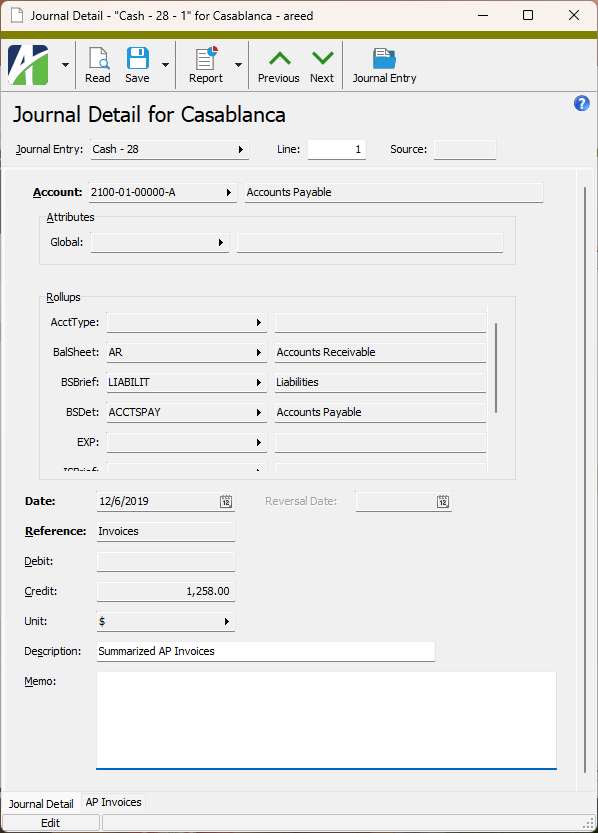
 or right-click the folder and select Drilldown Explorer from the shortcut menu.
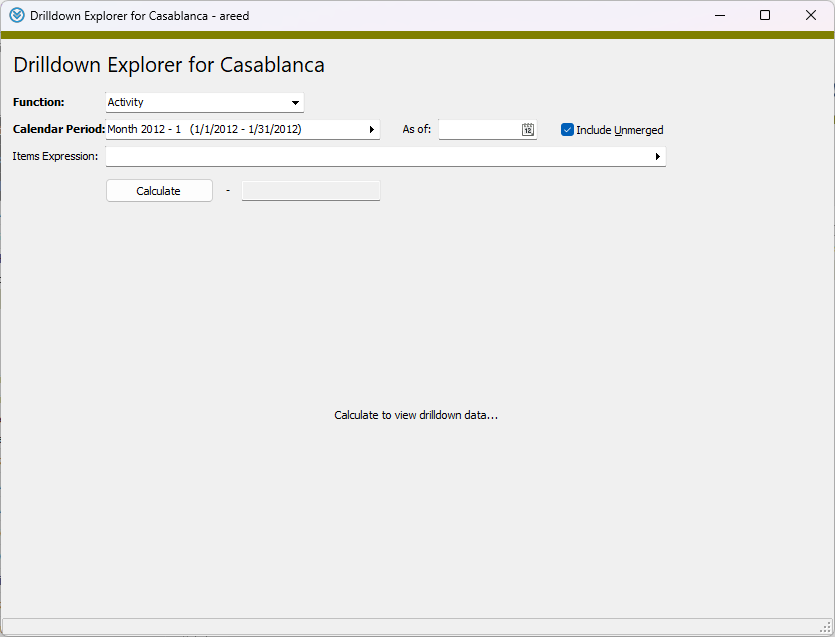
 to open the