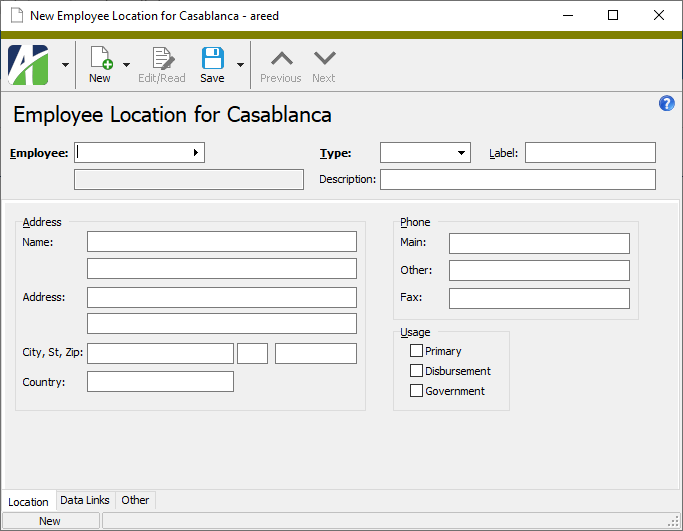
Employee locations are used to record the addresses associated with an employee. Any number of locations can be associated with an employee, but one location should be associated with each usage type (primary, disbursement, government). In reality, most employees will have a single address which is assigned to all three usage types.
To set up the location record from the Locations folder, highlight the Payroll/Human Resources > Employees > Locations folder and click .
To set up the location record from the employee record it is associated with, open the employee record, select the Locations tab, and click in the Employee Locations pane.
If you opened the new location record from its associated employee record, the Employee field is prefilled for you. If you opened the new location record from the Locations folder, select the code of the employee to associate the location record with.
From the Type dropdown, select the location type. Valid types are:
Home
Work
PO Box
Other
Enter a Label for the location. Because the type and label uniquely identify a given employee's location, a label is required to distinguish two or more locations of the same type for an employee.
Enter a Description of the location.
In the Address section, provide Name, Address, City, St, Zip, and Country for the employee location.
Note
The default name is the employee's name in first-name-first order. You can override the name on the location record if desired. If the name is overridden, it is up to the user to keep the name in sync if there are subsequent name changes. To restore the name to the default, clear the Name field and save the location record.
In the Phone section, provide phone numbers for the employee at the location.
In the Usage section, mark the checkbox(es) for how the location address should be used. Only one address can be assigned per usage. Practically speaking, most employees will have a single location which has all three usages assigned. Your options are:
Primary. The location to which most correspondence for the employee should be addressed.
Disbursement. The location which should appear on disbursements to the employee (such as pay checks).
Government. The location which should appear on government documents for the employee (W-2s, W-4s. 1095-Cs, etc.).
Save the new location record.
Location Record ID
Employee
The code of the employee the location is associated with.
Press F3 to look up the value.
If a value is already selected, you can press F4 to open the record in its native editor.
Type
The type of location. Valid options are:
Home
Work
PO Box
Other
Label
A label assigned to the location to distinguish it from other locations of the same type. A value is not required if there is only one location of the type. The label and type together uniquely identify a given employee's location.
Description
A description of the employee location.
Location tab
Address
Details about the location address.
Name
The name associated with the employee location. The default name is the employee name in "first name first" order. A second name line is provided in case you need to provide additional name information such as an "Attention" line or "care of" name.
Note
You can override the name on the location record if desired. If the name is overridden, it is up to the user to keep the name in sync if there are subsequent name changes. To restore the name to the default of first-name-first, clear the Name field and save the location record.
Address
The address for the location. Two lines are provided, if needed.
City, St, Zip
The city, state, and Zip Code of the location.
Country
The country of the location.
Phone
Main
The employee's main phone number at the location.
Other
The employee's other phone number at the location.
Fax
The employee's fax phone number at the location.
Usage
Primary
If marked, indicates the location is used as the employee's primary address.
Disbursement
If marked, indicates the location is used as the employee's disbursement address (e.g., for receiving pay checks and related disbursements).
Government
If marked, indicates the location is used as the employee's government address (e.g., for receiving W-2s, W-4s, 1095-Cs, etc.).
The Attachments tab is visible if any record for a given entity has an attachment. If the Attachments tab is not visible, this implies that no record of the entity type has an attachment on it; however, once an attachment is added to any record of the entity type, the Attachments tab will become available.
Attachments
The list box shows the files which are attached to the current record. Highlight a file name to preview the file in the adjacent pane. Double-click a file name to open the file in its native editor.
Preview pane
If a file name is highlighted in the Attachments list box, this pane shows a preview of the file contents. Some file types cannot be previewed but can be double-clicked to open in their native editor.
Other tab
Memo tab
To include additional information about this record not collected elsewhere, enter it in this text box. This area supports common keyboard shortcuts such as Ctrl+C to copy and Ctrl+V to paste.
Timestamps tab
This tab shows the user who created this record and the date and time of creation as well as the user, date, and time of the latest modification to the record.
Extras\Payroll\Import Locations.xlsm
Employee locations security
Common accesses available on employee locations
Access
A user with this access can...
Change
Use the mass change action on locations.
Change Logs
Custom Fields
Create and edit custom fields for locations.
Data
Have read-only access to locations from anywhere in the software (e.g., field validations, filters, date expressions).
Delete
Delete locations.
Edit
Edit location records.
Export
Export location records from ActivityHD.
Import
Import location records into ActivityHD.
New
Create new location records.
Read
Have read-only access to location records.
Report
Run reports with location information.
Report Designs
Create and edit report designs with location information. This access enables the Report Designs button on the Output tab of report dialogs.
Shared Answers
Create and edit saved answers related to locations.
Shared Filters
Create and edit shared filters on locations.
Visible
View the Locations folder in the Navigation pane.
Employee locations filters
The following built-in filters are available for employee locations:
Filter Name
Effect
? Employee Code
Prompts for an employee code and lists the employee locations for the employees with an employee code that contains the specified search string.
? Employee Name
Prompts for an employee name and lists the employee locations for the employees with a name that contains the specified search string.
Current Employees
Lists the employee locations for current employees.
Terminated Employees
Lists the employee locations for terminated employees.
 Create an employee location record
 .
. in the Employee Locations pane.