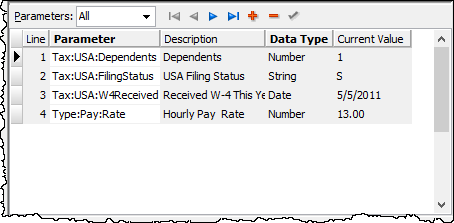
Employee parameters are the variables needed to calculate check lines for an employee. Parameters are declared on segment items. The parameters on an employee record load in the Parameters table of the Calculations tab.
When a parameter is selected in the Parameters table, you can assign parameter values for it in the Values table.
To view parameters and their current values for all employees, highlight the Payroll/Human Resources > Employees > Parameters folder and view them in the HD view.
Note
If the employee record or the segment item where the parameter is declared is flagged as obsolete, the employee parameter is also flagged as obsolete.
Employee Parameters Listing
Employee Parameters Listing
Purpose
The Employee Parameters Listing provides a list of employees and the parameters applied to their payroll records for calculating their payroll checks.
Content
For each employee included on the report, the listing shows:
parameter details.
For each parameter listed on the report, the listing shows:
description
data type
effective date
parameter value as of an effective date you specify.
In addition, you can include the following:
historical parameter values.
The following total appears on the report:
record count.
Print the report
In the Navigation pane, highlight the Payroll/Human Resources > Employees > Parameters folder.
Start the report set-up wizard.
To report on all or a filtered subset of employee parameters:
Right-click the Parameters folder and select Select and Report > Employee Parameters Listing from the shortcut menu.
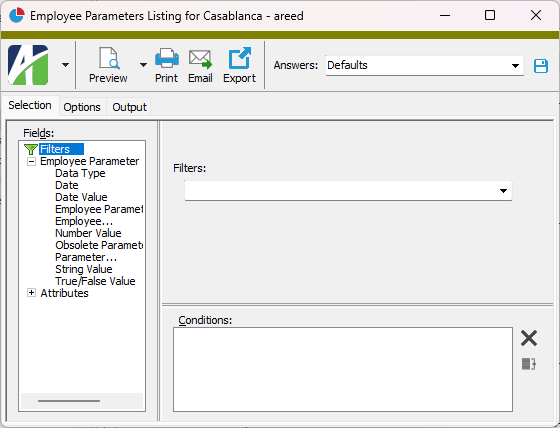
On the Selection tab, define any filters to apply to the data.
To report on specifically selected employee parameters:
In the HD view, select the employee parameters to include on the report. You can use Ctrl and/or Shift selection to select multiple records.
Click .
To report on a particular employee parameter from the Employee Parameter window:
In the HD view, locate and double-click the employee parameter to report on. The Employee Parameter window opens with the parameter loaded.
Click .
Select the Options tab.
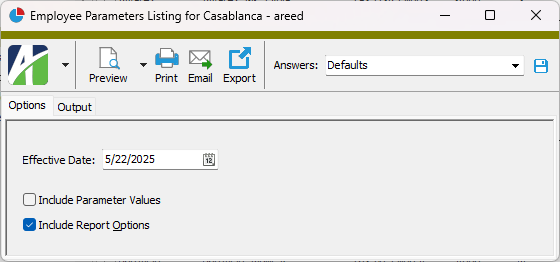
In the Effective Date field, enter the date as of which to show the parameter value for the parameters on the report.
To show the history of parameter values and effective dates for the parameters on the report, mark the Include Parameter Values checkbox.
To include a section at the end of the report with the report settings used to produce the report, leave the Include Report Options checkbox marked. To produce the report without this information, clear the checkbox.
Select the Output tab.
In the Design field, look up and select the report design to use.
In the toolbar, click the icon for the type of output you want:
- Provides access to two preview options.
Preview - Click the icon or click the drop-down arrow and select Preview from the drop-down menu to view the report in the Crystal Reports viewer.
Preview to PDF - Click the drop-down arrow next to the icon and select Preview to PDF to view the report in the PDF reader.
- Opens the Print dialog so that you can select and configure a printer and then print a paper copy of the report.
- Opens the Report Email dialog so that you can address and compose an email that the report will be attached to. For best results, ensure your email client is running before you attempt to send a report via email.
- Opens a drop-down menu with two export options:
Export Report - Opens a dialog so that you can save the report to a file. File types include Crystal Reports (.rpt), PDF (.pdf), Microsoft Excel (.xls), Microsoft Word (.doc), rich text (.rtf), and XML (.xml).
Export Data - Opens a dialog so that you can export report data to XML or JSON file format.
From
The email account from which to send the email. Valid options are:
Windows user default account. Sends email using the user's Windows default email account. For most users, this is the account configured in Outlook or another email client application.
Server personal. Sends email using the email configuration for the system or company server and the email address on the current user's authorized user record. The authorized user record must have a confirmed email address.
Server generic. Sends email using the email configuration and "from" address for the system or company server. This option requires "Send generic" access to the Server Email resource.
To
The email address(es) to which to send the email. Separate email addresses with semi-colons.
CC
The email addresses to copy on the email. Separate email addresses with semi-colons.
BCC
The email addresses to blind copy on the email. Separate email addresses with semi-colons.
Subject
The subject line.
Text box
The body of the email.
Data extensions
The following data extensions are available for the report:
Employee parameters
Employees
Employee parameters security
Common accesses available on employee parameters
Access
A user with this access can...
Data
Have read-only access to employee parameters from anywhere in the software (e.g., field validations, filters, date expressions).
Delete
Delete employee parameters.
Edit
Edit employee parameter records.
Read
Have read-only access to employee parameter records.
Report
Run reports with employee parameter information.
Report Designs
Create and edit report designs with employee parameter information. This access enables the Report Designs button on the Output tab of report dialogs.
Shared Answers
Create and edit saved answers related to employee parameters.
Shared Filters
Create and edit shared filters on employee parameters.
Visible
View the Employees > Parameters folder in the Navigation pane.
Employee parameters filters
The following built-in filters are available for parameters:
Filter Name
Effect
? Employee Code
Prompts for an employee code and lists the employee parameters for employees with an employee code that contains the specified search string.
? Employee Name
Prompts for an employee name and lists the employee parameters for employees with a name that contains the specified search string.
? Parameter
Prompts for a parameter and lists the employee parameters for employees assigned a parameter that contains the specified search string.
? Social Insurance
Prompts for a social insurance number and lists the employee parameters for the employee with that number.
? Social Security
Prompts for a social security number and lists the employee parameters for the employee with that number.
Current Employees
Lists employee parameters for current employees.
Terminated Employees
Lists employee parameters for terminated employees.
 .
.
 - Provides access to two preview options.
 - Opens the Print dialog so that you can select and configure a printer and then print a paper copy of the report.
 - Opens the
  - Opens a drop-down menu with two export options: