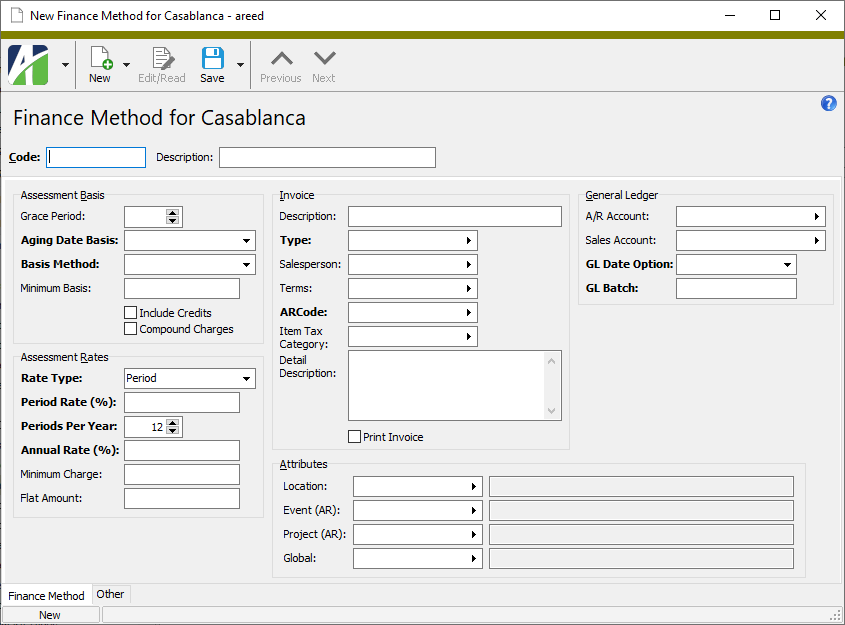
Finance Method Record ID
Code
A unique code for the finance method.
Description
A description of the finance method.
Finance Method tab
Assessment Basis
Grace Period
The number of days an invoice must be past due before finance charges are assessed. Leave this field blank or enter zero if finance charges should be assessed from the day the invoice is due.
Aging Date Basis
The type of date to base aging on for the purpose of assessing finance charges. Your options are:
- Due Date. Use the due date calculated from the payment terms to determine aging dates.
- Invoice Date
Basis Method
The method to use to calculate the balances on which finance charges are assessed. Your options are:
Minimum Basis
The minimum past due balance on which to assess finance charges. If the calculated total balance of a customer's past due invoices which use this finance method is less than this amount, no finance charges are assessed.
Include Credits
If this checkbox is marked, outstanding credits that reference this finance method are included in balance calculations.
Note
It's possible that some credits for this finance method should be included and others should be excluded from balance calculations. Since a credit must reference a finance method to be included in its calculations, you can remove or change the references to finance methods on the credits to exclude them.
Compound Charges
If this checkbox is marked, finance charges are assessed on outstanding finance charge invoices. Only finance charges that reference this finance method are included in calculations.
Important!
Laws may govern how finance charges, interest, and late fees are compounded. Check with the appropriate tax jurisdictions to verify that you are in compliance with all regulations.
Assessment Rates
Rate Type
The type of rate to use to assess finance charges. Your options are:
-
Daily. The daily rate is multiplied times the number of days in the assessment period. If you select this option, the Daily Rate and Annual Rate fields are enabled. These fields work in conjunction with one another: If you enter a daily rate, ActivityHD calculates the annual rate and vice versa.
Note
The daily rate is the annual rate divided by 365 days per year. In the Assess Finance Charges wizard, the rate for the current assessment period is determined by multiplying the daily rate times the number of days in the period. This yields a more precise assessment rate than the fixed period rate when assessment period lengths are variable.
Example
If you enter an annual rate of 18.0000%, ActivityHD calculates a daily rate of 0.0493150684931507%. If you process finance charges for a 34-day assessment period, the rate would be:
34 * 0.0493150684931507% = 1.67671232876712%
- Period. The same assessment rate is applied every period. If you select this option, the Period Rate, Periods Per Year, and Annual Rate fields are enabled. First, enter the number of periods in a year. At this point, the Period Rate and Annual Rate fields work in conjunction with one another: If you enter a period rate, ActivityHD calculates the annual rate and vice versa.
- None. An assessment rate is not used; instead, a flat amount is charged each assessment period.
Daily Rate/Period Rate (%)
If "Daily" is selected in the Rate Type field, this field is labeled "Daily Rate (%)". Enter the daily rate to assess for the finance method. ActivityHD calculates the annual rate for you and loads it in the Annual Rate field. Alternatively, if you leave this field blank and enter an annual rate, ActivityHD calculates the daily rate for you.
If "Period" is selected in the Rate Type field, this field is labeled "Period Rate (%)". Enter the period rate to assess for the finance method. Using the period rate and the number of periods per year, ActivityHD calculates the annual rate for you and loads it in the Annual Rate field. Alternatively, if you leave this field blank and enter the number of pay periods per year and an annual rate, ActivityHD calculates the period rate for you.
Days Per Year/Periods Per Year
If "Daily" is selected in the Rate Type field, this field is labeled "Days Per Year". The value is set to "365" and the field is disabled.
If "Period" is selected in the Rate Type field, this field is labeled "Periods Per Year". Enter the number of assessment periods per year. For monthly assessments, enter "12".
Annual Rate (%)
If "Daily" is selected in the Rate Type field and a rate is entered in the Daily Rate field, this field displays the calculated annual rate for the finance method. Alternatively, if you leave the Daily Rate field blank and enter an annual rate here, ActivityHD calculates the daily rate for you.
If "Period" is selected in the Rate Type field and a rate is entered in the Period Rate field and the number of periods per year is specified, this field displays the calculated annual rate for the finance method. Alternatively, if you leave the Period Rate field blank, specify the number of periods per year, and enter an annual rate here, ActivityHD calculates the period rate for you.
Minimum Charge
This field is enabled if "Daily" or "Period" is selected in the Rate Type field. Enter the minimum finance charge to assess. If the calculated charge, not including any flat amount, is less than the minimum, the minimum charge is assessed.
Example
Past Due Balance: $1,000.00
Period Rate: 1.500%
Minimum Charge: $20.00
Flat Amount: $10.00
Calculated Charge = $1,000.00 * 1.5% = $15.00
Adjusted Calculated Charge = $20.00 (since Minimum Charge is greater than Calculated Charge)
Total Finance Charge = $20.00 + 10.00 = $30.00 (Adjusted Calculated Charge + Flat Amount)
Flat Amount
The flat amount to assess for finance charges or the flat amount to assess in addition to a calculated amount. If a flat amount does not apply, leave this field blank. When you specify both a flat amount and a rate on a finance method, the resulting assessment is the total of the flat amount and the calculated amount.
Invoice
Description
The literal text and/or keywords that define the description to use on finance charge invoices for the finance method. If you enter literal text only, the same default description appears on all finance charge invoices for the finance method.
Example
Suppose you want the description to contain the month and year that finance charges were assessed: "Finance Charges May 2015". To achieve this, you could enter the following:
Finance Charges <Period End Month Name> <Period End Year>
Type
The default invoice type to use for finance charge invoices with the finance method. The invoice type classification must be "Finance Charge" and an invoice scheme must be specified on the invoice type to determine invoice numbering. The Print Invoice flag and the GL Batch field default from the selected invoice type.
Press F3 to look up the value.
If a value is already selected, you can press F4 to open the record in its native editor.
Salesperson
The salesperson to assign by default to the finance charge invoices with the finance method. If finance charge invoices should not have a salesperson, leave this field blank.
Press F3 to look up the value.
If a value is already selected, you can press F4 to open the record in its native editor.
Terms
The default payment terms to assign on finance charge invoices for the finance method. If finance charges are due on the invoice date and should not have payment terms, leave this field blank.
Press F3 to look up the value.
If a value is already selected, you can press F4 to open the record in its native editor.
ARCode
The default ARCode to assign on finance charge invoices. The Item Tax Category and Detail Description fields default from the ARCode. The sales account masks from the ARCode, class, customer, and attribute items determine the sales account on finance charge invoices.
Press F3 to look up the value.
If a value is already selected, you can press F4 to open the record in its native editor.
Item Tax Category
This field defaults to the item tax category on the selected ARCode. If you need to change the default item tax category to assign on finance charge invoices, select the appropriate item tax category. The item tax category together with the customer tax category determine whether the finance charge invoice is taxable.
Press F3 to look up the value.
If a value is already selected, you can press F4 to open the record in its native editor.
Detail Description
This field defaults to the detail description on the selected ARCode. If you need to change the default item detail description for finance charge invoices, enter a new description. You can press F2 to open a popup where you can enter a lengthy description.
Print Invoice
The state of the checkbox (marked or cleared) defaults from the invoice type. To print finance charge invoices for the finance method, ensure the checkbox is marked.
Attributes
One field, labeled with the attribute name, appears in this section for each active attribute with AR usage.
[Attribute Name]
An attribute item that applies for finance charge invoices with the finance method. If the attribute is a required attribute, you must select an attribute item.
Attribute items provide additional ways to categorize invoices for reporting and they can contribute to the GL account masks used to derive the GL accounts used during invoice posting.
You can change an attribute item on a merged invoice; however, related changes to GL accounts only occur if the account was not manually entered and the associated GL entry is not merged.
Press F3 to look up the value.
If a value is already selected, you can press F4 to open the record in its native editor.
General Ledger
AR Account
The AR account on a finance charge invoice can be derived from the AR account masks on the invoice type, customer, customer class, and attribute items. If this is what you want to do, leave this field blank. If instead, you want to specify a particular AR account for finance charges with the finance method, select the AR account number.
Press F2 to open the Account Expand dialog box where you can look up an account number, find an account number by its alias, build the account number by segment, or view setup and setup sources.
Press F3 to look up the account.
If an account is already selected, you can press F4 to open the record in the Account window.
Sales Account
The sales account on a finance charge invoice can be derived from the sales account masks on the customer, customer class, ARCode, and attribute items. If this is what you want to do, leave this field blank. If instead, you want to specify a particular sales account for finance charges with the finance method, select the sales account number.
Press F2 to open the Account Expand dialog box where you can look up an account number, find an account number by its alias, build the account number by segment, or view setup and setup sources.
Press F3 to look up the account.
If an account is already selected, you can press F4 to open the record in the Account window.
GL Date Option
The GL date to use on finance charge invoices with the finance method. Your options are:
- Invoice Date
- Period End Date. Use the end date of the period that contains the invoice date (based on the calendar from the AR account on the invoice).
GL Batch
The GL batch name defaults from the selected invoice type. Enter the name for the GL batch in which to process finance charge invoices with the finance method.
Custom tab
This tab is visible if custom fields exist for the entity. At a minimum, if there are custom fields, a Fields subtab will be present. One or more additional categories of subtabs may also be visible.
Fields subtab
This tab prompts for values for any custom fields set up for entity records of this entity type. Respond to the prompts as appropriate.
References subtab
This tab is visible if other records reference the current record.
Reference
From the drop-down list, select the custom field to view references for. Reference custom fields have the following format: PackageName.EntityName.CustomFieldName.
Example
Suppose a custom field exists on PRCodes that references an ARCode. On the ARCode record, on the Custom > References subtab, you can view all the PRCodes which reference that ARCode.
Exchange Folder subtab
This tab is visible only if you set up a custom field with a data type of "Exchange Folder". The label on this tab is the name assigned to the custom field.
This tab shows the contents of the specified Exchange folder.
File subtab
This tab is visible only if you set up a custom field with a data type of "File". The label on the tab is the name assigned to the custom field.
This tab renders the contents of the specified file according to its file type.
Internet Address subtab
This tab is visible only if you set up a custom field with a data type of "Internet Address". The label on this tab is the name assigned to the custom field.
This tab shows the contents of the specified web page.
Network Folder subtab
This tab is visible only if you set up a custom field with a data type of "Network Folder". The label on this tab is the name assigned to the custom field.
This tab shows the contents of the specified network folder.
Customers tab
The AR Customers pane shows the AR Customers HD view filtered to show all customers with the selected finance method.
Double-click a row in the pane to drill down to its record in the AR Customer window.
The Attachments tab is visible if any record for a given entity has an attachment. If the Attachments tab is not visible, this implies that no record of the entity type has an attachment on it; however, once an attachment is added to any record of the entity type, the Attachments tab will become available.
Attachments
The list box shows the files which are attached to the current record. Highlight a file name to preview the file in the adjacent pane. Double-click a file name to open the file in its native editor.
Preview pane
If a file name is highlighted in the Attachments list box, this pane shows a preview of the file contents. Some file types cannot be previewed but can be double-clicked to open in their native editor.
Change Logs tab
This tab is visible if the user has "Change Logs" access to the associated data folder resource.
The Change Logs pane shows the Change Logs HD view filtered to show all change logs for the selected entity record.
Double-click a row in the pane to drill down to its record in the Change Log window.
Other tab
Memo tab
To include additional information about this record not collected elsewhere, enter it in this text box. This area supports common keyboard shortcuts such as Ctrl+C to copy and Ctrl+V to paste.
Timestamps tab
This tab shows the user who created this record and the date and time of creation as well as the user, date, and time of the latest modification to the record.
Developer tab
This tab is visible only when developer features are enabled.
Automation subtab
This subtab shows field names and values for the current data record. Use the information in the subtab to assist when creating automation objects such as bots and import files. The field names and field values can be copied from the text box and pasted directly into your code or application. To copy content from the text box, highlight the content to copy and press Ctrl+C or right-click your selection and select Copy from the context menu.
Export (XML | JSON) subtab
This subtab shows the XML syntax for exporting the selected data record. The syntax can be copied from the text box as an exemplar for creating your own automation objects for bots, import files, ActivWebAPI, etc. To copy content from the text box, highlight the content to copy and press Ctrl+C or right-click your selection and select Copy from the context menu.
Import (XML | JSON) subtab
This subtab allows you to select a file for import and shows the XML syntax for importing data records. Use the subtab to explore the XML syntax for importing data records. In particular, you can investigate the syntax which results when using Data.Import and ActivWebAPI data POST and DELETE routes.
Change Log (XML | JSON) subtab
This subtab is visible only when the Enable Change Logs option is marked in System Options or Company Options (depending on whether the feature applies at the system or the company level). This is the default setting when developer features are enabled.
This subtab allows you to investigate changes to the current data record. The syntax can be copied for use in bots, dashboards, ActivWebAPI, and other automation. To copy content from the text box, highlight the content to copy and press Ctrl+C or right-click your selection and select Copy from the context menu.
Select Statement (SQL) subtab
This subtab allows you to investigate the SQL select statement used to retrieve the current data record. The syntax can be copied as an exemplar for data sources and other automation. To copy content from the text box, highlight the content to copy and press Ctrl+C or right-click your selection and select Copy from the context menu.
 . The New Finance Method window opens.