Rollup Item Record ID
Code
A unique code (with respect to the rollup) for the rollup item. You must adhere to the data type and size specified for rollup item codes on the rollup.
Description
A description of the rollup item. A description can consist of up to 60 characters.
[Rollup Name] tab
Short Description
A short description of the rollup item.
Sort Order
The order in which the rollup item should appear in the HD view and on financial view reports when the "Sort Order" column is included and used to control line order. If no sort order is specified on a new rollup item, it is automatically added to the end of the sort order.The Rollup Item table described below is visible for rules-based rollups only.
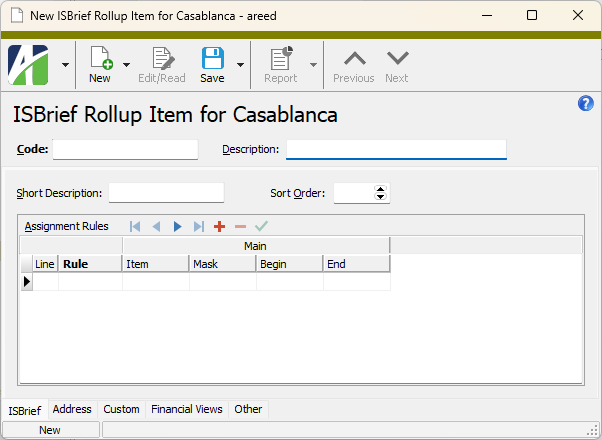
Rollup Item table
Use the table to define the combinations of segment items and/or rollup items to include in this rollup item. You must define at least one rule.
Rule
The rule to apply on the items specified on the line. Valid options are:
If no rule type is selected, ActivityHD defaults to Include.
Note
If an include rule and exclude rule both reference the same item, the exclude rule will be followed. For example, if one rule includes accounts with a main segment in the range 1500-1599, and another rule excludes accounts assigned a main segment of 1527, then the rollup will include accounts with main segments 1500-1526 and 1528-1599.
If you are designating a specific segment item or rollup item, the segment item or rollup item to include in this rollup item.
Press F3 to look up the value.
If a value is already selected, you can press F4 to open the record in its native editor.
Mask
If you are selecting segment items or rollup items by segment item mask or by rollup item mask, enter the mask to use to select the items to include in this rollup item. Use this option when the items you are rolling up have common characters but are not in a particular order.
Press F3 to look up the value.
If a value is already selected, you can press F4 to open the record in its native editor.
Begin
If you are selecting a range of segment items or rollup items, enter the first segment item or rollup item of the range of items to include in this rollup item.
Press F3 to look up the value.
If a value is already selected, you can press F4 to open the record in its native editor.
End
If you are selecting a range of segment items or rollup items, enter the last segment item or rollup item of the range of items to include in this rollup item.
Press F3 to look up the value.
If a value is already selected, you can press F4 to open the record in its native editor.
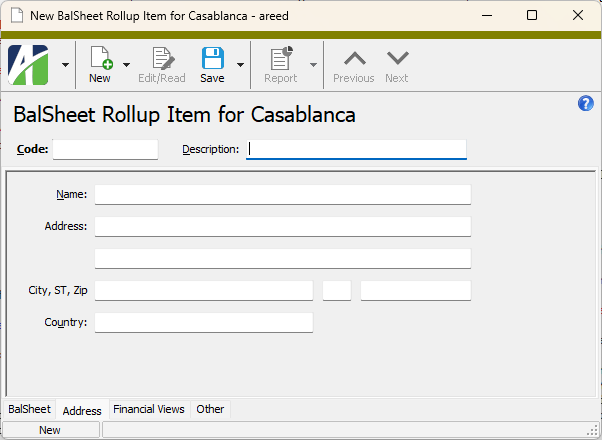
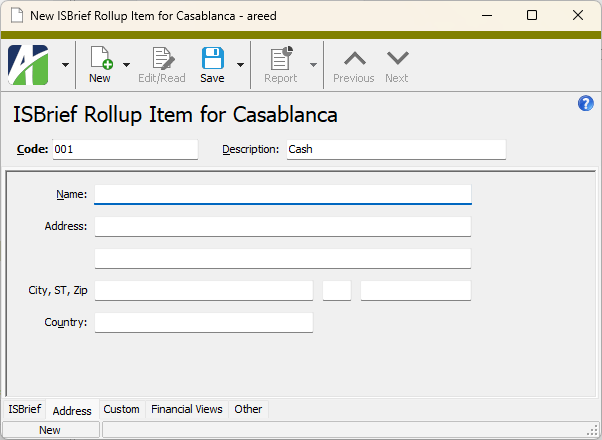
Address tab
Enter information on this tab only if the rollup item represents a location such as a region or store number.
Name
Enter the contact name associated with the location.
Address Line 1
Enter the first line of the address for the location.
Address Line 2
Enter the second line of the address for the location.
City/State/Zip
Enter the city, state abbreviation, and Zip Code of the location.
Country
Enter the country of the location.
Custom tab
This tab is visible if custom fields exist for the entity. At a minimum, if there are custom fields, a Fields subtab will be present. One or more additional categories of subtabs may also be visible.
Fields subtab
This tab prompts for values for any custom fields set up for entity records of this entity type. Respond to the prompts as appropriate.
References subtab
This tab is visible if other records reference the current record.
Reference
From the drop-down list, select the custom field to view references for. Reference custom fields have the following format: PackageName.EntityName.CustomFieldName.
Example
Suppose a custom field exists on PRCodes that references an ARCode. On the ARCode record, on the Custom > References subtab, you can view all the PRCodes which reference that ARCode.
Exchange Folder subtab
This tab is visible only if you set up a custom field with a data type of "Exchange Folder". The label on this tab is the name assigned to the custom field.
This tab shows the contents of the specified Exchange folder.
File subtab
This tab is visible only if you set up a custom field with a data type of "File". The label on the tab is the name assigned to the custom field.
This tab renders the contents of the specified file according to its file type.
Internet Address subtab
This tab is visible only if you set up a custom field with a data type of "Internet Address". The label on this tab is the name assigned to the custom field.
This tab shows the contents of the specified web page.
Network Folder subtab
This tab is visible only if you set up a custom field with a data type of "Network Folder". The label on this tab is the name assigned to the custom field.
This tab shows the contents of the specified network folder.
Chart of Accounts tab
The Chart of Accounts pane shows the Accounts HD view filtered to show all accounts associated with the selected rollup item.
Double-click a row in the pane to drill down to its record in the Account window.
Journal Detail tab
The Journal Detail pane shows the Journal Detail HD view filtered to show all journal detail lines for accounts associated with the rollup item.
Double-click a row in the pane to drill down to its record in the Journal Detail window.
Financial Views tab
Period
The reporting period selected for the financial view. To specify an explicit reporting period or to select or enter a relative period expression, click  to open the Calendar Period dialog. An asterisk (*) after the period name indicates a relative period expression is applied.
As of
The date through which to include postings in the financial view. All postings after the as of date are ignored. The as of date must fall between the current period begin and end dates. Leave the field blank to include all postings for the specified period.
Include Unmerged
Mark this checkbox to include unmerged entries in the totals given.
Financial View Items tabs
to open the Calendar Period dialog. An asterisk (*) after the period name indicates a relative period expression is applied.
As of
The date through which to include postings in the financial view. All postings after the as of date are ignored. The as of date must fall between the current period begin and end dates. Leave the field blank to include all postings for the specified period.
Include Unmerged
Mark this checkbox to include unmerged entries in the totals given.
Financial View Items tabs
One tab appears in this area for each active account-level financial view. Select the tab for the financial view you want to view totals for.
Depending on how the columns in a financial view are defined, you can view rollup item totals such as period beginning balance, period activity, period ending balance, year-to-date activity, activity for the month, activity for the quarter, etc. Use the filters above the tabs to select the period to view totals for and to include or exclude unmerged entries.
Double-click a row in the pane to drill down to its record in the Financial View Item window, then highlight a total to view the journal detail entries which comprise the total.
Example
Suppose you have a rollup named "Income Statement" which defines the line items on your income statement. You can create a financial view which iterates the Income Statement rollup and the Department segment. This financial view will show the income statement line items broken down by department. For the purpose of this example, we'll call this financial view "Income Statement by Department". If you open a specific Income Statement rollup item from the HD view, the Financial Views tab will have a subtab named "Income Statement by Department" which is filtered for the current income statement item. The subtab shows the department subtotals for that particular item. You can change the accounting period you are viewing by selecting new values in the Period field at the top of the tab.
The Attachments tab is visible if any record for a given entity has an attachment. If the Attachments tab is not visible, this implies that no record of the entity type has an attachment on it; however, once an attachment is added to any record of the entity type, the Attachments tab will become available.
Attachments
The list box shows the files which are attached to the current record. Highlight a file name to preview the file in the adjacent pane. Double-click a file name to open the file in its native editor.
Preview pane
If a file name is highlighted in the Attachments list box, this pane shows a preview of the file contents. Some file types cannot be previewed but can be double-clicked to open in their native editor.
Other tab
Memo tab
To include additional information about this record not collected elsewhere, enter it in this text box. This area supports common keyboard shortcuts such as Ctrl+C to copy and Ctrl+V to paste.
Timestamps tab
This tab shows the user who created this record and the date and time of creation as well as the user, date, and time of the latest modification to the record.
 Create a rollup item
 . The New Rollup Item window opens.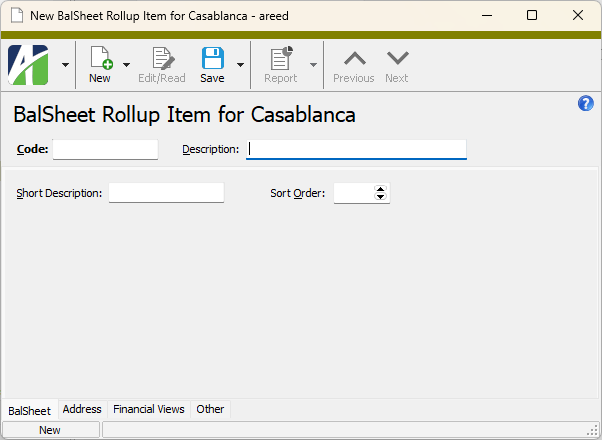
 , or open the rollup item and select
  > Edit > Delete. In either case,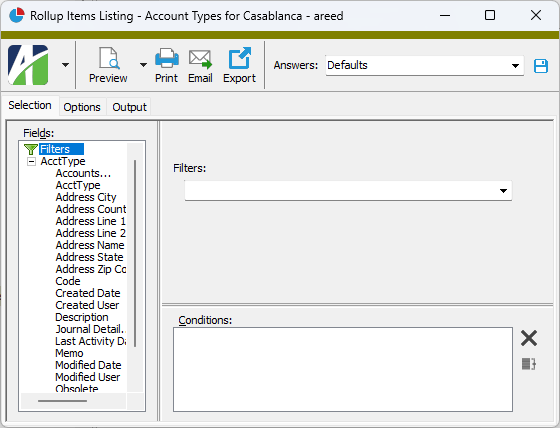
 .
.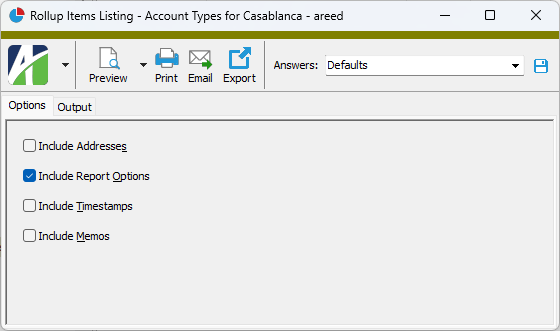
 - Provides access to two preview options.
 - Opens the Print dialog so that you can select and configure a printer and then print a paper copy of the report.
 - Opens the
  - Opens a drop-down menu with two export options: