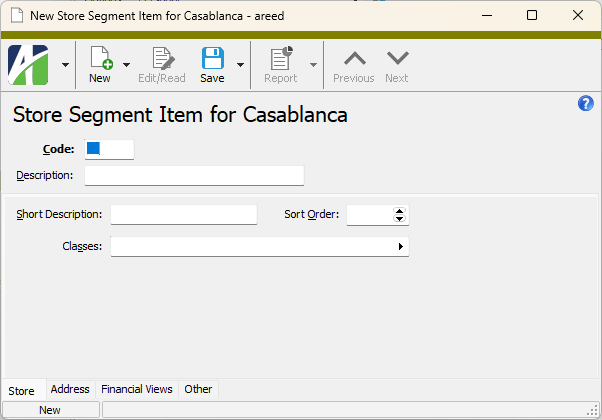
Segment Item Record ID
Code
A unique code (with respect to the segment) for the segment item. You must adhere to the data type and size specified for segment item codes on the segment. The code is used when creating new accounts.
Description
A description of the segment item. A description can consist of up to 60 characters.
[Segment Name] tab
Short Description
A short description of the segment item.
Sort Order
Select the order in which you want the segment item to appear in the HD view and on financial view reports when the "Sort Order" column is included and used to control line order. If no sort order is specified on a new segment item, it is automatically added to the end of the sort order.
Translation Method
This field is visible only for segment items of a primary segment. Translation methods support multi-currency operations. The translation method is used to translate financial statements from one currency to another. The value in this field indicates the translation method in effect for the segment item. Valid values are:
- Current. Also called "simple" translation. Uses the rate in effect at the end of the accounting period.
- Historical. Uses the rate in effect on the transaction date.
- Average. Uses a per period average rate. The average is calculated using this formula:
SUM(rates)/number of rates
- Days Weighted Average. Uses a per period weighted average rate. The weighted average is calculated using this formula:
SUM(Rate*Days)/Sum(Days)
The calendar used to determine the periods is the calendar associated with each account if one of the account segments requires a calendar; otherwise, the default calendar is used.
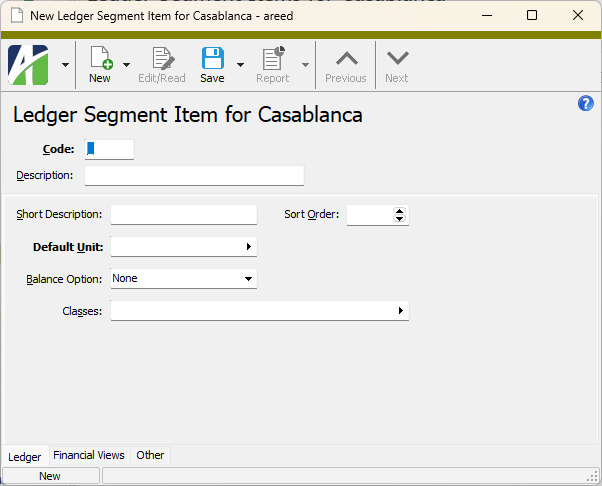
Default Unit
This field is visible only for segment items of a ledger segment. Select the unit to assign by default to accounts which contain this ledger segment item.
Balance Option
This field is visible only for segment items of a ledger segment. From the drop-down list, select the basis for balancing accounts with this ledger segment item. Your options are:
- None. Overrides the balancing requirements for all accounts with this ledger segment item. For instance, you may want to override balancing options for statistical and budget ledgers.
- Period. Requires all journal entries with this ledger segment item to be in balance on a period basis.
- Daily. Requires all journal entries with this ledger segment item to be in balance on a daily basis.
Classes
The segment item class(es) associated with the segment item. Segment item classes are primarily used to define account rules, but they can also be used to organize segment items. The advantage of using segment item classes when you define account rules is that the account rules do not require updating when new segment items are created. If you enter multiple segment item classes, separate them with commas. If you use the Find dialog box to make your selections, you can use Ctrl and/or Shift selection to select multiple segment item classes.
Press F3 to look up the value.
If a value is already selected, you can press F4 to open the record in its native editor.
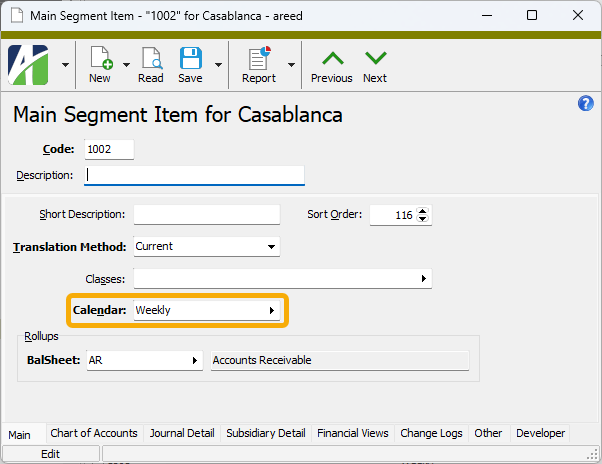
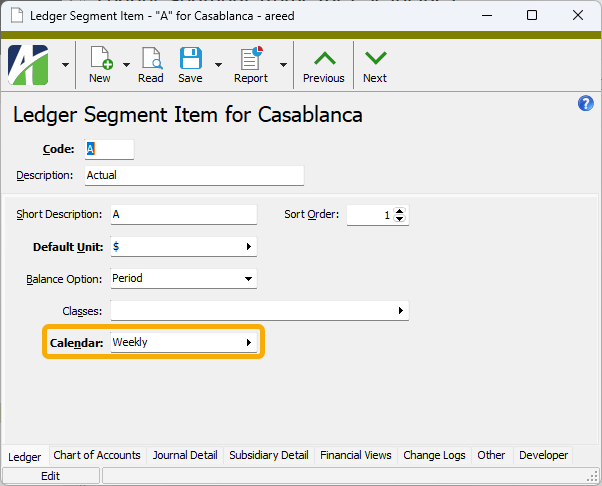
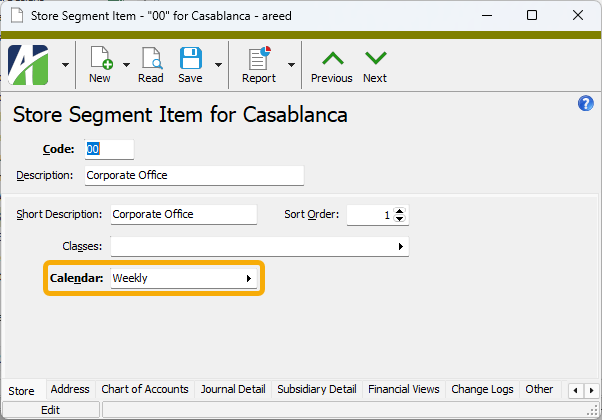
Calendar
This field is visible only if the Require Calendar? checkbox is marked on the segment. The default calendar is the calendar specified on the segment. This field determines the calendar to load as the default calendar for all account numbers that have this segment item. The calendar assigned to an account is used to determine whether a journal entry can be made to the account for a specified accounting period. If a different calendar is needed for this segment item, it can be selected here.
When would I specify a different calendar?
When a database has multiple fiscal years you may need to create separate posting rules/fiscal years per company. To accommodate this, set up the segment to require a calendar on the segment and then specify the calendar to use on the individual company segment items. Note that balancing is controlled by the setting on ledger segment items.
Press F3 to look up the value.
If a value is already selected, you can press F4 to open the record in its native editor.
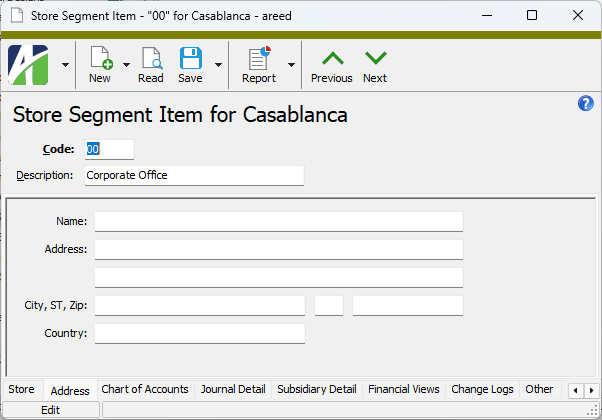
Address tab
This tab is visible only for segment items of an auxiliary segment. Enter information on this tab only if the segment item represents a location.
Name
The contact name associated with the location.
Address Line 1
The first line of the address for the location.
Address Line 2
The second line of the address for the location.
City/State/Zip
The city, state abbreviation, and Zip Code of the location.
Country
The country of the location.
Custom tab
This tab is visible if custom fields exist for the entity. At a minimum, if there are custom fields, a Fields subtab will be present. One or more additional categories of subtabs may also be visible.
Fields subtab
This tab prompts for values for any custom fields set up for entity records of this entity type. Respond to the prompts as appropriate.
References subtab
This tab is visible if other records reference the current record.
Reference
From the drop-down list, select the custom field to view references for. Reference custom fields have the following format: PackageName.EntityName.CustomFieldName.
Example
Suppose a custom field exists on PRCodes that references an ARCode. On the ARCode record, on the Custom > References subtab, you can view all the PRCodes which reference that ARCode.
Exchange Folder subtab
This tab is visible only if you set up a custom field with a data type of "Exchange Folder". The label on this tab is the name assigned to the custom field.
This tab shows the contents of the specified Exchange folder.
File subtab
This tab is visible only if you set up a custom field with a data type of "File". The label on the tab is the name assigned to the custom field.
This tab renders the contents of the specified file according to its file type.
Internet Address subtab
This tab is visible only if you set up a custom field with a data type of "Internet Address". The label on this tab is the name assigned to the custom field.
This tab shows the contents of the specified web page.
Network Folder subtab
This tab is visible only if you set up a custom field with a data type of "Network Folder". The label on this tab is the name assigned to the custom field.
This tab shows the contents of the specified network folder.
Chart of Accounts tab
The Chart of Accounts pane shows the Accounts HD view filtered to show all accounts containing the selected segment item.
Double-click a row in the pane to drill down to its record in the Account window.
Journal Detail tab
The Journal Detail pane shows the Journal Detail HD view filtered to show all journal detail lines for accounts with the selected segment item.
Double-click a row in the pane to drill down to its record in the Journal Detail window.
Financial Views tab
Period
The reporting period selected for the financial view. To specify an explicit reporting period or to select or enter a relative period expression, click  to open the Calendar Period dialog. An asterisk (*) after the period name indicates a relative period expression is applied.
As of
The date through which to include postings in the financial view. All postings after the as of date are ignored. The as of date must fall between the current period begin and end dates. Leave the field blank to include all postings for the specified period.
Include Unmerged
Mark this checkbox to include unmerged entries in the totals given.
Financial View Items tabs
to open the Calendar Period dialog. An asterisk (*) after the period name indicates a relative period expression is applied.
As of
The date through which to include postings in the financial view. All postings after the as of date are ignored. The as of date must fall between the current period begin and end dates. Leave the field blank to include all postings for the specified period.
Include Unmerged
Mark this checkbox to include unmerged entries in the totals given.
Financial View Items tabs
One tab appears in this area for each active account-level financial view. Select the tab for the financial view you want to view totals for.
Depending on how the columns in a financial view are defined, you can view segment item totals such as period beginning balance, period activity, period ending balance, year-to-date activity, activity for the month, activity for the quarter, etc. Use the filters above the tabs to select the period to view totals for and to include or exclude unmerged entries.
Double-click a row in the pane to drill down to its record in the Financial View Item window, then highlight a total to view the journal detail entries which comprise the total.
Example
Suppose you have a rollup named "Income Statement" which defines the line items on your income statement. You can create a financial view which iterates the Income Statement rollup and the Department segment. This financial view will show the income statement line items broken down by department. For the purpose of this example, we'll call this financial view "Income Statement by Department". If you open a specific Income Statement rollup item from the HD view, the Financial Views tab will have a subtab named "Income Statement by Department" which is filtered for the current income statement item. The subtab shows the department subtotals for that particular item. You can change the accounting period you are viewing by selecting new values in the Period field at the top of the tab.
The Attachments tab is visible if any record for a given entity has an attachment. If the Attachments tab is not visible, this implies that no record of the entity type has an attachment on it; however, once an attachment is added to any record of the entity type, the Attachments tab will become available.
Attachments
The list box shows the files which are attached to the current record. Highlight a file name to preview the file in the adjacent pane. Double-click a file name to open the file in its native editor.
Preview pane
If a file name is highlighted in the Attachments list box, this pane shows a preview of the file contents. Some file types cannot be previewed but can be double-clicked to open in their native editor.
Other tab
Memo tab
To include additional information about this record not collected elsewhere, enter it in this text box. This area supports common keyboard shortcuts such as Ctrl+C to copy and Ctrl+V to paste.
Timestamps tab
This tab shows the user who created this record and the date and time of creation as well as the user, date, and time of the latest modification to the record.
 Create a segment item
 . The New Segment Item window opens.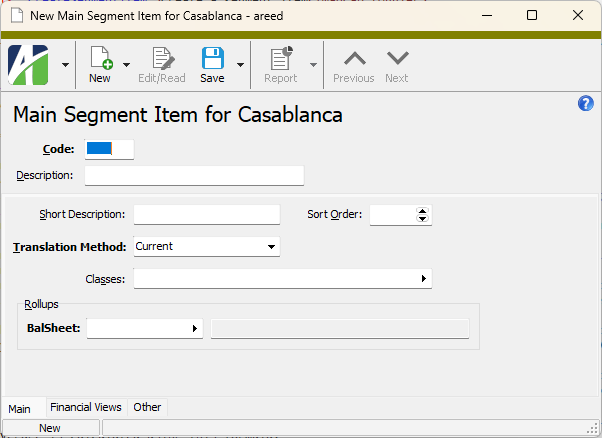
 .
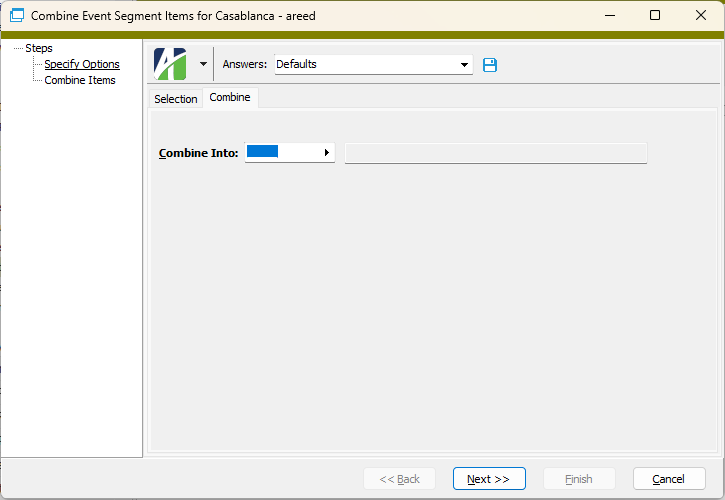
.
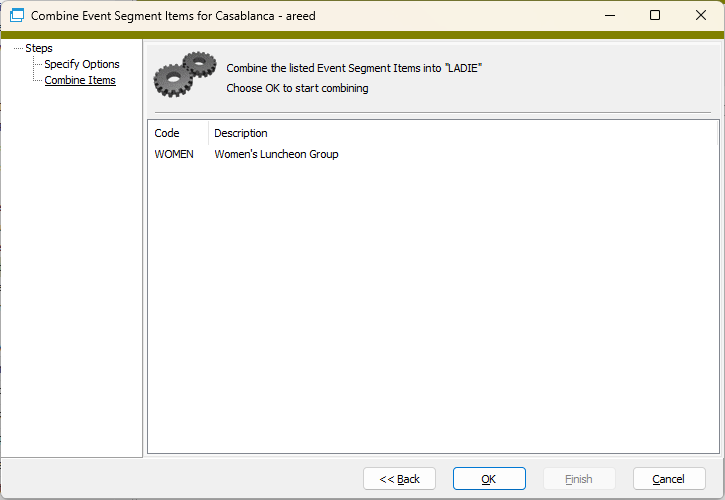
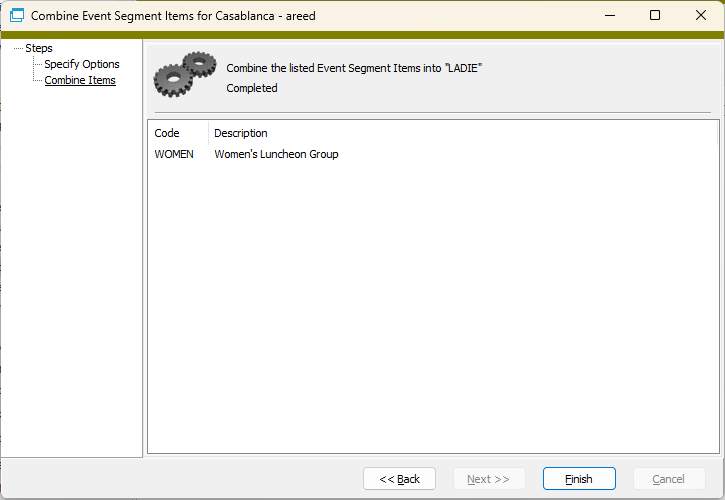
 , or open the segment item record and select
  > Edit > Delete. In either case,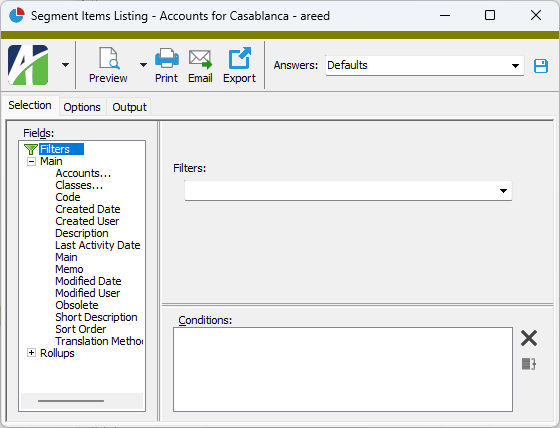
 .
.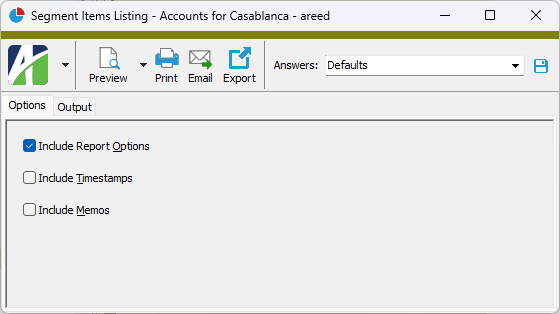
 - Provides access to two preview options.
 - Opens the Print dialog so that you can select and configure a printer and then print a paper copy of the report.
 - Opens the
  - Opens a drop-down menu with two export options: