Segment Record ID
Name
A unique name for the segment.
Note
While spaces are allowed in segment names, AccountingWare discourages this practice because it introduces avoidable complexity when designing financials.
Order Number
If the segment is activated, this field displays the position of the segment in the account number format. You can use the Reorder Segments function to change the order of segments in the chart of accounts.
Segment tab
Plural Name
The plural form of the segment name that displays on the folder for this segment and in other places in ActivityHD where the segment name is used.
Segment Type
Select the type of segment to create. The segment type affects how segment items are defined, how segments behave, and chart of accounts generation. Your options are:
- Primary. Use this type for your main account segment. Members of this segment represent your main breakdown of assets, liabilities, capital, revenue, and expenses. You must have exactly one primary segment.
- Ledger. The ledger segment associates a data type with each account in the general ledger. You can require all accounts in a particular ledger to be in balance, or forgo that requirement for statistics and budget ledgers. Units can be specified on ledger segment items. You must have exactly one ledger segment.
- Auxiliary. Auxiliary segments let you expand accounts to reflect the diversification of your organization. When appropriate, you can specify address information for auxiliary segments that can be printed in the headings of user-designed reports. You can define up to ten auxiliary segments.
Note
Once a segment is saved, the segment type cannot be changed.
Note
The data type of a segment can be changed from numeric to alphanumeric with impunity. However, you can only change the data type from alphanumeric to numeric if all existing segment item codes are fully numeric.
This checkbox is enabled if no other segment requires a calendar and the Require Balance? checkbox is marked. Mark this checkbox if you want the segment to require a calendar. Since only one segment at a time can require a calendar, this checkbox cannot be edited if another segment already has the Require Calendar? flag marked.
When a calendar is required on a segment, a Calendar field is visible on each of the segment's segment items so that a different calendar can be specified by segment item if needed.
If no segment in the chart of accounts requires a calendar, the default GL calendar is used.
When would I use this option?
When a database has multiple fiscal years you may need to create separate posting rules/fiscal years per company. To accommodate this, set up the segment to require a calendar on the segment and then specify the calendar to use on the individual company segment items. Note that balancing is controlled by the setting on ledger segment items.
Calendar
This field is enabled if the Require Calendar? checkbox is marked. Select the calendar to use for this segment. This is the calendar which loads on each segment item by default; however, the calendar can be overridden on a segment-item-by-segment-item basis.
Press F3 to look up the value.
If a value is already selected, you can press F4 to open the record in its native editor.
Create Indexes
This checkbox is marked by default. When marked, indexes are automatically created on database columns for segments either at the account level or the journal detail level. Using this option has the potential to dramatically improve performance for queries which limit by those values. If you do not want indexes created automatically or have not experienced performance issues, clear the checkbox.
Custom tab
This tab is visible if custom fields exist for the entity. At a minimum, if there are custom fields, a Fields subtab will be present. One or more additional categories of subtabs may also be visible.
Fields subtab
This tab prompts for values for any custom fields set up for entity records of this entity type. Respond to the prompts as appropriate.
References subtab
This tab is visible if other records reference the current record.
Reference
From the drop-down list, select the custom field to view references for. Reference custom fields have the following format: PackageName.EntityName.CustomFieldName.
Example
Suppose a custom field exists on PRCodes that references an ARCode. On the ARCode record, on the Custom > References subtab, you can view all the PRCodes which reference that ARCode.
Exchange Folder subtab
This tab is visible only if you set up a custom field with a data type of "Exchange Folder". The label on this tab is the name assigned to the custom field.
This tab shows the contents of the specified Exchange folder.
File subtab
This tab is visible only if you set up a custom field with a data type of "File". The label on the tab is the name assigned to the custom field.
This tab renders the contents of the specified file according to its file type.
Internet Address subtab
This tab is visible only if you set up a custom field with a data type of "Internet Address". The label on this tab is the name assigned to the custom field.
This tab shows the contents of the specified web page.
Network Folder subtab
This tab is visible only if you set up a custom field with a data type of "Network Folder". The label on this tab is the name assigned to the custom field.
This tab shows the contents of the specified network folder.
[Segment Names] tab
The [Segment Names] pane shows the [Segment Name] Segment Items HD view showing all segment items for the selected segment.
Double-click a row in the pane to drill down to its record in the [Segment Name] Segment Item window.
[Segment Name] Classes tab
The [Segment Name] Classes pane shows the segment's Classes HD view showing all classes for the selected segment.
Double-click a row in the pane to drill down to its record in the [Segment Name] Class window.
The Attachments tab is visible if any record for a given entity has an attachment. If the Attachments tab is not visible, this implies that no record of the entity type has an attachment on it; however, once an attachment is added to any record of the entity type, the Attachments tab will become available.
Attachments
The list box shows the files which are attached to the current record. Highlight a file name to preview the file in the adjacent pane. Double-click a file name to open the file in its native editor.
Preview pane
If a file name is highlighted in the Attachments list box, this pane shows a preview of the file contents. Some file types cannot be previewed but can be double-clicked to open in their native editor.
Other tab
Memo tab
To include additional information about this record not collected elsewhere, enter it in this text box. This area supports common keyboard shortcuts such as Ctrl+C to copy and Ctrl+V to paste.
Timestamps tab
This tab shows the user who created this record and the date and time of creation as well as the user, date, and time of the latest modification to the record.
 Create a segment
 . The New Segment window opens.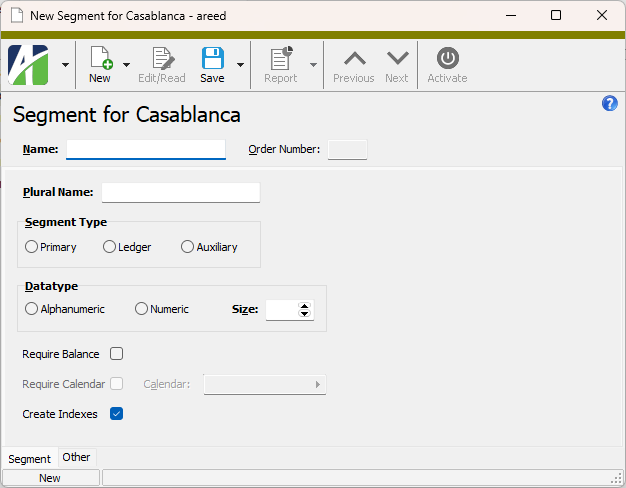
 .
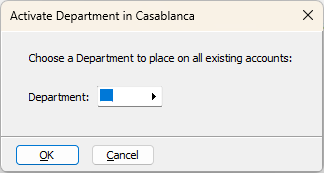
. 
 .
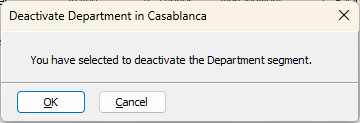
. 
 . The Resize Segments pop-up window opens.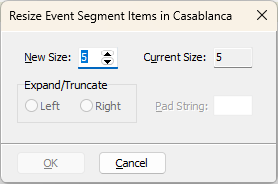
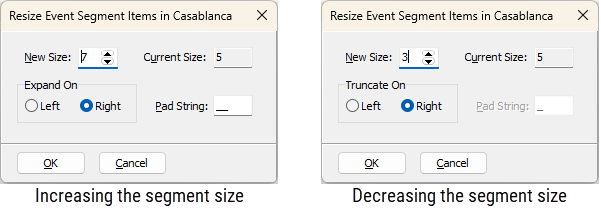
 . The Reorder Segments pop-up window opens.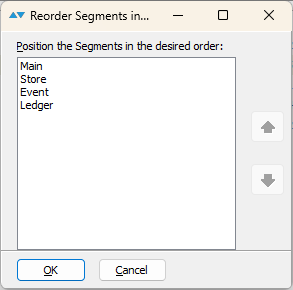
 and
and  to move the segment to the desired position.
 .
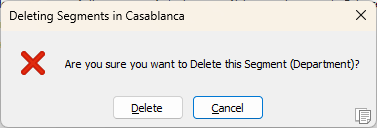
. 
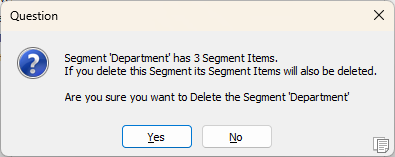
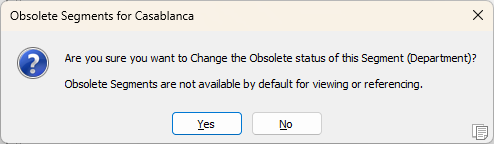
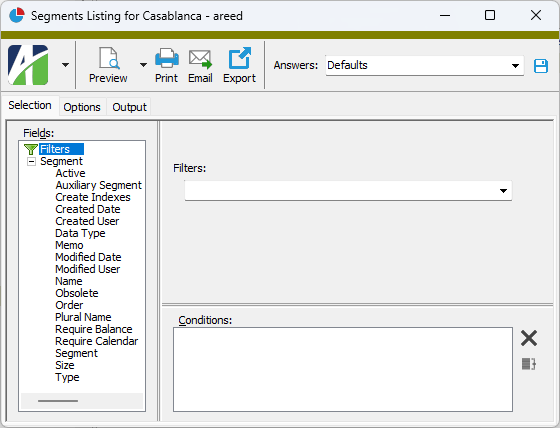
 .
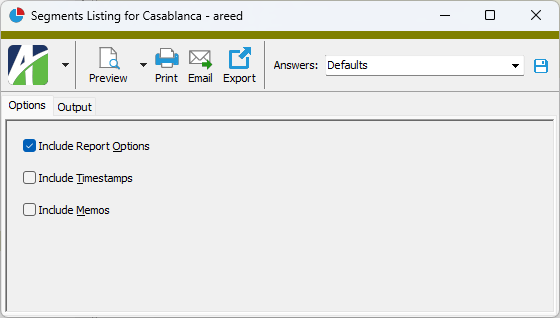
.
 - Provides access to two preview options.
 - Opens the Print dialog so that you can select and configure a printer and then print a paper copy of the report.
 - Opens the
  - Opens a drop-down menu with two export options: