Tax Rate Record ID
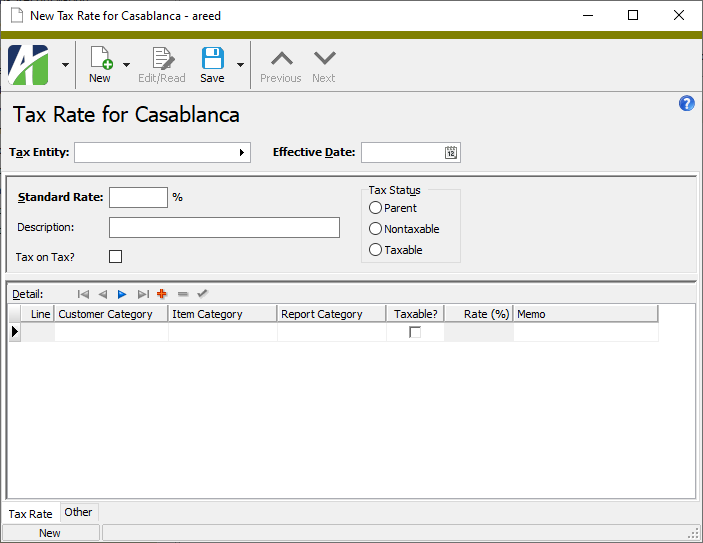
Tax Entity
The tax entity associated with the tax rate.
Press F3 to look up the value.
If a value is already selected, you can press F4 to open the record in its native editor.
Effective Date
The date that the tax rate takes effect. This date is compared to the invoice date to determine the correct rate to apply on a given invoice.
Tip
If you are adding a tax rate record with a new effective date and the previous tax rate for the tax entity had exceptions defined which you need to carry over, use the New Copy feature to seamlessly recreate the exceptions for the new tax rate.
Tax Rate tab
Standard Rate
The standard tax rate for the tax entity expressed as a percentage. If rates vary by customer tax category and/or item tax category, enter those rate exceptions in the Detail table.
Example
If the tax rate for the tax entity is 6.25%, enter 6.25.
Description
A description of the tax rate.
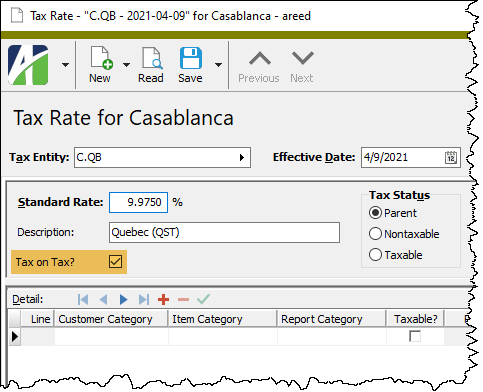
Tax on Tax?
If this checkbox is marked, tax is calculated for the tax entity based on the taxable invoice amount plus any tax calculated for the parent tax jurisdiction(s).
Note
Certain Canadian provinces calculate PST based on the taxable invoice amount plus any calculated Canadian GST. In this case the Tax on Tax? flag for the PST tax rate would be marked.
When tax on tax is applied, the tax entity's marginal tax rate is adjusted to determine its effective tax rate.
Example
Suppose Canadian GST has a tax rate of 5% and a province has a PST rate of 7% that is applied after adding the Canadian GST. On a $100.00 invoice, this yields the following calculation:
	Canadian GST     $100.00 * .05 =  $5.00
	Province PST     $105.00 * .07 =  $7.35
	                 ----------------------
	Total Tax                        $12.35
ActivityHD adjusts the province PST rate to obtain the same result:
	Effective Rate = MarginalRate * (1 + PreviousRate)
	               = .07 * (1.05)
	               = .0735

	Canadian GST     $100.00 * .05   =  $5.00
	Province PST     $105.00 * .0735 =  $7.35
	                 ------------------------
	Total Tax                          $12.35
Tax Status
The tax status for the tax entity. This setting determines whether tax is calculated for the tax entity. Your options are:
- Parent. The tax entity inherits its tax status from its parent entity.
- Taxable. The tax status for the tax entity is taxable by default. Tax is calculated based on the tax rates and tax rules defined.
- Nontaxable. The tax status for the tax entity is nontaxable by default. No tax is calculated for the tax entity or any lower level entities that inherit their tax status from the tax entity.
Notes
The Tax Status setting allows you to track the actual sales tax rate for a tax entity even though you do not collect and remit sales tax to the tax entity.
The built-in USA tax entity is nontaxable. Typically, all state tax entities are set to "Taxable" and all subordinate entities are set to "Parent". So, if you are exempt from handling sales tax for a particular state, you can set the state's tax entity to "Nontaxable" and all its subordinate entities (flagged with "Parent") are automatically nontaxable as well.
Use the table to enter exceptions to the standard tax rate that are based on customer tax category or item tax category. Taxability defined at this level overrides the global taxability defined on the customer tax category or item tax category.
The Detail table also determines reporting breakdown on the Tax Liability Report using report categories. In addition, report categories can be defined for reporting sales and tax liabilities based upon the reporting requirements of your various tax jurisdictions.
Examples
Example 1. Suppose a jurisdiction's tax rate for most items is 2.5%. Some items, however, are taxed at 3.0%. To handle this circumstance, create a tax rate with a standard rate of 2.5%. In the Detail table, enter detail lines for each item tax category exception and assign a special rate of 3.0%.
Example 2. Some customer tax categories may be taxable in some jurisdictions and not taxable in others. Suppose the GOVERNMENT customer tax category is nontaxable in all your reporting jurisdictions except one. On the GOVERNMENT customer tax category, ensure that the Taxable checkbox is unmarked. On the tax rate for the jurisdiction that does tax government customers, create a line in the Detail table with a customer tax category of GOVERNMENT, a blank item tax category, and mark the Taxable? checkbox. These settings cause GOVERNMENT to be taxable at this level and for all lower levels for the jurisdiction. If a lower level tax entity needs GOVERNMENT to be nontaxable, change the taxability to nontaxable at that lower level and its lower level entities in turn inherit its nontaxable status.
Since most taxability is set at the state level, it is common to set taxability at the state level for customer and tax item categories and to allow the lower level entities, such as county and city, to inherit those settings.
Example 3. You can specify taxability and rates for specific combinations of customer tax categories and item tax categories. For instance, you could specify a special tax rate for the customer tax category GOVERNMENT CONTRACTOR and item tax category HIGH DOLLAR to assess the special rate on big-ticket items for government contractors.
Keep in mind that exceptions to the standard rate that are defined in this table apply only to the current tax entity; taxability changes and report category assignments affect the current entity and its lower level entities.
 Click here to learn more about the defined precedence for rate override, taxability, and report category.
Inheritance
Taxability and report categories defined in tax rate detail for a particular tax entity ARE inherited by lower level tax entities; overrides of the standard rate ARE NOT inherited—they affect only the tax entity with the rate override.
Precedence
At each level of the tax entity hierarchy, ActivityHD applies a defined order of precedence to determine rate override, taxability, and reporting category. The following table delineates the precedence logic. The applicable level with the lowest precedence "wins".
| 1 |
Taxable or Nontaxable |
Taxable or Nontaxable |
Y |
Y |
Y |
N |
N/A |
From Report Category |
N |
N/A |
| N |
N |
N/A |
"Uncategorized Nontaxable" |
N |
N/A |
| 2 |
Taxable or Nontaxable |
Taxable or Nontaxable |
Y |
Y |
Y |
Y |
Y |
From Report Category |
Y |
Detail Rate |
| N |
Y |
Y |
"Uncategorized Taxable" |
Y |
Detail Rate |
| Y |
Y |
N |
From Report Category |
Y |
Standard Rate |
| N |
Y |
N |
"Uncategorized Taxable" |
Y |
Standard Rate |
| 3 |
Taxable or Nontaxable |
Taxable or Nontaxable |
Y |
N |
Y |
N |
N/A |
From Report Category |
N |
N/A |
| N |
N |
N/A |
"Uncategorized Nontaxable" |
N |
N/A |
| 4 |
Taxable |
Taxable or Nontaxable |
N |
Y |
Y |
N |
N/A |
From Report Category |
N |
N/A |
| N |
N |
N/A |
"Uncategorized Nontaxable" |
N |
N/A |
| 5 |
Taxable or Nontaxable |
Taxable |
Y |
N |
Y |
Y |
Y |
From Report Category |
Y |
Detail Rate |
| N |
Y |
Y |
"Uncategorized Taxable" |
Y |
Detail Rate |
| 6 |
Taxable |
Taxable or Nontaxable |
N |
Y |
Y |
Y |
Y |
From Report Category |
Y |
Detail Rate |
| N |
Y |
Y |
"Uncategorized Taxable" |
Y |
Detail Rate |
| 7 |
Taxable or Nontaxable |
Taxable |
Y |
N |
Y |
Y |
N |
From Report Category |
Y |
Standard Rate |
| 8 |
Taxable |
Taxable or Nontaxable |
N |
Y |
Y |
Y |
N |
From Report Category |
Y |
Standard Rate |
| 9 |
Nontaxable |
Taxable or Nontaxable |
N |
N |
N |
N |
N |
"Uncategorized Nontaxable" |
N |
N/A |
| Taxable |
Nontaxable |
N |
N |
N |
N |
N |
"Uncategorized Nontaxable" |
N |
N/A |
| Taxable |
Taxable |
N |
N |
N |
N |
N |
"Uncategorized Taxable" |
Y |
Standard Rate |
Customer Category
If the subject of the rate exception is the customer or both the item and the customer, select the customer tax category for the exception.
Press F3 to look up the value.
If a value is already selected, you can press F4 to open the record in its native editor.
Item Category
If the subject of the rate exception is the item or both the item and the customer, select the item tax category for the exception.
Press F3 to look up the value.
If a value is already selected, you can press F4 to open the record in its native editor.
Report Category
The report category to use to report sales that are subject to the sales tax rate on this detail line. Report categories are not maintained in a separate table; simply enter a category name here to define it. If you want the Tax Liability Report to show these sales as **Uncategorized Taxable** or **Uncategorized Nontaxable**, leave this column blank. Report categories are typically only needed in multi-state or multi-province reporting where sales need to be reported differently between state jurisdictions based on groups of customers and/or items.
Notes
You can also report sales on the Tax Liability Report based on customer tax category or item tax category. To do so, mark the Replace Blank Report Category with Selected Customer/Item Category checkbox when you set up options for the Tax Liability Report.
If the detail line specifies both a customer tax category and item tax category, you should define a report category so that the sales can be distinguished on the Tax Liability Report. Otherwise, the sales are reported under a default category of **Uncategorized Taxable** or **Uncategorized Nontaxable**.
Press F3 to look up the value.
If a value is already selected, you can press F4 to open the record in its native editor.
Taxable?
If this checkbox is marked, indicates that the customer/item tax category combination is taxable at this entity level. Marking the checkbox causes the current entity level and lower levels to be taxable unless this setting is overridden at a lower level. If the customer/tax category combination is not taxable, leave the checkbox cleared. This causes the current entity level and lower levels to be nontaxable unless this setting is overridden at a lower level.
Note
When the same report category is used on multiple detail lines of a tax rate in order to summarize multiple categories of sales for tax reporting, ActivityHD forces the Taxable? flag and rate to be the same on each of those detail lines.
Rate
This column is enabled if the Taxable? checkbox is marked. Enter the rate that applies for the customer/item tax category combination on this detail line if the rate differs from the standard rate.
Memo
Additional information about the tax rate exception if needed.
Custom tab
This tab is visible if custom fields exist for the entity. At a minimum, if there are custom fields, a Fields subtab will be present. One or more additional categories of subtabs may also be visible.
Fields subtab
This tab prompts for values for any custom fields set up for entity records of this entity type. Respond to the prompts as appropriate.
References subtab
This tab is visible if other records reference the current record.
Reference
From the drop-down list, select the custom field to view references for. Reference custom fields have the following format: PackageName.EntityName.CustomFieldName.
Example
Suppose a custom field exists on PRCodes that references an ARCode. On the ARCode record, on the Custom > References subtab, you can view all the PRCodes which reference that ARCode.
Exchange Folder subtab
This tab is visible only if you set up a custom field with a data type of "Exchange Folder". The label on this tab is the name assigned to the custom field.
This tab shows the contents of the specified Exchange folder.
File subtab
This tab is visible only if you set up a custom field with a data type of "File". The label on the tab is the name assigned to the custom field.
This tab renders the contents of the specified file according to its file type.
Internet Address subtab
This tab is visible only if you set up a custom field with a data type of "Internet Address". The label on this tab is the name assigned to the custom field.
This tab shows the contents of the specified web page.
Network Folder subtab
This tab is visible only if you set up a custom field with a data type of "Network Folder". The label on this tab is the name assigned to the custom field.
This tab shows the contents of the specified network folder.
Tax Rate Detail tab
The Tax Rate Detail pane shows the Tax Rate Detail HD view filtered to show all tax rate detail lines for the selected tax rate.
Double-click a row in the pane to drill down to its record in the Tax Rate Detail window.
The Attachments tab is visible if any record for a given entity has an attachment. If the Attachments tab is not visible, this implies that no record of the entity type has an attachment on it; however, once an attachment is added to any record of the entity type, the Attachments tab will become available.
Attachments
The list box shows the files which are attached to the current record. Highlight a file name to preview the file in the adjacent pane. Double-click a file name to open the file in its native editor.
Preview pane
If a file name is highlighted in the Attachments list box, this pane shows a preview of the file contents. Some file types cannot be previewed but can be double-clicked to open in their native editor.
Change Logs tab
This tab is visible if the user has "Change Logs" access to the associated data folder resource.
The Change Logs pane shows the Change Logs HD view filtered to show all change logs for the selected entity record.
Double-click a row in the pane to drill down to its record in the Change Log window.
Other tab
Memo tab
To include additional information about this record not collected elsewhere, enter it in this text box. This area supports common keyboard shortcuts such as Ctrl+C to copy and Ctrl+V to paste.
Timestamps tab
This tab shows the user who created this record and the date and time of creation as well as the user, date, and time of the latest modification to the record.
Developer tab
This tab is visible only when developer features are enabled.
Automation subtab
This subtab shows field names and values for the current data record. Use the information in the subtab to assist when creating automation objects such as bots and import files. The field names and field values can be copied from the text box and pasted directly into your code or application. To copy content from the text box, highlight the content to copy and press Ctrl+C or right-click your selection and select Copy from the context menu.
Export (XML | JSON) subtab
This subtab shows the XML syntax for exporting the selected data record. The syntax can be copied from the text box as an exemplar for creating your own automation objects for bots, import files, ActivWebAPI, etc. To copy content from the text box, highlight the content to copy and press Ctrl+C or right-click your selection and select Copy from the context menu.
Import (XML | JSON) subtab
This subtab allows you to select a file for import and shows the XML syntax for importing data records. Use the subtab to explore the XML syntax for importing data records. In particular, you can investigate the syntax which results when using Data.Import and ActivWebAPI data POST and DELETE routes.
Change Log (XML | JSON) subtab
This subtab is visible only when the Enable Change Logs option is marked in System Options or Company Options (depending on whether the feature applies at the system or the company level). This is the default setting when developer features are enabled.
This subtab allows you to investigate changes to the current data record. The syntax can be copied for use in bots, dashboards, ActivWebAPI, and other automation. To copy content from the text box, highlight the content to copy and press Ctrl+C or right-click your selection and select Copy from the context menu.
Select Statement (SQL) subtab
This subtab allows you to investigate the SQL select statement used to retrieve the current data record. The syntax can be copied as an exemplar for data sources and other automation. To copy content from the text box, highlight the content to copy and press Ctrl+C or right-click your selection and select Copy from the context menu.
 . The New Tax Rate window opens.